Add Triggers to a Task
A task can be executed manually, on a schedule, or triggered by a Qlik Sense app event.
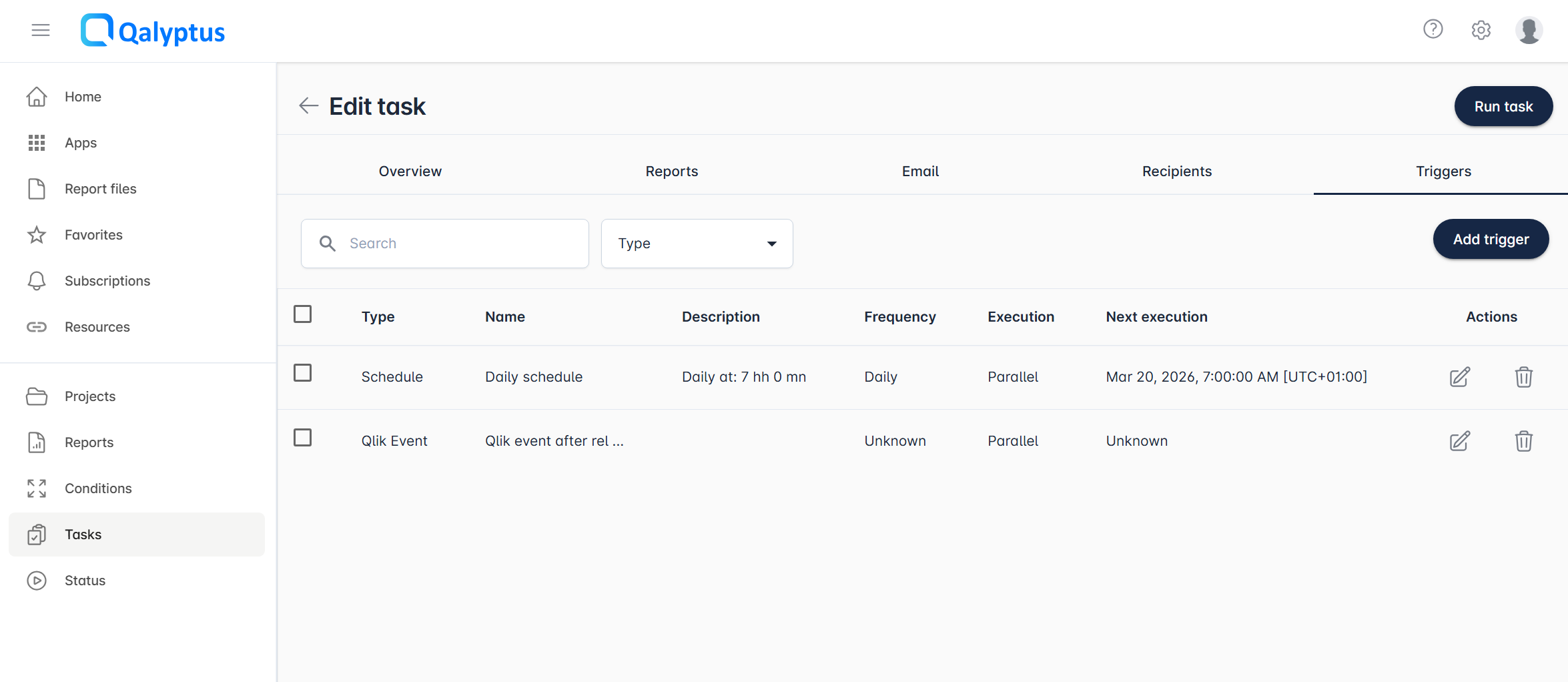
Schedules
To schedule a task to run automatically, assign one or more schedules to it.
- In your task, go to the Triggers tab.
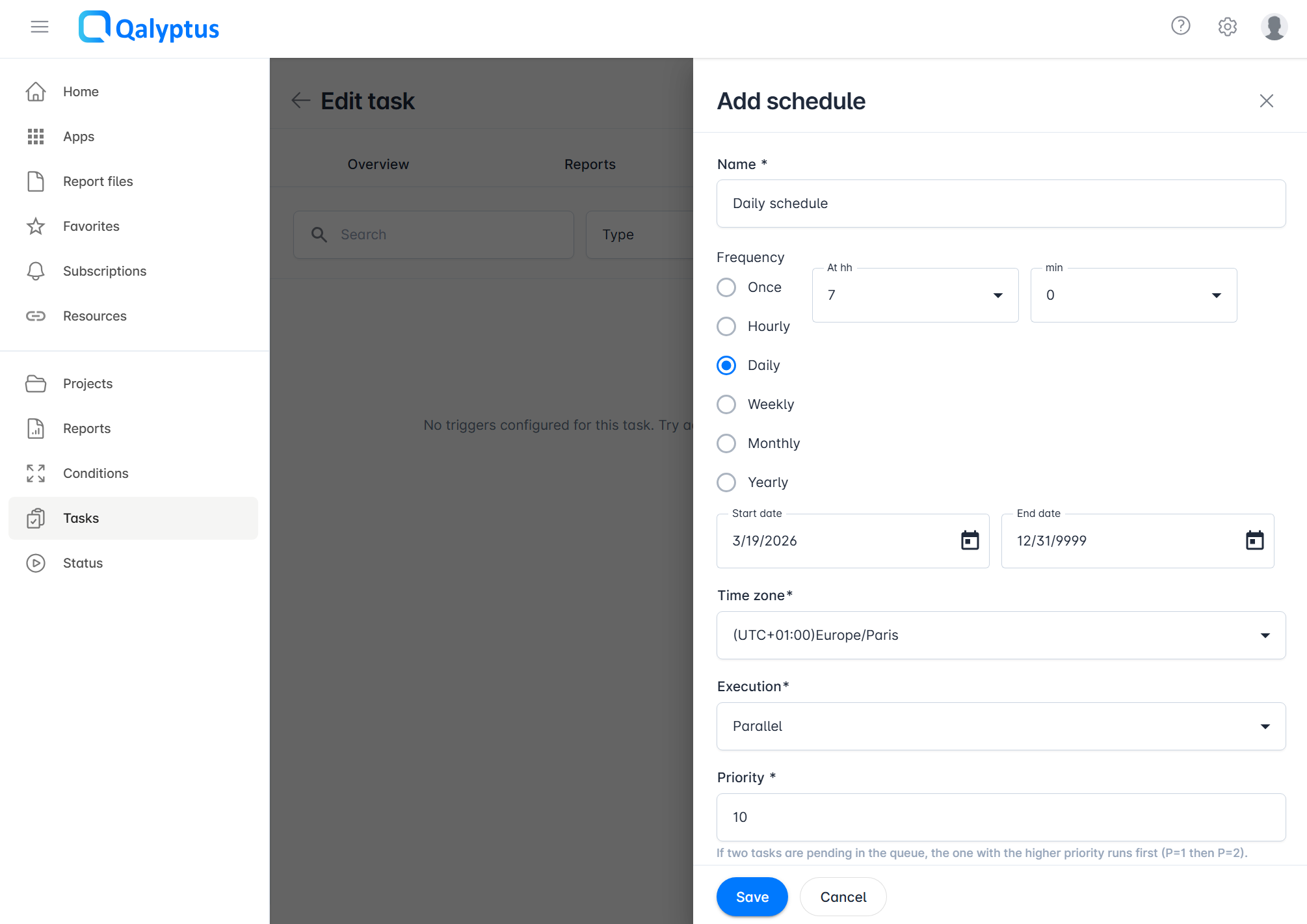
- Click Add trigger > Schedule.
- Enter a Name for the schedule.
- Choose the Frequency: Once, Hourly, Daily, Weekly, Monthly, or Yearly.
- Set the Start and End dates.
- Select your preferred Time zone. The time zone is used to correctly evaluate dates and times in task reports.
- Choose the Execution type (see Execution Type below).
- Set a Priority (see Priority below).
- Click Save.
The scheduled task appears on the Status page under the Scheduled tasks tab.
The task only runs if it is active and the current date falls within the configured start and end date range.
Qlik Events
A Qlik event trigger fires a task automatically when a specific event occurs in a Qlik Sense app, for example, when a reload completes.
- In your task, go to the Triggers tab.
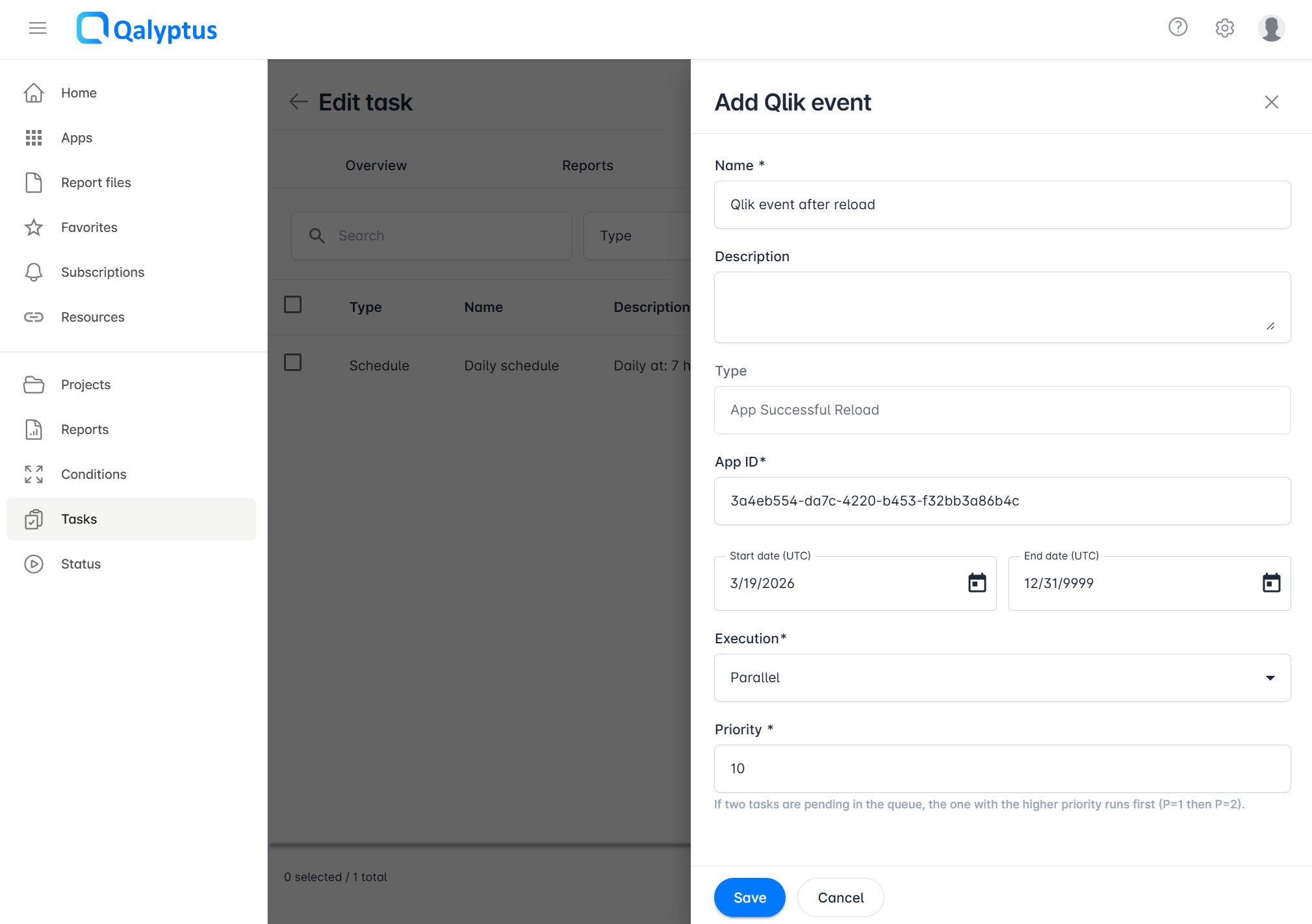
- Click Add trigger > Qlik event.
- Enter a Name.
- Optionally enter a Description.
- Select an Event from the list. Currently only "App Successful Reload" is available.
- Enter the App ID associated with the event.
- Set the Start and End dates.
- Select your preferred Time zone.
- Choose the Execution type (see Execution Type below).
- Set a Priority (see Priority below).
- Click Save.
Execution results are visible on the Status page under the On-demand requests tab.
Qalyptus checks for Qlik events at regular intervals. The interval is configured in Administration > General > Settings. Setting the interval to 0 disables event checking and stops all Qlik event triggers.
The task only runs if it is active and the current date falls within the configured start and end date range.
You must configure your Qlik Sense server address and a domain service account in Administration > Hub Configuration > Applications > Synchronization Settings. Qalyptus uses this account to connect to Qlik Sense and poll for events.
Execution Type
Both schedules and Qlik event triggers share the same execution type options:
| Type | Behavior |
|---|---|
| Parallel | The task can run simultaneously with other tasks. |
| Serial | The task runs exclusively. Any tasks that start while a serial task is running are queued until it completes. |
Priority
Priority is a value from 1 (highest) to 100 (lowest). When multiple tasks are queued, the task with the highest priority (lowest number) runs first.