Distribute reports to storage spaces
Qalyptus Server can distribute generated reports to local or network folders and to remote storage services such as FTP, SFTP, SharePoint, OneDrive, Google Drive, and Dropbox.
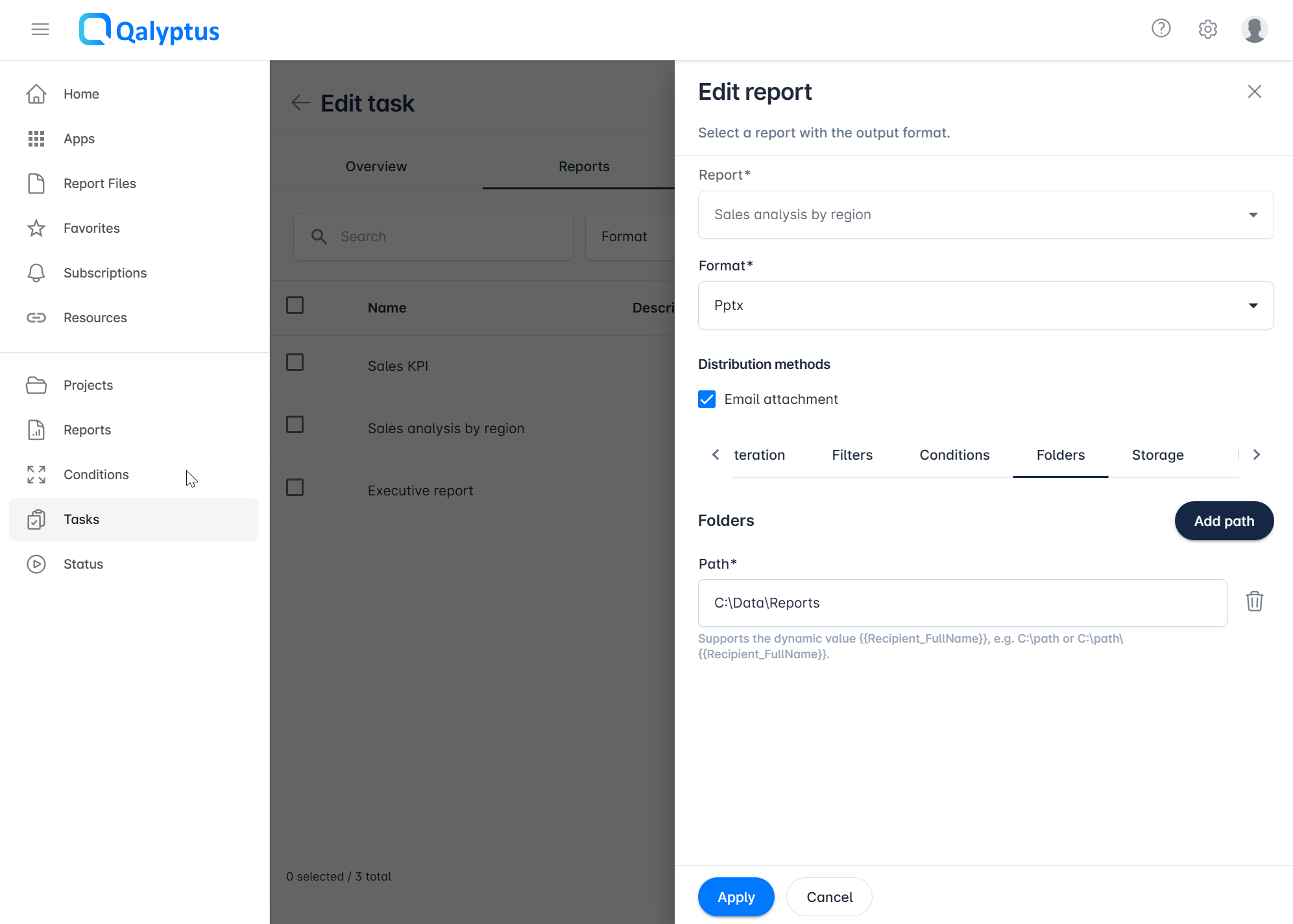
Save Reports to Folders
To save report output to a folder:
- Go to Tasks
- Click the task name to open it
- Go to the Reports tab
- Edit the target report
- Navigate to the Folders tab
- Click Add path
- Enter a folder path accessible from the Qalyptus Server machine
- Click Save
Qalyptus supports variables such as {{recipient_Fullname}} in folder paths to create destination folders dynamically.
Save Reports to Storage Services
Before using this option, configure storage services in Administration > System > Storage services.
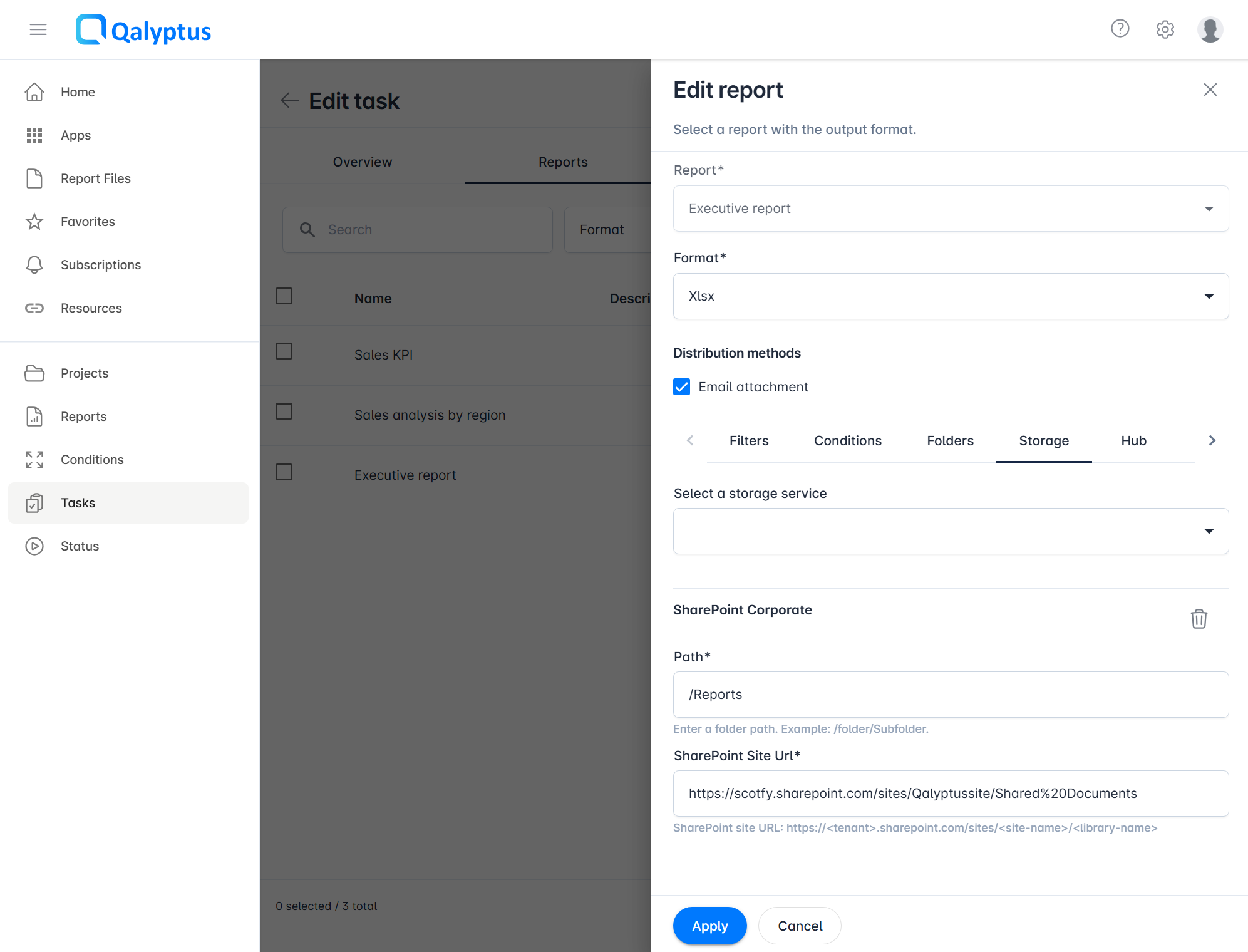
To save a report to a storage service:
- Go to Tasks
- Click the task name to open it
- Go to the Reports tab
- Edit the target report
- Navigate to the Storage tab
- Select a Service
- Enter the destination path or folder identifier
- Click Save
Path Format by Service
Path syntax varies by service.
| Service | Expected value |
|---|---|
| FTP / SFTP / OneDrive / Dropbox | Folder path in the format /folder/subfolder |
| SharePoint | Site URL and library path are required, using https://{tenant}.sharepoint.com/sites/{site-name}/{library-name} plus the target folder path |
| Google Drive | Google Drive folder ID (from the folder URL) |
For Google Drive, open the target folder in the browser and copy the folder ID from the URL.
For SharePoint, make sure both the site URL and folder path are valid and accessible by the configured service account.
Validation Tips
- Test the destination with a manual task execution before enabling schedules
- Verify that the Qalyptus Server service account has write permission on the destination
- For dynamic folder paths, validate variable output to avoid invalid characters or empty paths