Add Reports to a Task
The Reports tab of a task defines which reports to generate, in what format, and how to distribute each one. You can add multiple reports to a single task, each with its own format and distribution settings.
Adding a Report
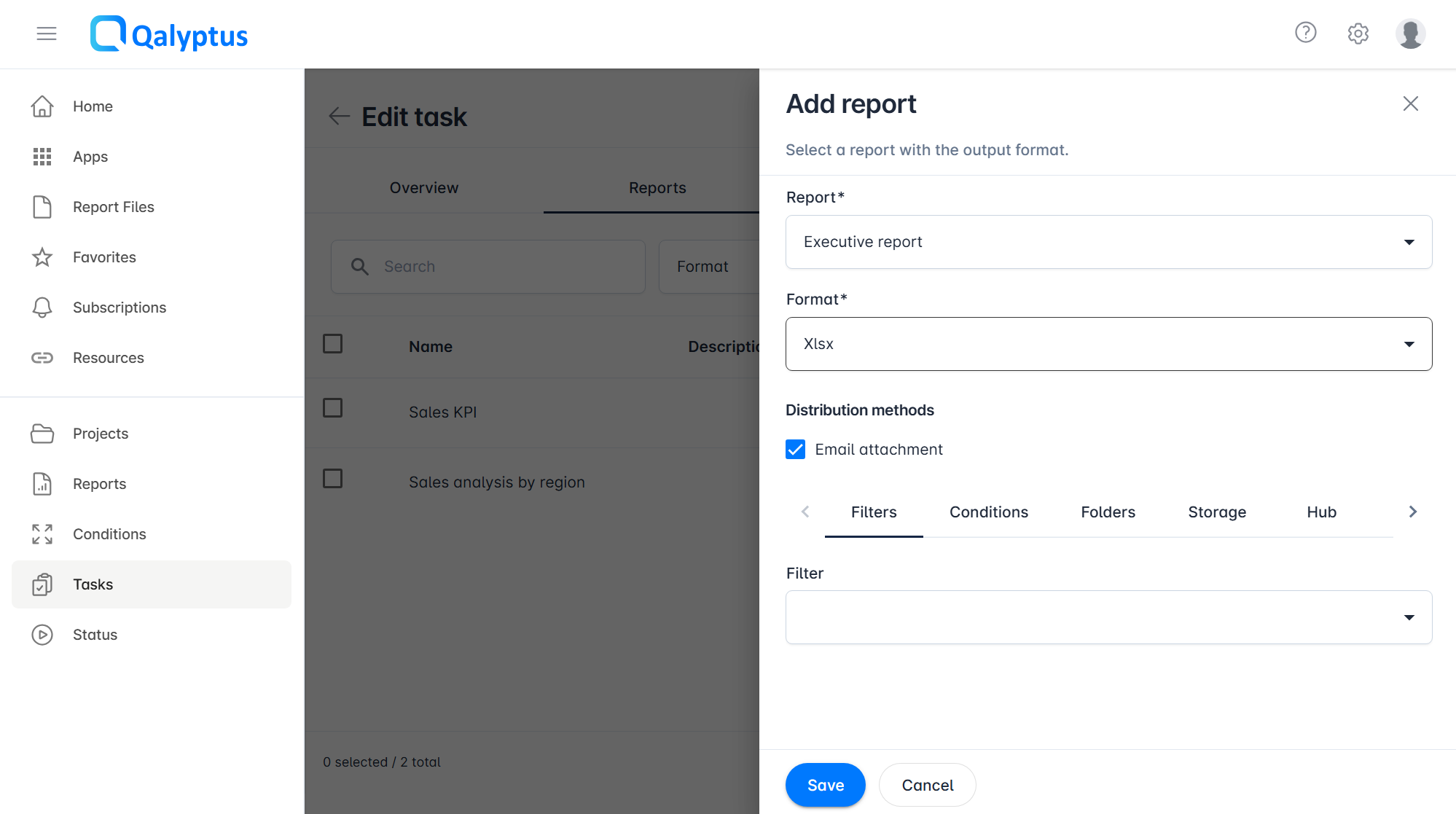
- Open a task and go to the Reports tab
- Click Add report
- Select a Report from the drop-down list
- Select the output Format
- Choose one or more distribution methods for this report:
- Email attachment: Send the file as an email attachment
- Email embed: Embed the report content in the email body (HTML reports only)
- Click Save
Iteration Report Options
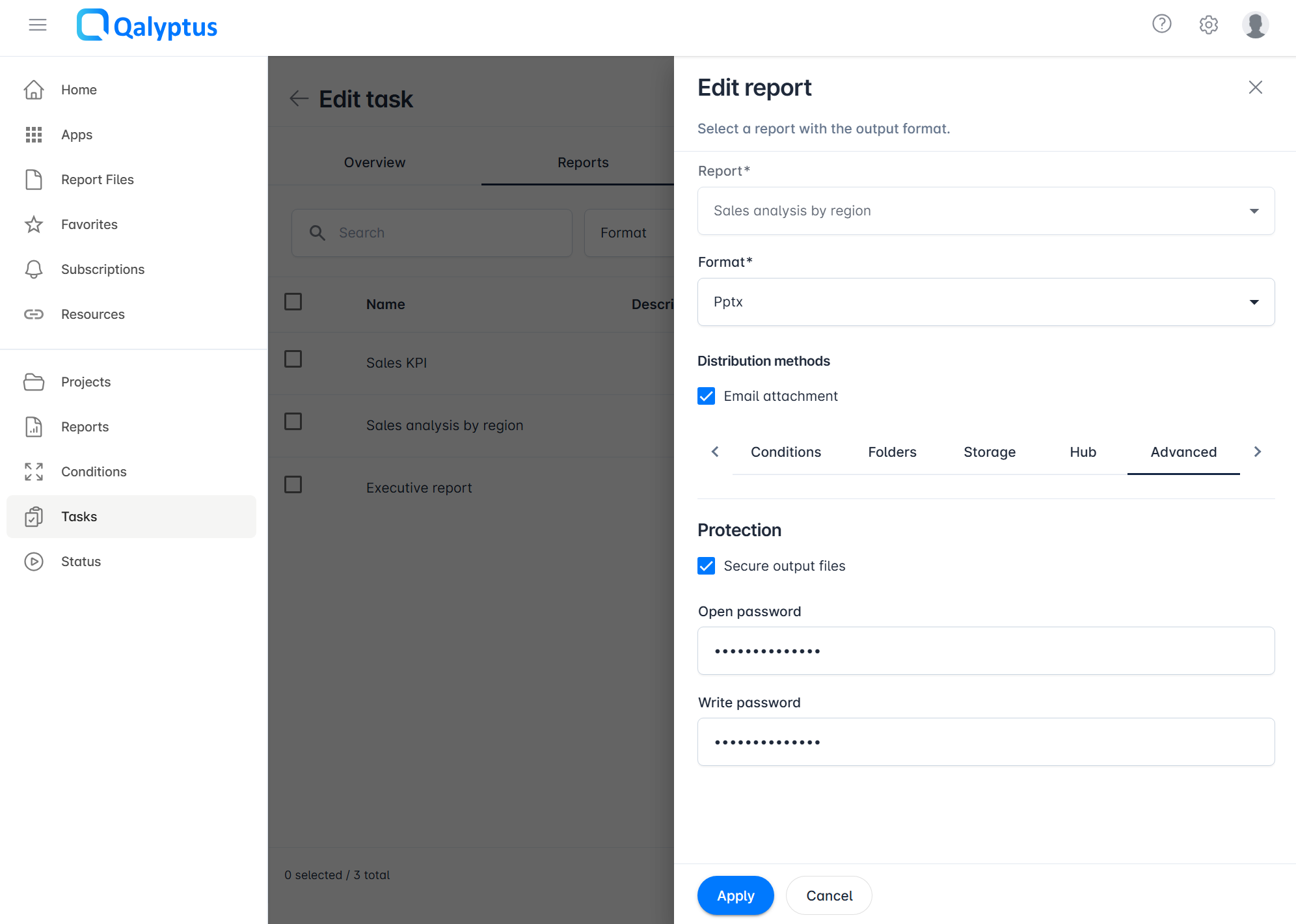
If the selected report uses iteration, additional options are available:
| Option | Description |
|---|---|
| Zip files in the destination folder | Compress all files generated by the iteration into a single ZIP archive when saving to a folder |
| Zip files when sent by email | Group all iteration output files into a ZIP archive when sending as an email attachment |
| Evaluate condition for each iteration | If a condition is applied to this report, evaluate it before generating each individual iteration file rather than once before the whole report |
| Email distribution | Select a Qlik Sense variable whose value resolves to the email address of the recipient for each iteration value. To send to multiple recipients, separate values with a comma. |
| Folder distribution | Select a Qlik Sense variable whose value resolves to the destination folder path for each iteration value. To save to multiple folders, separate paths with a comma. |
| Visibility in the Hub | Select a Qlik Sense variable whose value resolves to the email address or domain account of the users who should see the report in Qalyptus Hub for each iteration value. To grant access to multiple users, separate values with a comma. |
Protecting Output Files
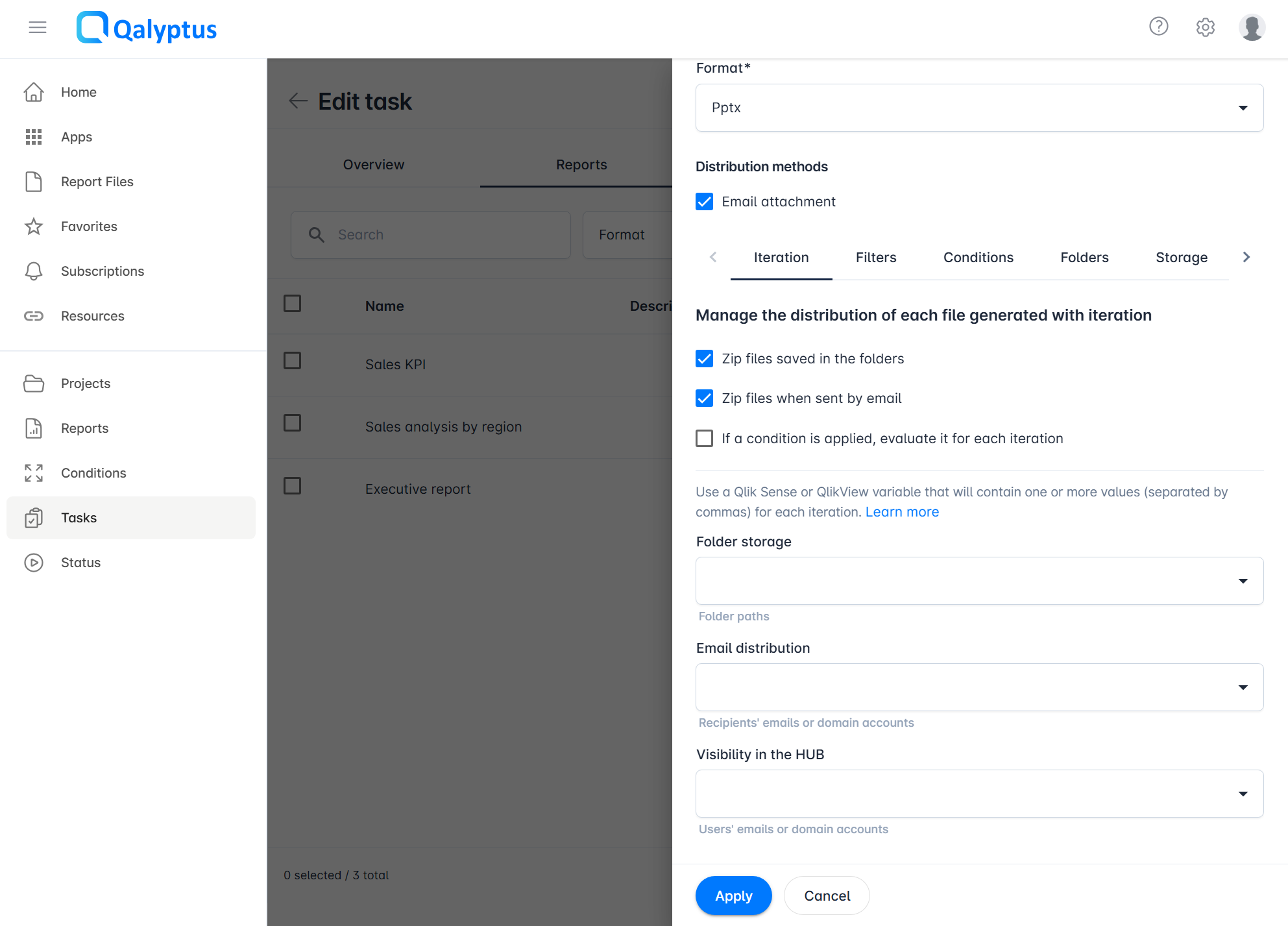
You can password-protect generated output files to restrict opening or editing. Password protection is supported for all file types that natively support it: XLSX, DOCX, PPTX, PDF, and others.
To enable protection, edit the task report and navigate to the Advanced tab, then check Secure output files and enter an open password, a write password, or both.
To remove protection, uncheck Secure output files and save the task.
When you edit a task report, existing passwords are hidden for security reasons. Leave the password fields empty to keep the current passwords unchanged.
Use different passwords for opening and modifying files.
Qalyptus applies the native protection mechanism of each file type. Users unlock protected files using the method supported by the corresponding application (e.g., Microsoft Office, Adobe Acrobat).
Distributing Iteration Reports to Different Recipients or Folders
When a report uses iteration, you can use a Qlik Sense variable to dynamically route each generated file to a different email recipient, folder, or Hub visibility scope. This allows you to generate one report per value (e.g., per seller, per city) and deliver each file to the right person or location automatically.
Email Distribution
Use a variable to send each iteration file to one or more recipients by email. The variable value for each iteration should contain the recipient's email address or domain account. To send to multiple recipients, separate values with a comma.
The following video demonstrates how to send the same report to different users with different data:
The video uses email addresses, but you can also use domain accounts.
Folder Distribution
Use a variable to save each iteration file to a dynamic folder path. The variable value for each iteration should resolve to the target folder path.
Example 1 - Folder named after the iteration value:
You want to generate one report per city and save each file in a folder named after that city:
vStoragePathCityReport = 'D:\Marketing Files\' & City_name
The report for City_name = Paris is saved to D:\Marketing Files\Paris.
Example 2 - Folder named after a related field:
You want to save city reports in folders named after the city's country:
vStoragePathCityReport = 'D:\Marketing Files\' & Country_name
The report for City_name = Paris is saved to D:\Marketing Files\France.
Example 3 - Save to multiple folders:
To save each iteration file in multiple folders, use the Concat() function to produce a comma-separated path list:
vStoragePathCityReport = Concat('D:\Marketing Files\' & Manager_name, ',')
Each city report is saved in one folder per manager responsible for that city.
Hub Visibility
Use a variable to control which users can see each iteration file in Qalyptus Hub. The variable value should contain the email address or domain account of the users who should have access. To grant access to multiple users, separate values with a comma.
Example 1 - Each seller sees only their own report:
Create a variable that resolves to the seller's email or domain account during each iteration. Each seller will then only see the file generated for their data.
Example 2 - A seller's report is visible to both the seller and their manager:
Set the variable to a comma-separated list of the seller's and manager's identifiers:
vHubVisibility = Seller_email & ',' & Manager_email