Tasks
A task is the core execution unit in Qalyptus Server. It defines which reports to generate, how to filter the data, where to send the output, and when to run. Tasks can be executed on demand or scheduled to run automatically using Triggers.
Creating a Task
- Navigate to Tasks
- Click Create task
- Enter a Name for the task
- Optionally enter a Description
- Select the Project to associate with the task
- Click Save
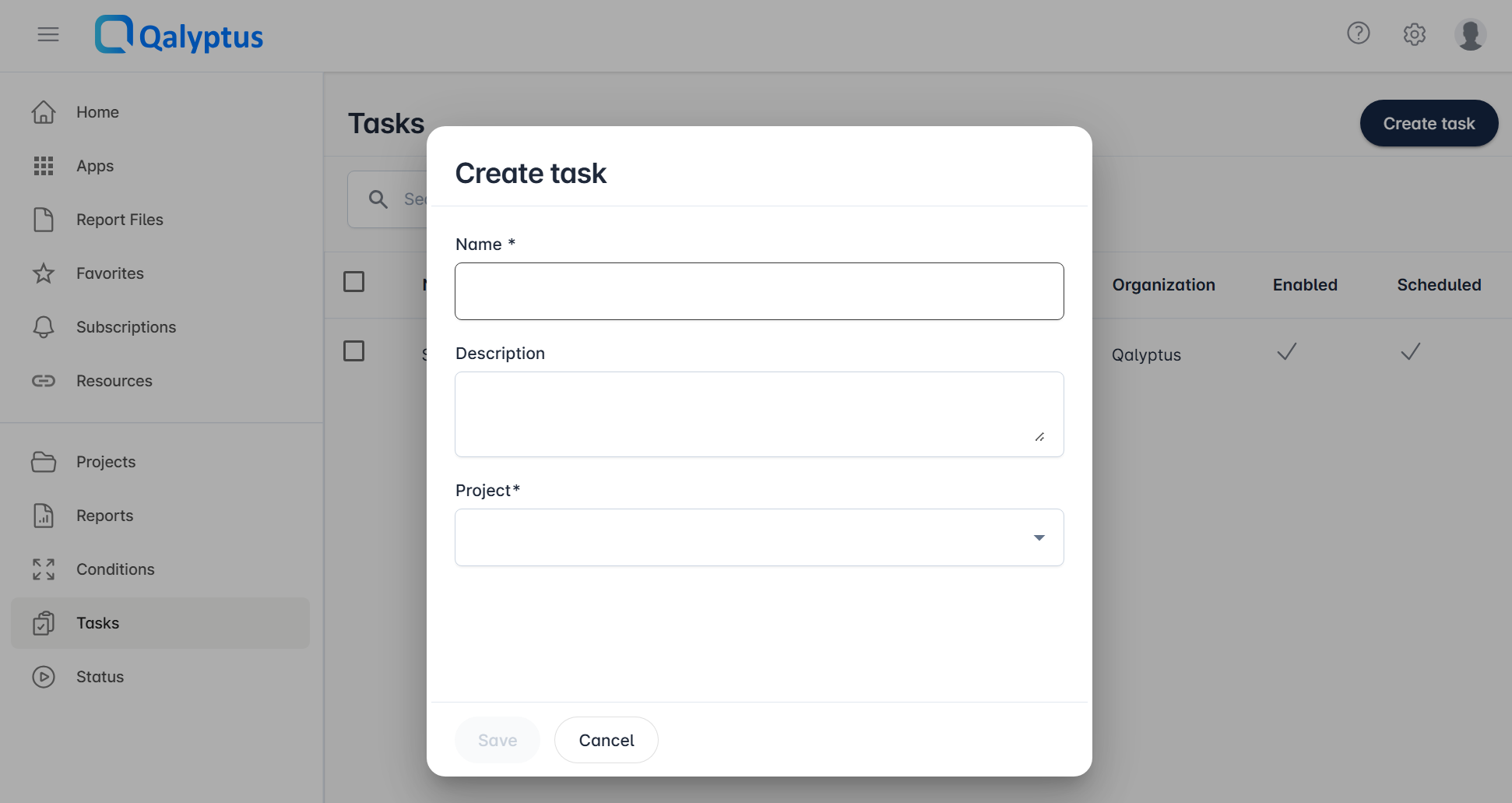
Once the task is saved, configure it using the tabs described below.
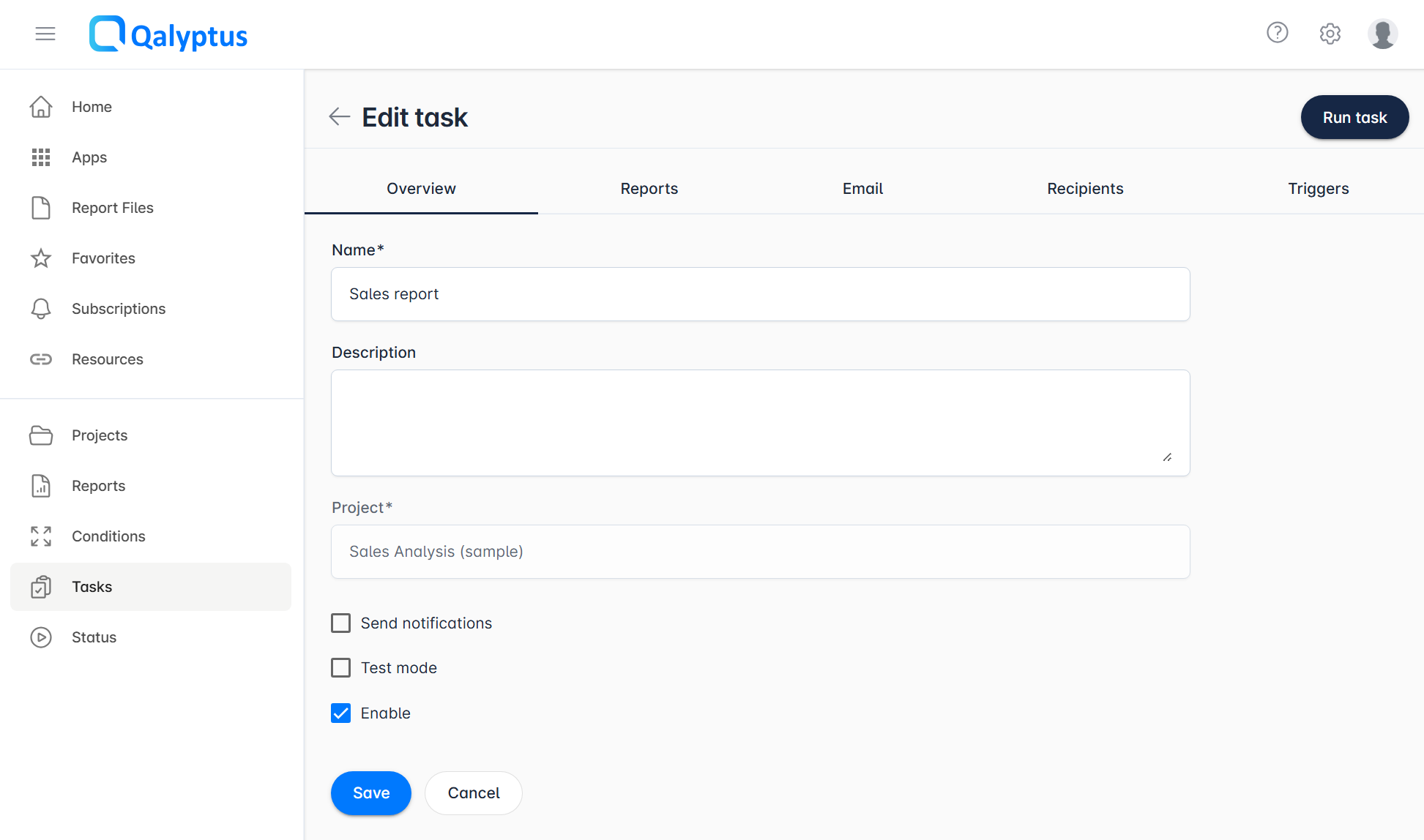
A task must be enabled before it can be executed by a trigger. Disabled tasks are skipped at runtime even if Qlik event fires.
Enable or Disable a Task
You can disable a task to prevent it from running when scheduled, without deleting it.
- To enable or disable a task, open it and toggle the option in the Overview tab
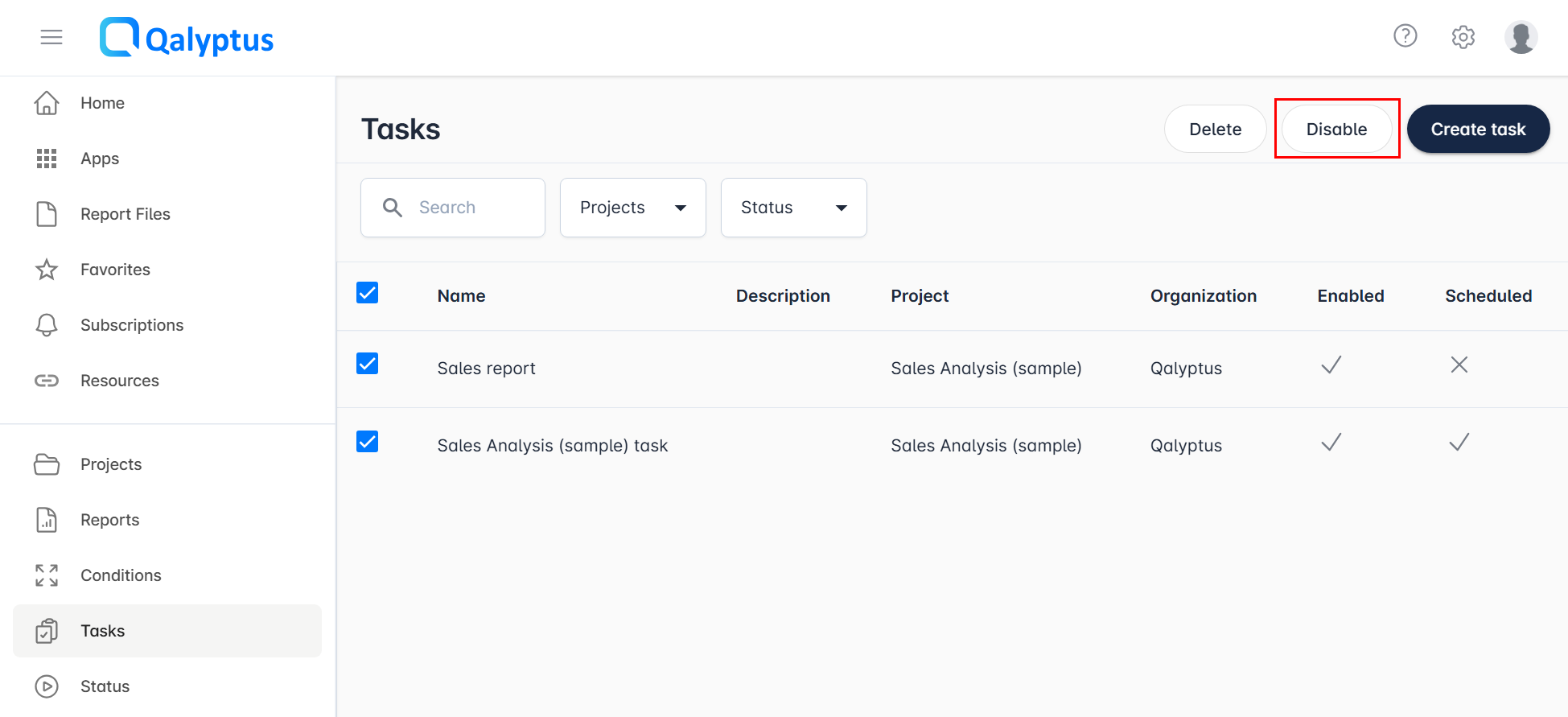
- You can also enable or disable tasks directly from the task list, without opening them
- To act on multiple tasks at once, select them in the list and use the bulk enable/disable button
Email Notifications
You can configure Qalyptus to send an email notification after a task completes. Notifications can be sent for any combination of the following outcomes:
- Success: The task completed without errors
- Warning: The task completed with warnings
- Error: The task failed or completed with errors
The task log file is attached to the notification email. For each task, you can independently choose which statuses trigger a notification and define the list of recipients.
Test Mode
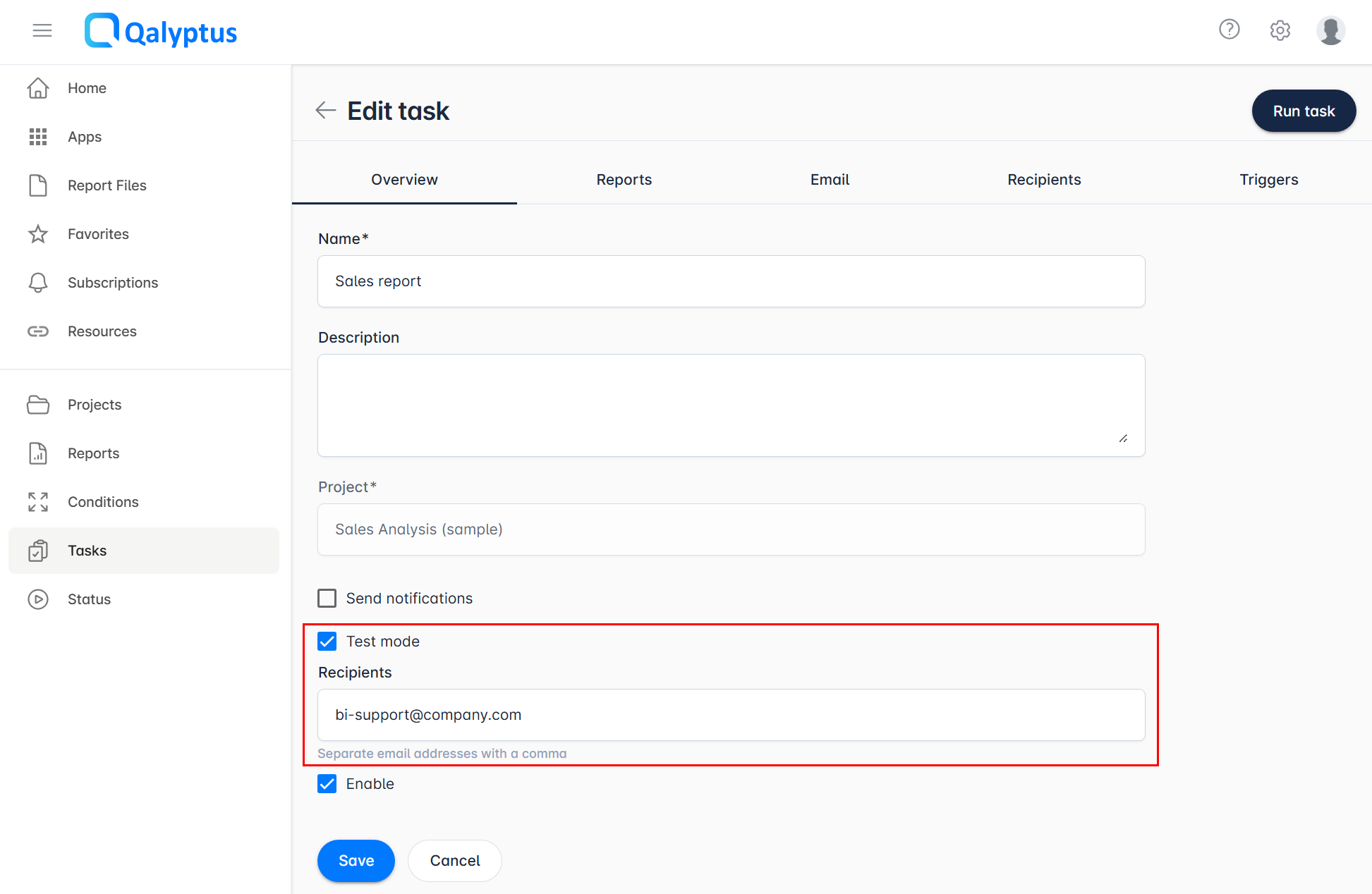
Before sending reports to all recipients, you can use Test mode to redirect all outgoing emails to a single test address. This lets you verify the email content and attachments without notifying actual recipients.
When Test mode is active:
- All emails are sent to the test address you specify
- The email subject is prefixed with the original recipient's address so you can identify each email
- Actual recipients receive nothing
- CC and BCC addresses are ignored
For example, if a task has 20 recipients and Test mode is enabled, you will receive 20 emails, one per recipient, and no one else receives anything. Once you have verified the output, disable Test mode and the next execution will deliver reports to all recipients as configured.
Configuring a Task
A fully configured task typically includes the following elements:
| Step | Description |
|---|---|
| Add reports | Select the reports from the project to include in the task |
| Add filters | Apply project filters to scope the data used during generation |
| Distribute to storage spaces | Save generated reports to a storage location |
| Distribute by email | Send generated reports to recipients by email |
| Distribute to Hub | Publish reports to Qalyptus Hub for users to view and download |
| Add recipients | Define the users or groups who receive the reports |
| Add triggers | Set triggers to run the task automatically on a schedule or Qlik event |
| Add conditions | Define conditions that must be met for each report to be generated |