Email Configuration
When a task runs, Qalyptus Server can send emails to distribute generated reports or notify recipients about task results.
Configure Task Email Delivery
To configure the email sent after report generation:
- Go to Tasks
- Open the target task
- Go to Email tab
- Enable Send email
- In From, enter the sender email address
- Optionally enter CC recipients (comma-separated)
- Optionally enter BCC recipients (comma-separated)
- (Optional) Enable One email to all recipients to send a single email to all task recipients
- Enter the email Subject
- Enter the email Message
- Click Save
Ensure your SMTP server is configured to allow sending emails from the address entered in the From field.
If you update this address, verify that the new address is also authorized by your SMTP server.
CC and BCC can be hard-coded addresses or Qlik variables that return one or more comma-separated addresses.
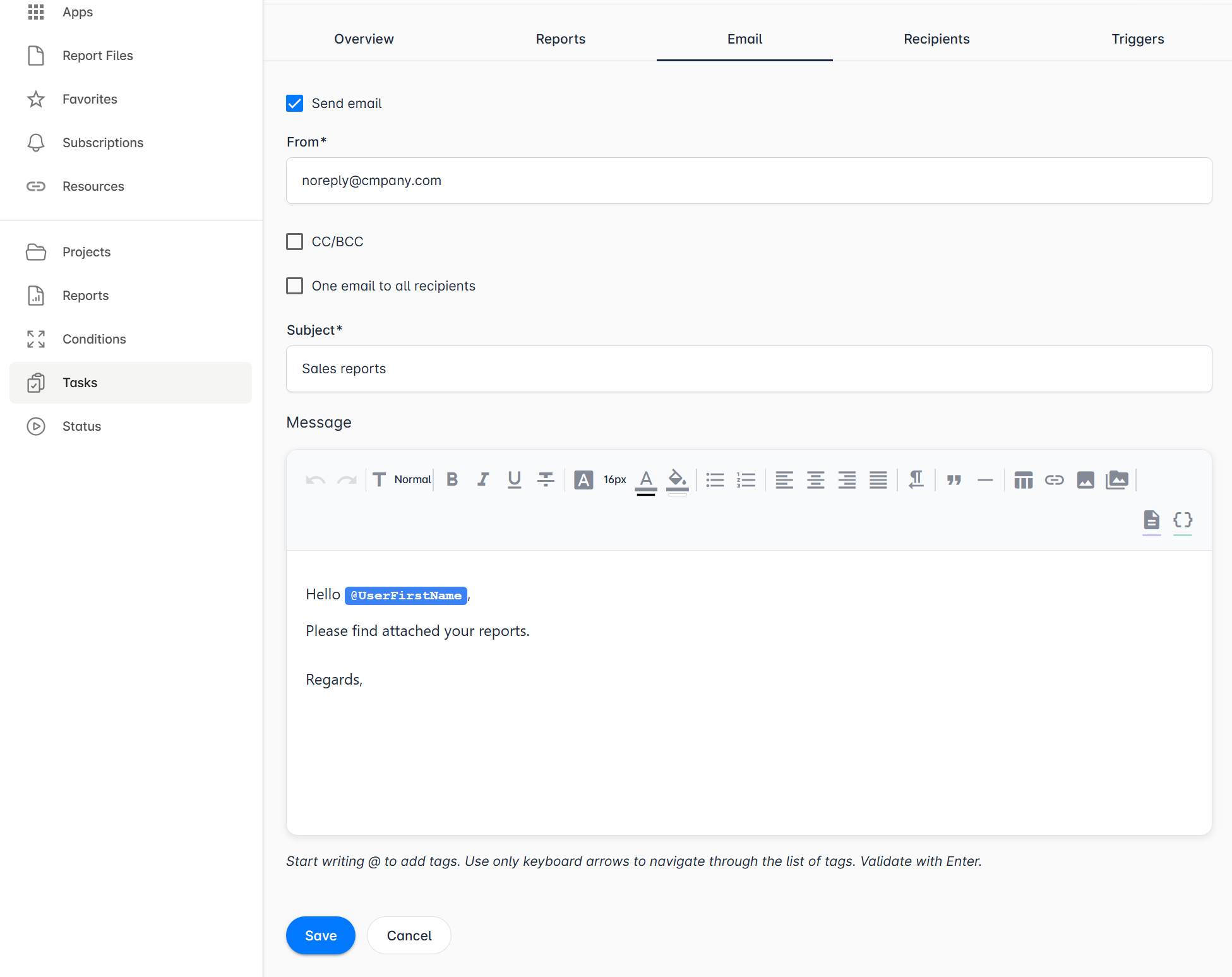
One Email vs Separate Emails
- Default behavior: one email per recipient
- One email to all recipients: a single email sent to all recipients in the same message
Use separate emails when personalization is required. Use one-email mode when the same content is intended for all recipients.
Message Editor Features
In the message editor, you can enrich the email body and subject with dynamic content:
- HTML reports: Click Insert Reports to embed an HTML report directly in the email body
- Qlik variables: Click Insert Variables to insert Qlik Sense variables in the message. You can copy the variable to use it in the subject
- Tags: Type
@in the message to insert tags such as recipient first name, last name, full name, email, report list, and destination list - Images: Use the image button to insert inline images in the message
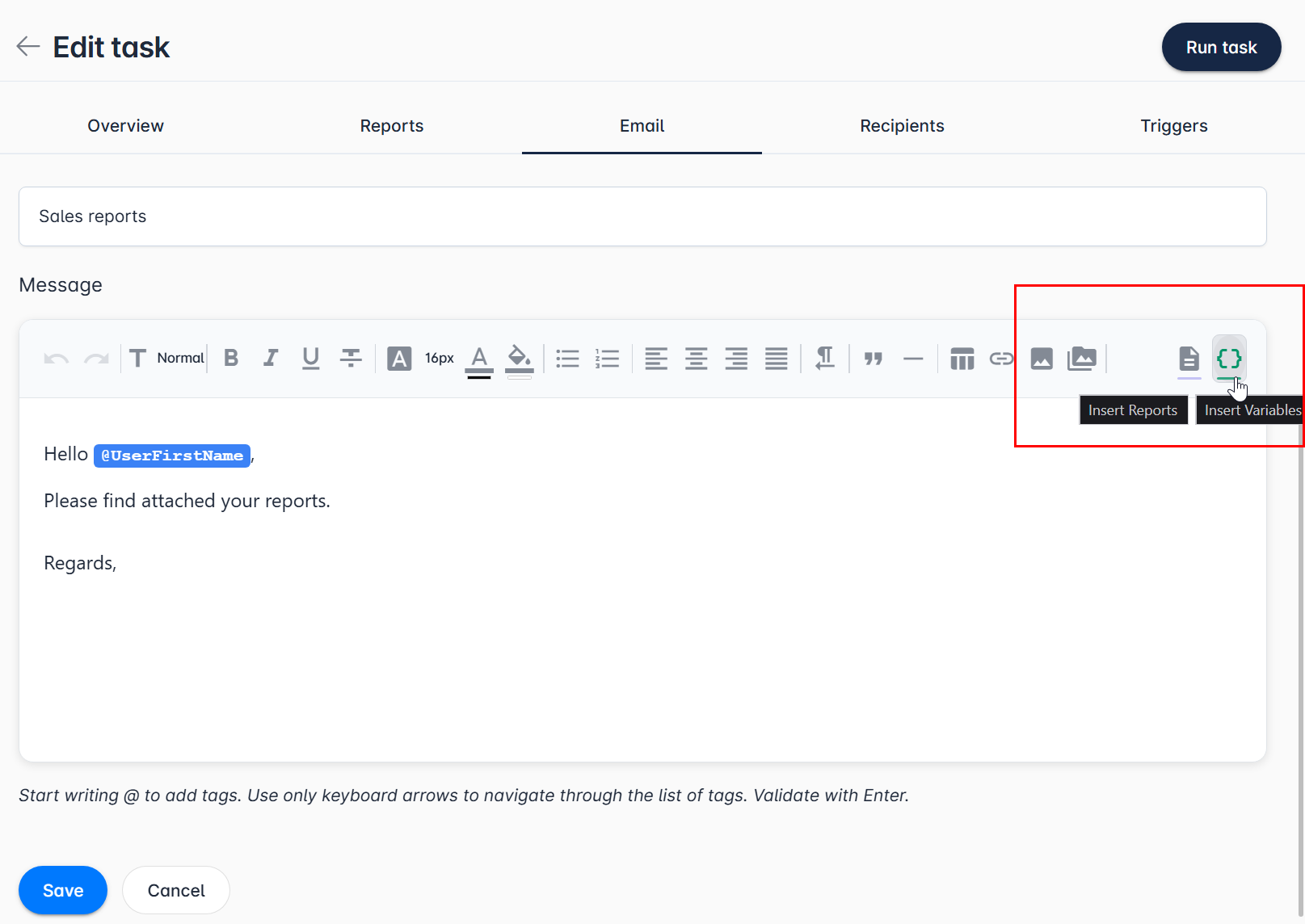
To attach report files to emails, enable Email attachment for each report in the task's Reports tab. See Add Reports to a Task.
Embed Qlik charts and tables in the email message
You can embed Qlik Sense charts and tables in email messages by using an HTML report.
- Create an HTML report in Qalyptus Desktop. Learn more.
- Republish the project to Qalyptus Server
- In Task > Reports tab, add the HTML report and enable Email embedement
- In Task > Email tab, go to the message editor and insert the HTML report using the Insert Reports button
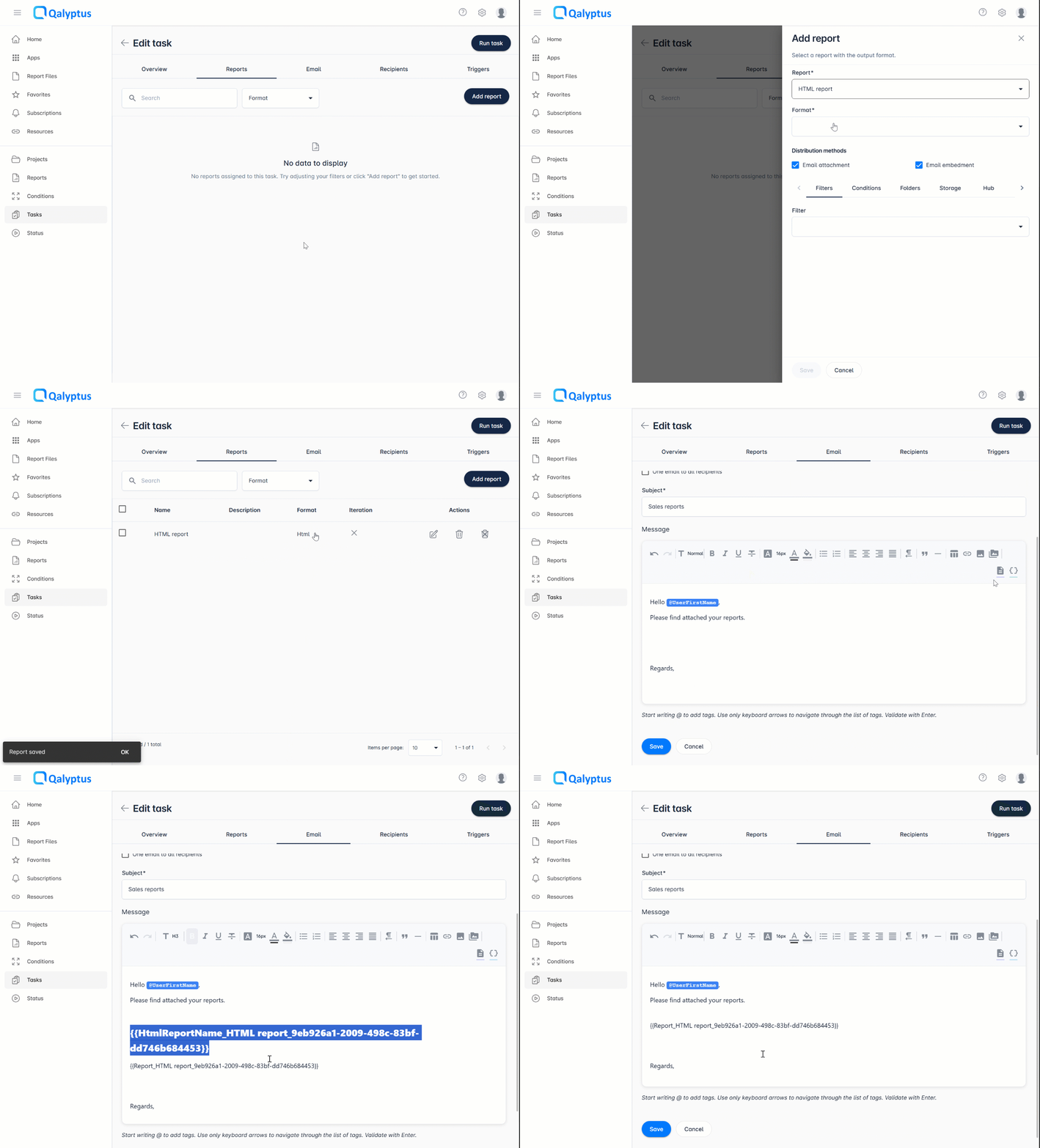
When you insert an HTML report, its name is added in bold to the email body. You can keep it, remove it, or copy it into the subject line.