SMTP Mail Server Configuration
SMTP configuration enables Qalyptus Server to send automated email notifications, report deliveries, and user communications. Proper SMTP setup is essential for subscription services, user notifications, and system alerts.
SMTP Server Requirements
Server Access
- Network Connectivity: Qalyptus Server must reach the SMTP server
- Port Access: SMTP port (typically 25, 587, or 465) must be open
- Authentication: Valid SMTP credentials (if required by server)
- Encryption: SSL/TLS support for secure email transmission
Supported Configurations
- Internal SMTP Servers: Corporate Exchange or postfix servers
- Cloud Email Services: Office 365, Gmail, AWS SES, SendGrid
- Authenticated Relay: Servers requiring username/password authentication
- Anonymous Relay: Internal servers allowing unauthenticated sending
Configuration Process
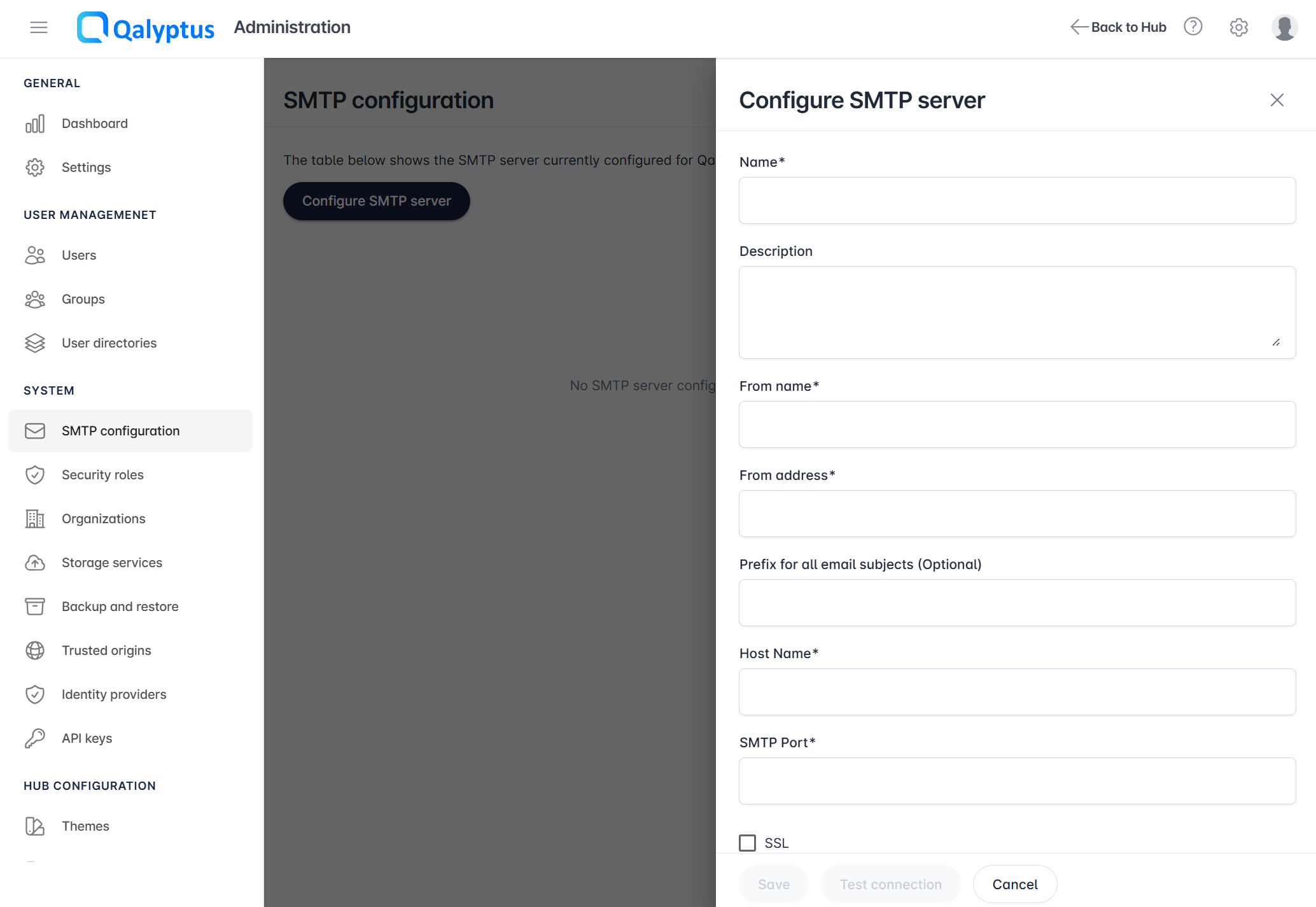
To set up an SMTP server, follow these steps.
- Go to Administration > System > SMTP configuration
- Click Configure SMTP server
- Enter the information in the following fields
- Name: Descriptive identifier for the SMTP configuration
- Description (Optional): Additional context about the mail server
- From Name: Display name appearing as the sender
- From Address: Email address used as sender (must be valid for SMTP server)
- Subject Prefix (Optional): Prefix added to all outgoing email subjects
- Host Name: SMTP server address or FQDN
- SMTP Port: Server port number
- 25: Standard SMTP (often blocked by ISPs)
- 587: SMTP with STARTTLS (recommended)
- 465: SMTP with SSL/TLS
- SSL: Enable for encrypted connections (recommended)
- Username: SMTP server authentication username
- Password: SMTP server authentication password
- Delay between emails (seconds): Controls how emails are sent during a task run. Set to 0 (default) to send all emails in parallel. Set to a value greater than 0 to send emails sequentially, with the specified number of seconds between each message. Accepted values: 0–60.
- Test Mail: Email address to receive configuration test message
- Test the configuration using the test email feature
- Save the configuration after successful testing
SMTP Connection Test Diagnostics
If the connection test fails, Qalyptus Server provides a link to view the detailed log file generated during the SMTP connection attempt. Use this log information to diagnose connectivity issues, authentication problems, or server-side errors.
Common SMTP Server Examples
Office 365/Microsoft Exchange Online
Host: smtp.office365.com
Port: 587
SSL: Enabled
Authentication: Required
Authentication Type: Basic, does not support OAuth
Gmail SMTP
Host: smtp.gmail.com
Port: 587 or 465
SSL: Enabled
Authentication: Require App Password instead of password
Internal Exchange Server
Host: mail.company.com
Port: 25 or 587
SSL: Depends on configuration
Authentication: May be required
Troubleshooting
Connection Test Failures
Verify Network Connectivity:
-
Test SMTP Server Reachability
- Open Command Prompt on Qalyptus Server
- Run:
telnet [smtp-server] [port] - Success: Empty/blank screen appears
- Failure: Connection timeout or "Could not open connection"
-
Check Firewall Rules
- Ensure SMTP port is open in Windows Firewall
- Verify network firewall allows outbound SMTP traffic
- Confirm no proxy interference
Authentication Issues
- Verify Credentials: Ensure username/password are correct
- Check Account Status: Confirm SMTP account is active and not locked
- Review Permissions: Verify account has SMTP sending permissions
SSL/TLS Problems
- Certificate Validation: Ensure SMTP server certificate is trusted
- Protocol Mismatch: Verify SSL is enabled for encrypted ports (465, 587 with STARTTLS)
- Cipher Compatibility: Check that Qalyptus and SMTP server support common encryption methods
Email Delivery Issues
Check SMTP Activity Logs:
- Default Log Location:
C:\ProgramData\Qalyptus\Server\Logs\[current-date]\SMTP activity - Review for: Connection errors, authentication failures, recipient issues
- Common Issues: Invalid sender address, recipient blocking, rate limiting, maximum email attachment size limit
Validate Email Settings:
- From Address: Must be accepted by SMTP server
- Recipient Addresses: Verify email addresses are valid and accepting mail
- Content Filtering: Check if emails are blocked by spam filters