Hub Settings
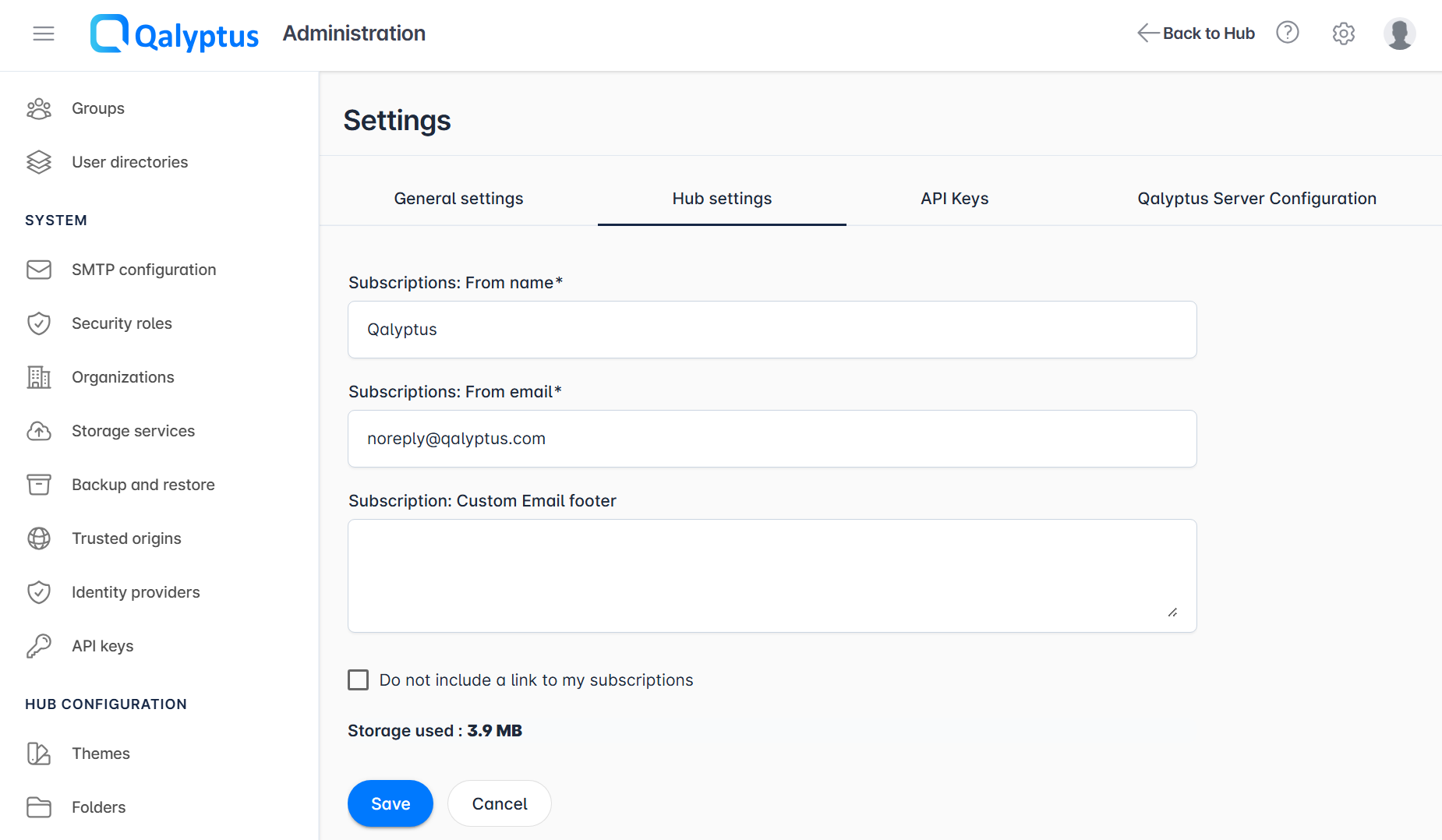
Hub Settings control the email configuration for Qalyptus Hub subscription services. These settings determine how automated email notifications appear to users when they subscribe to reports.
Accessing Hub Settings
- Log in to Qalyptus Server as an administrator
- Navigate to Administration > Settings > Hub Settings
- Make your changes and click Save
Email Configuration Settings
Subscription: From Name
The display name that appears as the sender when Qalyptus sends subscription emails to users.
Example: Business Intelligence Team
Subscription: From Email
The email address used as the sender for all subscription-related communications.
Requirements:
- Must be a valid email address format
- Must be a valid email sender of the configured SMTP mail server
Example: noreply@yourcompany.com
Ensure this email address is properly configured in your email server to prevent spam filtering issues.
Subscription: Custom Email Footer (Optional)
Additional text appended to all subscription emails, useful for disclaimers, contact information, or branding.
Example:
This is an automated report from the Business Intelligence team.
For questions, contact: bi-support@yourcompany.com
Do Not Include Link to My Subscriptions
Controls whether a "Manage My Subscriptions" link appears in email footers.
Options:
- Enabled (checked): Hides the subscription management link
- Disabled (unchecked): Shows the subscription management link (recommended)
Best Practices
- Use a dedicated email address for automated reports
- Configure proper email authentication (SPF, DKIM) to prevent spam filtering
- Keep the "From Name" clear and recognizable
- Include relevant contact information in custom footers
Troubleshooting
Emails not being delivered:
- Verify the "From Email" address is valid and active
- Check email server configuration and spam filter settings
- Test with different recipient domains
Users cannot access subscription links:
- Ensure the Public Hostname is correctly configured in General Settings
- Verify network connectivity and firewall rules