Formatting and customization
Overview
When you export data from Qlik Sense through Qalyptus, tables are delivered without formatting (this is the normal Qlik Sense API behavior).
With Qalyptus, you can fully customize the look of your reports using Word's native formatting features.
This section shows you how to:
- Apply conditional formatting to tables and pivot tables (with static or dynamic columns).
- Repeat table header rows across pages when exporting to PDF.
Standard formatting
You can use all native Word features to format the tables, pivot tables, and variables exported by Qalyptus.
This includes customizing table headers, aligning content, resizing columns and rows, and applying number, date, or percentage formats.
Formatting can be applied in two different ways:
- Whole object formatting:
If you insert the entire table or pivot table as a single object, you can apply formatting directly to the shortcode text.
For example, you can change the font style or font size.
In this case, Qalyptus will automatically adjust the column width to fit the content.
Column-by-Column Formatting
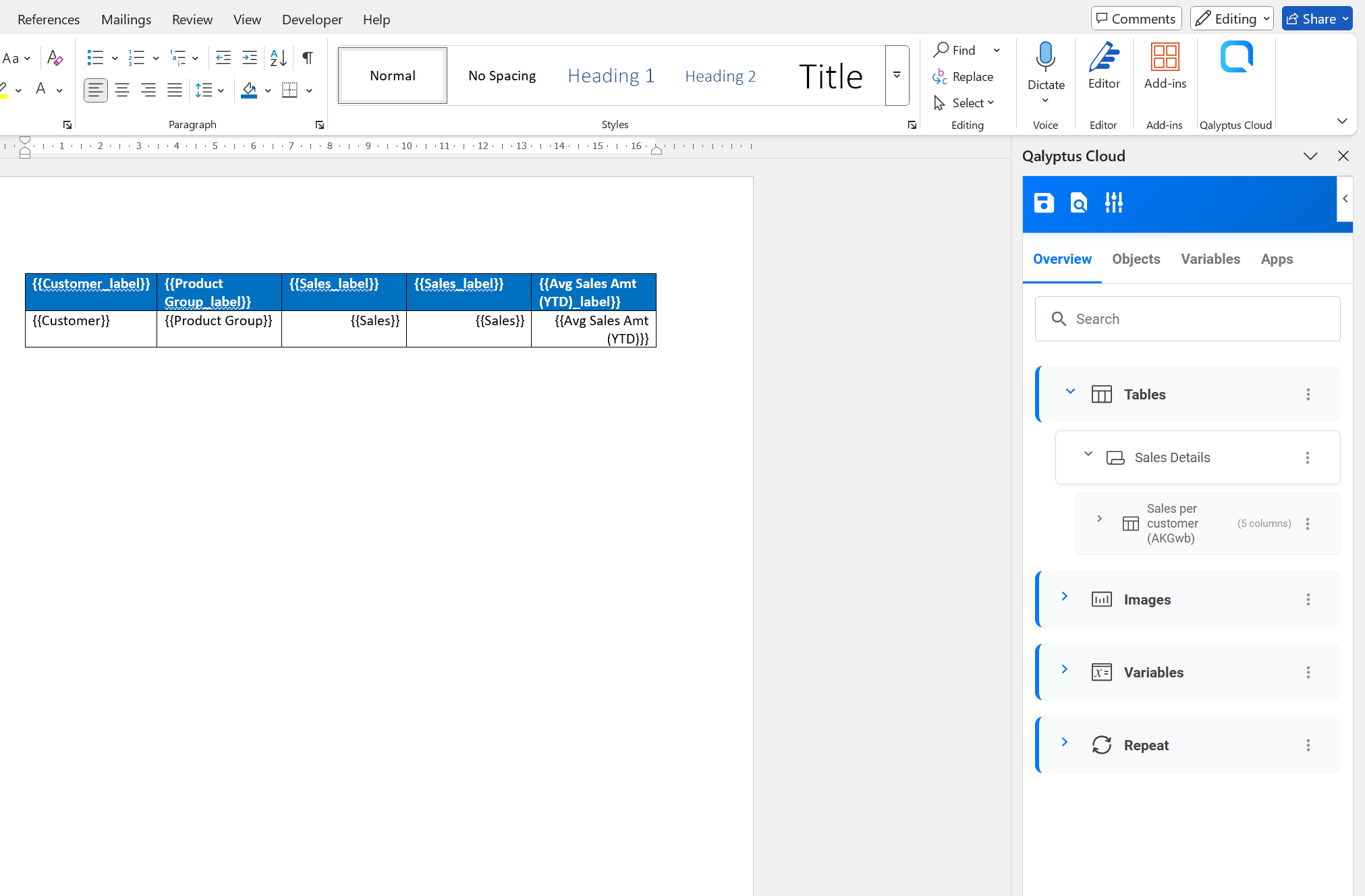
When you insert a table column, two rows are automatically generated:
- Header row: Contains the column title
- Data row: Contains a placeholder for the data
You can format each column's header and data independently, giving you complete control over the appearance of your tables. This flexibility allows you to:
- Apply different number formats (currency, percentage, decimals, etc.).
- Resize columns and rows.
- Left-align text columns, right-align numeric columns, and center-align dates for better readability.
- Customize fonts and styles per column.
- Percentage formatting to dsplay ratios or KPIs as percentages with one or two decimals.
- Date formatting to show dates in formats like
dd/MM/yyyy,MM-dd-yyyy, orMMMM yyyy. - and more.
How to Format Columns
- Select the cell you want to format (either the header or data cell).
- Apply formatting using Word's formatting features.
- The formatting will be applied as follows:
- Header formatting is applied to the header in the generated report.
- Data cell formatting is replicated to all cells in that column after report generation.
Repeating objects across multiple pages
When working with large tables that span multiple pages, you can configure the table header to automatically repeat on each page. This improves readability and helps users understand the data context throughout the document.
Steps to Repeat Table Headers
- Insert your table columns to the Word template.
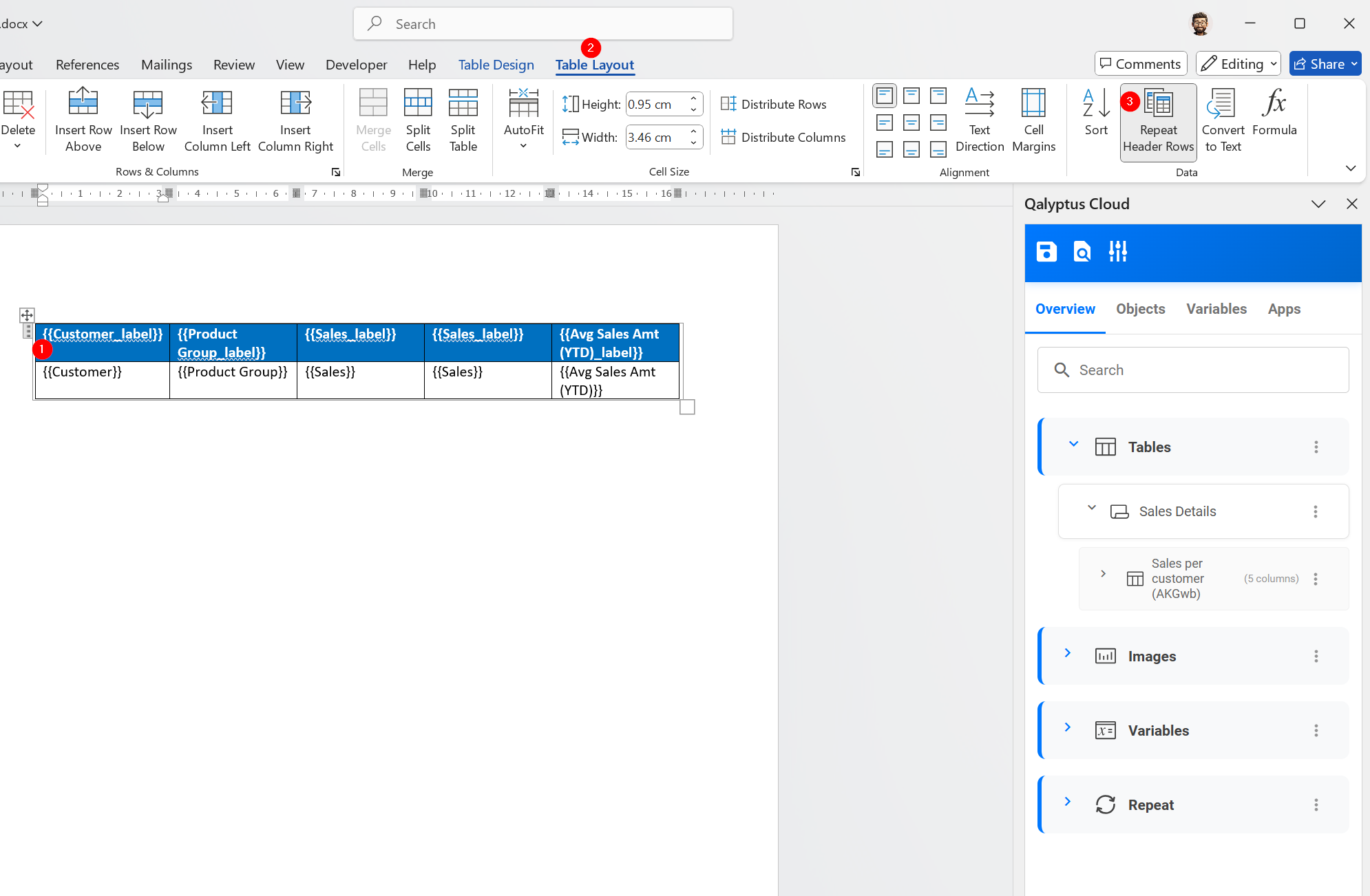
- Select the header row by clicking on any cell in the first row of the table.
- Enable repeat headers:
- Navigate to the Word ribbon.
- Go to the Table Layout tab.
- Click Repeat Header Rows.
- Preview your report to verify that the header appears on all pages
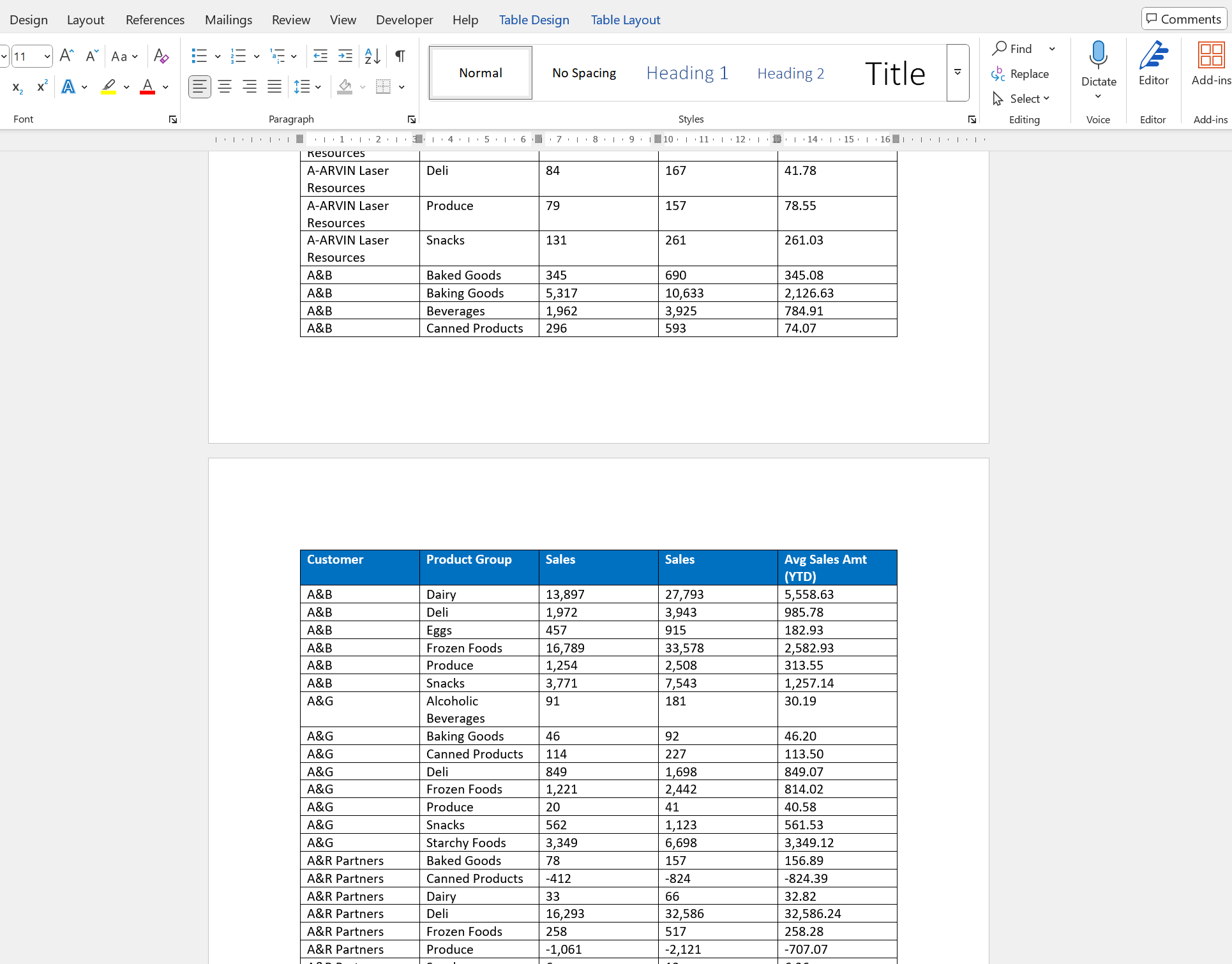
Here is the result: