Projects in Qalyptus
info
Availability: All Qalyptus Cloud subscriptions
Minimum license required: Create: Creator, Edit: Explorer, View: Viewer
Overview
A project in Qalyptus Cloud is used to organize and manage reports, filters, conditions, and tasks. Each of these elements must belong to a project. Projects also provide a way to control permissions for all associated elements.
A project contains:
- A name and description.
- An owner (by default, the creator).
- Permissions for the elements it contains (reports, filters, conditions, and tasks).
Key points:
- Only the project owner or an administrator can delete a project.
- Deleting a project permanently deletes all the elements inside it.
- A project can be renamed without affecting its elements.
- A project cannot be duplicated.
- The project owner can be changed at any time.
- Each project is linked to an Organization.
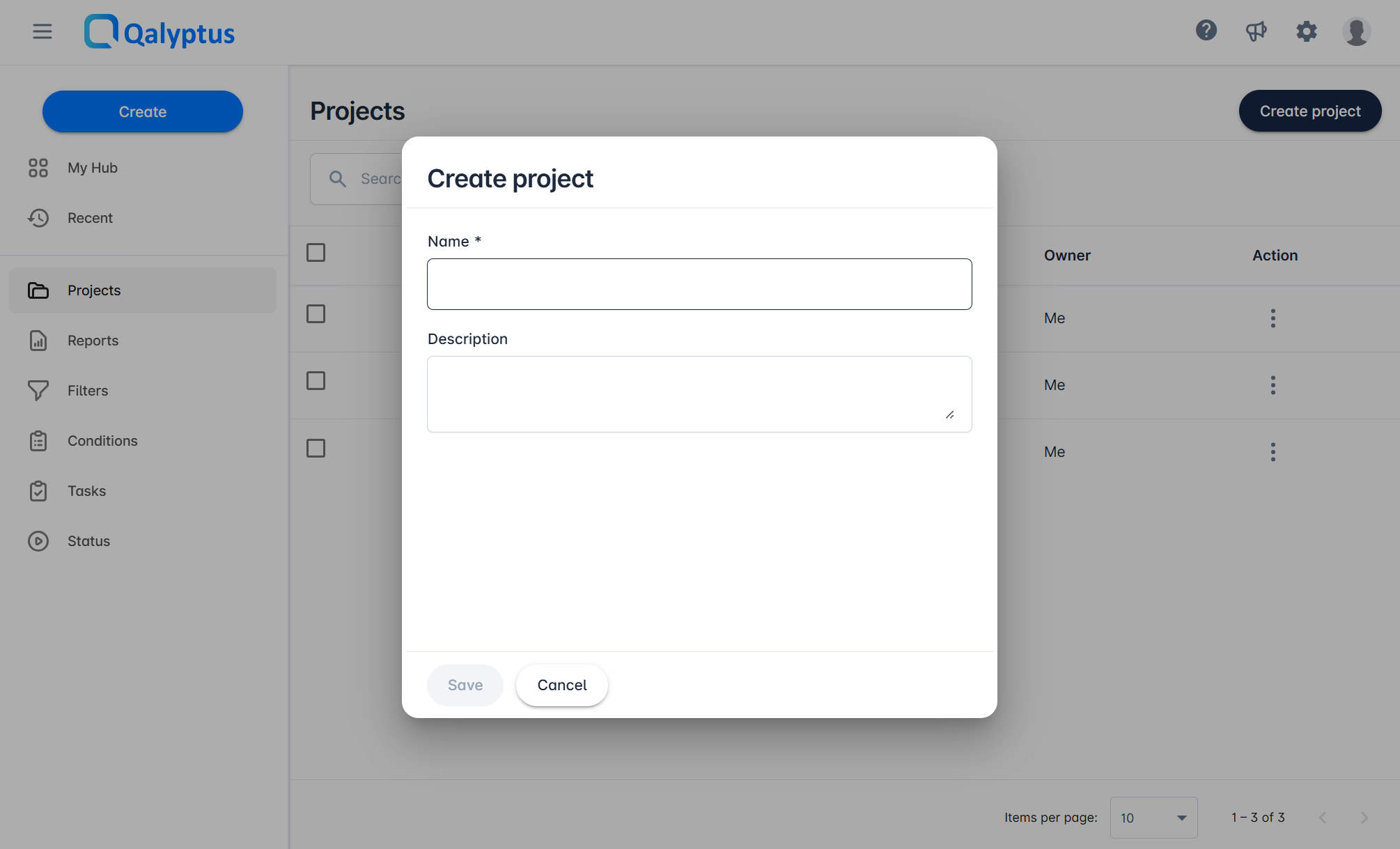
To create a project:
- Sign in to Qalyptus Cloud.
- Go to Projects.
- Click Create project.
- Enter a project name. The name must be unique across all organizations.
- (Optional) Add a description.
- Click Save. The project owner is set to the creator by default.
- The project is linked to the current organization and cannot be changed afterward.
Permissions
Projects allow you to control permissions for their elements (reports, filters, conditions, and tasks).
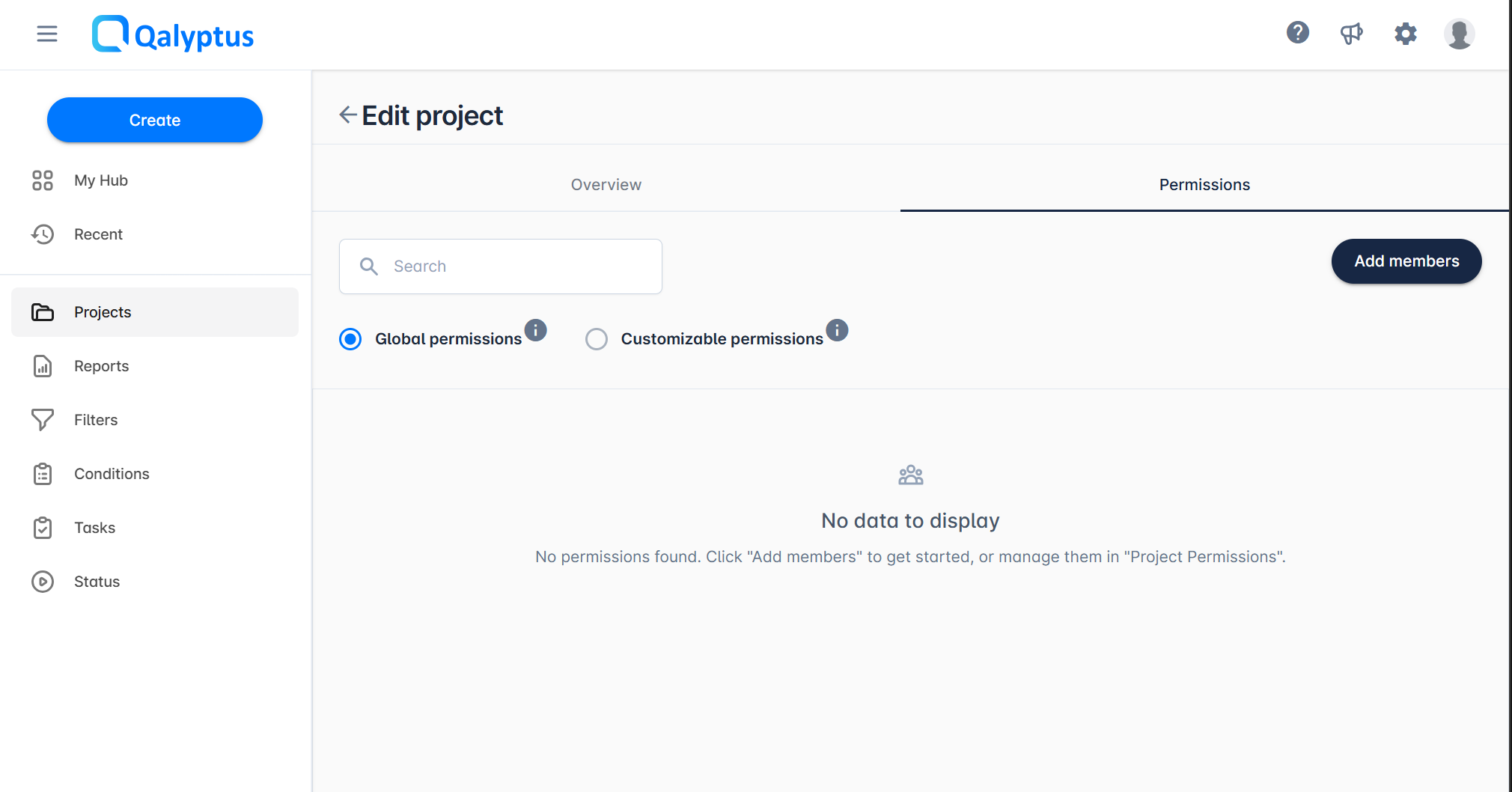
In the Permissions tab, you can assign access to users or groups. Different permissions can be granted to each user or group.
There are two modes for permissions:
- Global permissions: Permissions set at the project level are enforced on all elements. Users cannot override them at the element level. For example, if User A does not have "Delete" rights on reports, they cannot delete any report in the project, including future ones.
- Customizable permissions: Permissions set at the project level act as defaults for new elements, but they can be modified later at the element level. For example, you can grant a specific user extra rights on one report without changing the global defaults.
Changing permission mode:
- Switching from Global to Customizable allows element-level changes.
- Switching from Customizable to Global replaces element-level permissions with the project-level ones. For example, if a user has special permissions on a report but is not granted permissions at the project level, they will lose those permissions.
To set permissions for a project:
- Edit the project.
- Go to the Permissions tab.
- Select either Global permissions or Customizable permissions.
- Click Add members.
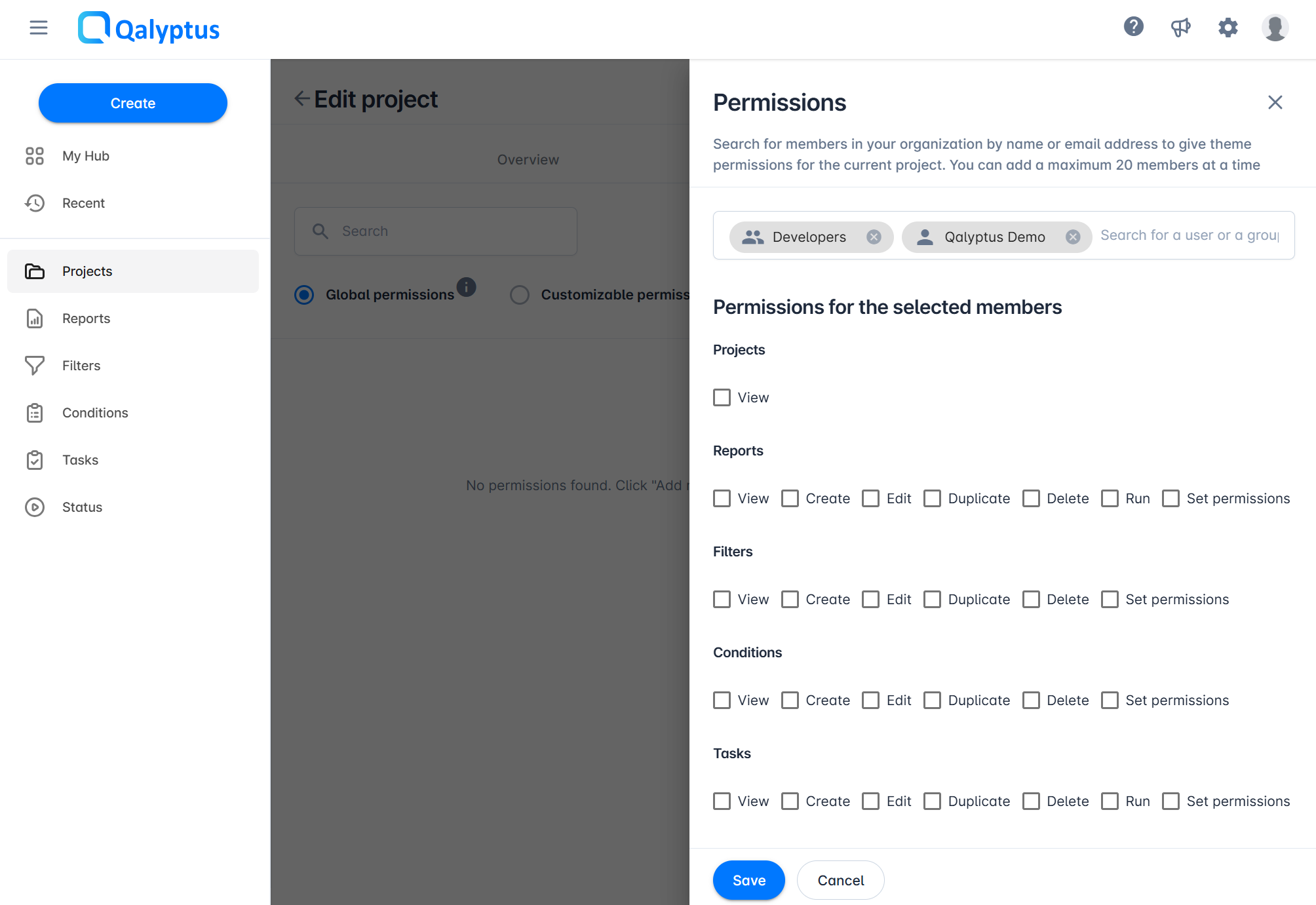
- Search for users or groups to add.
- Assign permissions for the project and its elements (Reports, Filters, Conditions, Tasks).
- Click Save.
- You can change or delete each member's permissions separately.
Troubleshooting
- I don't see the "Create project" button
You may not have the required role to create a project. Check the Roles and Licenses section for more information.