Qlik Sense Apps
Available in all Qalyptus Cloud subscriptions.
The main purpose of Qalyptus is to create reports with Qlik Sense objects using Office tools (Excel, Word, and PowerPoint) and HTML.
Before you start creating a report, you need to retrieve the list of your Qlik Sense applications in Qalyptus.
A Qalyptus Cloud user must have the same email address as their Qlik Sense user. This ensures Qalyptus applies the correct Qlik Sense permissions when working with apps and objects.
Before synchronizing your Qlik Sense apps, an admin user must connect your Qalyptus Cloud tenant to your Qlik Sense tenant. See Qlik Sense integration for details.
Synchronize Qlik Sense apps
- Click your avatar to access your Qalyptus Cloud profile.
- Go to the Qlik Sense section in the left menu.
- You will see two tabs: Applications and Qlik Sense Account.
- In the Qlik Sense Cloud account area, check if you need to enter your Qlik credentials:
- If your administrator chose the Qlik credentials option to connect your Qalyptus tenant to Qlik Sense, you must enter your Qlik credentials.
- Otherwise, no credentials are required.
- Return to the Applications tab and click Sync apps to retrieve your Qlik Sense apps.
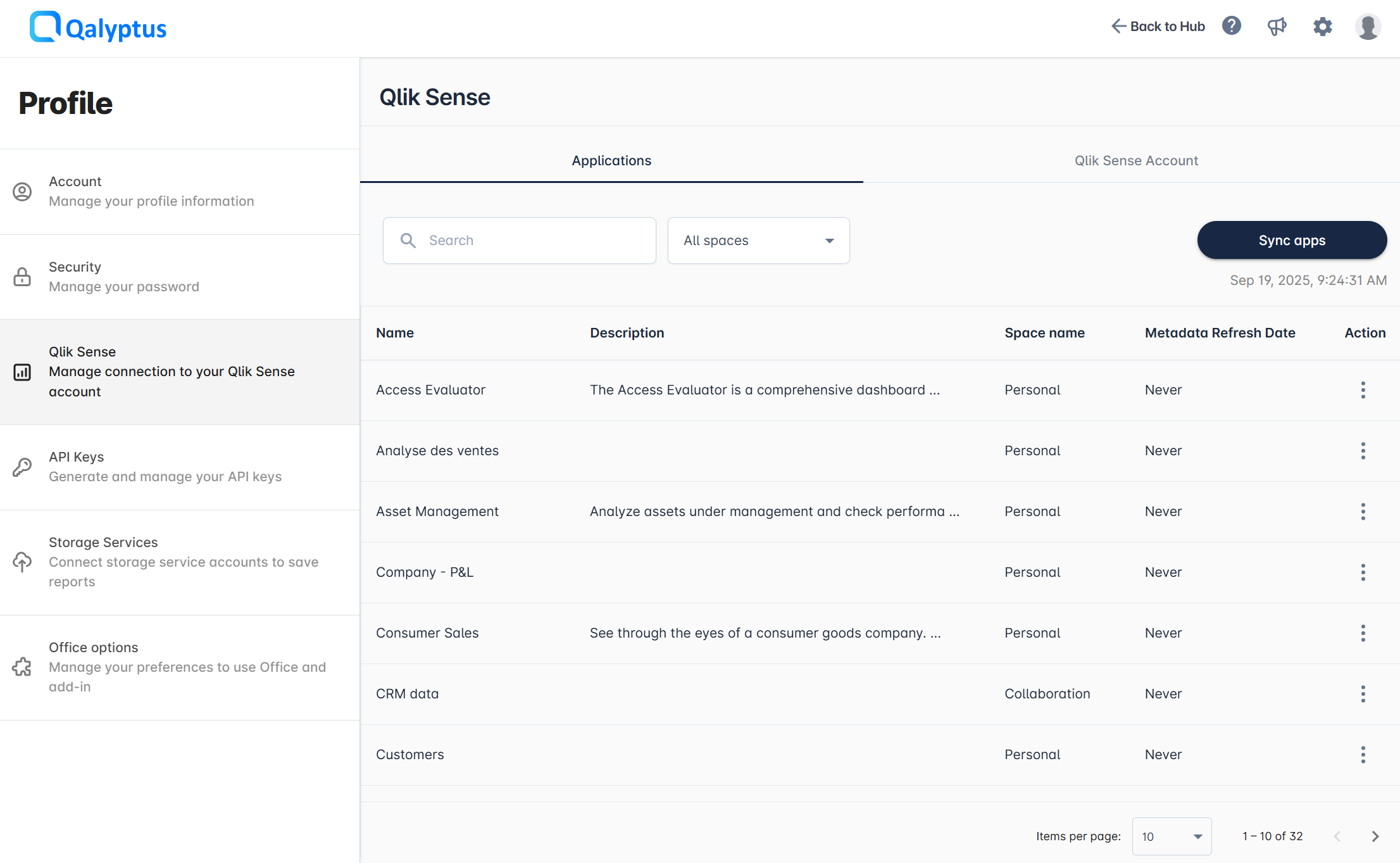
Qalyptus retrieves only the list of applications, not their metadata (objects, variables, fields).
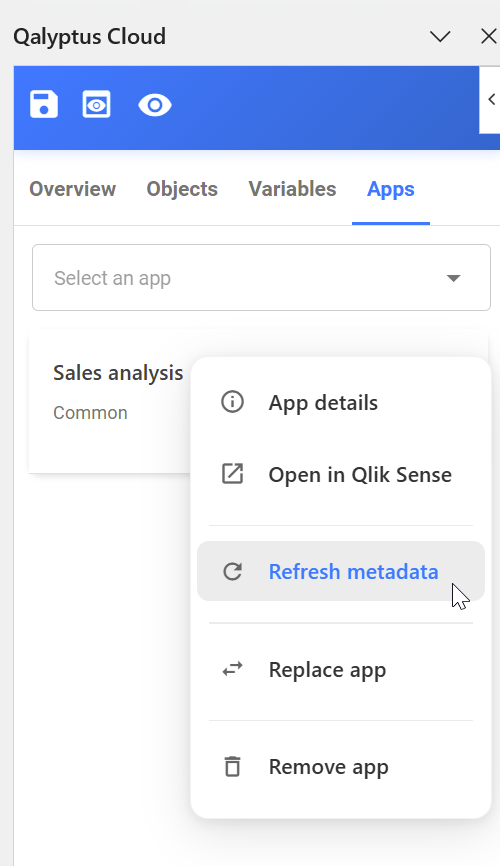
To refresh an app’s metadata, click the Action button next to the app and select Refresh metadata.
Metadata includes details about objects, variables, and fields. You should refresh app metadata whenever you make changes to these elements. You do not need to refresh metadata after simply reloading the app.
Qalyptus synchronizes Qlik Sense based on the Qlik Sense user profile.
This means a user will see the same apps and content in Qalyptus as they do in the Qlik Sense UI.
If an app or some objects are removed in Qlik Sense, Qalyptus will also remove them from the app list, metadata, and any reports that use those apps or objects.
If User A creates a report using an object from a sheet (for example, Dashboard) and later User B removes access to that sheet, then when User A refreshes the app metadata, the sheet and its objects will be removed from the report template.
When the report is generated, the missing objects will no longer appear.
App metadata is used when designing a report template. You can also refresh metadata directly from the template editor under the Apps tab.
Troubleshooting
-
I cannot synchronize the app list or refresh metadata
- Ask your administrator to verify that your Qalyptus Cloud tenant is correctly connected to your Qlik Sense tenant. See the Troubleshooting section in Qlik Sense integration.
- Make sure the email address in your Qalyptus Cloud profile matches the email address of your Qlik Sense user account.
- Confirm that your Qlik Sense user has the necessary permissions to access the Qlik Sense apps you want to use.
- If you used Qlik Sense credentials, ensure that your password is still valid and that you can log in to Qlik Sense.
-
I cannot connect to my Qlik Sense account using my Qlik credentials
- Make sure your password is correct. If you have recently changed your password, you must update it in the Qlik Sense Account tab.
- When using the Qlik credentials option to connect to Qlik Sense, your Qlik Sense tenant must not be configured to authenticate users through an Identity Provider (IdP).
If your tenant uses an IdP, you need to change the authentication method in Qlik Sense integration and use the Qlik Sense API key option instead.