Group Management
Groups in Qalyptus Server provide an efficient way to organize users and manage access at scale. Groups can be created manually or automatically synchronized from enterprise directories, enabling dynamic user management and automated task distribution.
Benefits of Group Management
Efficient User Organization
- Simplified Administration: Manage multiple users through group membership
- Dynamic Membership: Automatic updates when users join or leave organizations
- Scalable Access Control: Apply permissions to entire groups
Automated Task Distribution
- Group-Based Recipients: Assign reports and tasks to entire groups
- Dynamic Updates: New group members automatically receive assigned tasks
- Streamlined Workflows: Eliminate manual recipient list maintenance
By default, only Administrator role users can create, edit, and delete groups. Custom roles can be configured with group management permissions for delegated administration.
Manual Group Creation
Create a New Group
- Navigate to Administration > User management > Groups
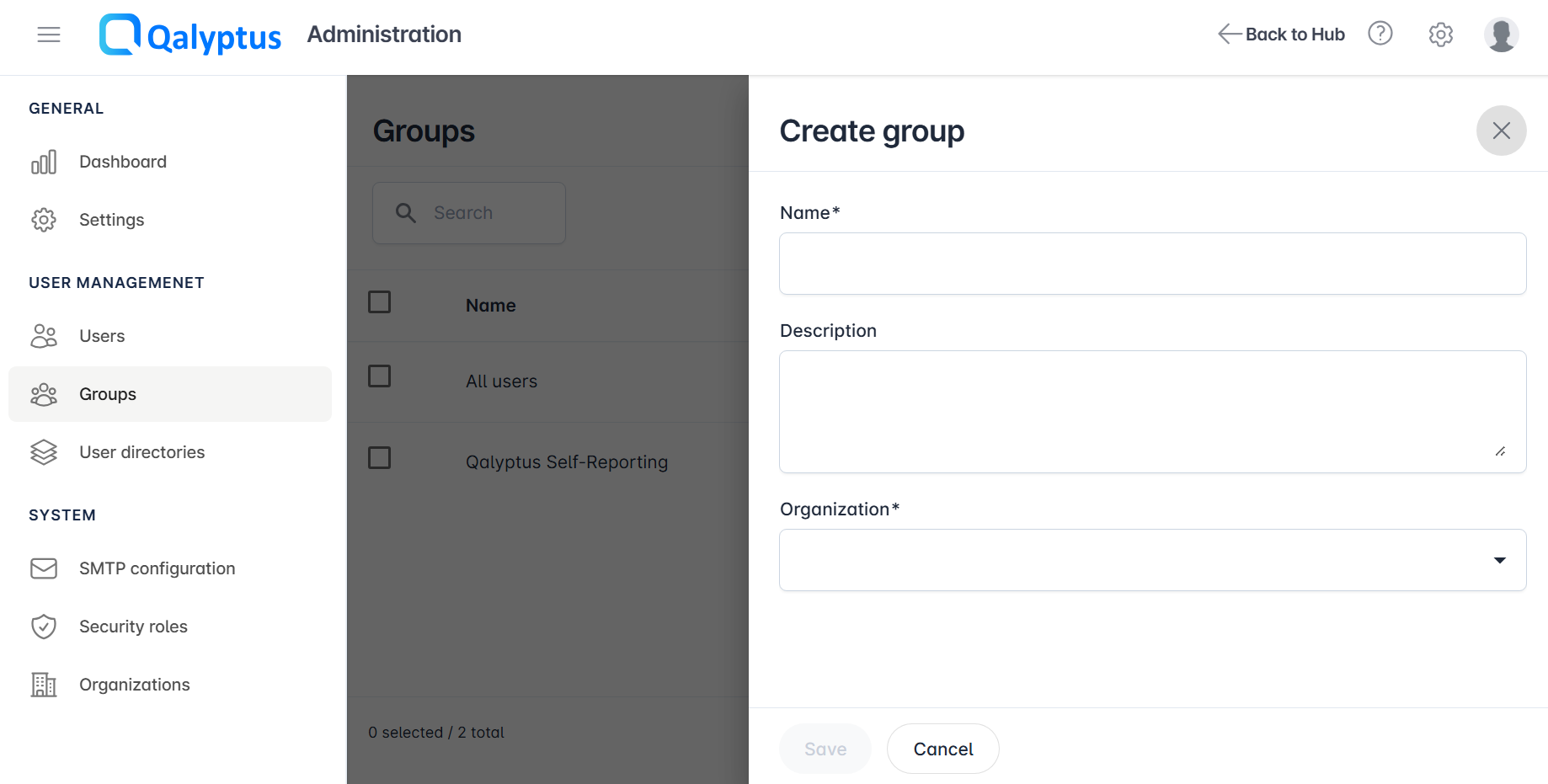
- Click Create group and configure Group Settings
- Name: Unique group identifier
- Description: Optional group description for context
- Organization: Select the organization this group belongs to
- Save Configuration
User Assignment
Organization-Based Membership
All users in the default organization are automatically included in the "All users (default organization)" system group. For custom groups, membership must be managed manually.
Groups are organization-specific. Users can only be added to groups within their assigned organization. If a user leaves an organization, they are automatically removed from all related groups.
Adding Users to Groups
- Navigate to the group you want to modify
- Click the Action button to display available options
- Select Members from the action menu
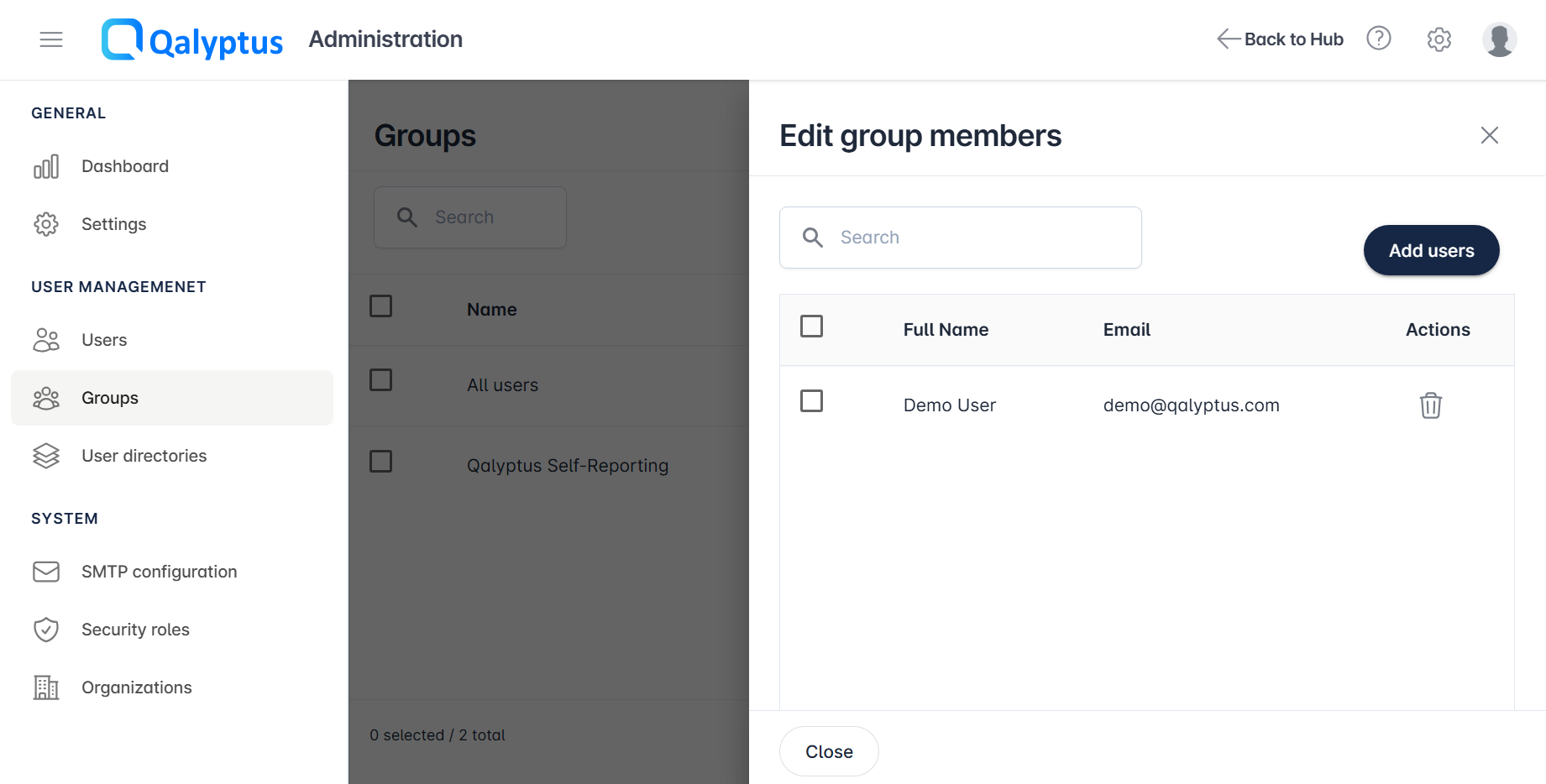
- Click Add users
- Select users from the available list (filtered by organization)
- Click Save to confirm additions
- Click Close to exit member management
Removing Users from Groups
- Access the group's member management interface
- Delete users you want to remove from the group
- Save changes to update group membership
Default System Groups
Qalyptus Server includes built-in groups that cannot be modified or deleted:
All Users (Default Organization)
- Type: Internal
- Membership: Automatically includes all users in the default organization
- Management: Members cannot be added or removed manually
Qalyptus Self-Reporting
- Type: License
- Purpose: Contains users licensed for the Qalyptus Self-Reporting extension
- Management: Users can be assigned within license limits
Groups from Active Directory and Microsoft Entra ID are automatically created during user synchronization when they contain at least one user.
Best Practices
Group Organization Strategy
- Department-Based: Create groups aligned with organizational departments
- Project-Based: Organize users around specific projects or initiatives
- Role-Based: Group users by functional roles or responsibilities
- Location-Based: Organize by geographic locations if relevant
Naming Conventions
- Use consistent, descriptive group names
- Consider prefixes for different group types (e.g., "DEPT_", "PROJ_", "ROLE_")
- Avoid special characters that might cause system issues
Maintenance
- Regularly review group memberships for accuracy
- Remove inactive users promptly
- Update group descriptions when purposes change
- Monitor automated synchronization for directory-integrated groups
Task Distribution Efficiency
- Use groups as task recipients to streamline report distribution
- Leverage dynamic membership updates to automatically include new team members
- Create specialized groups for users who can view a specific report on the "Qalyptus On-demand" extension.
When groups are used as task recipients, adding or removing users from the group automatically updates all associated task distributions without manual intervention.