Change the Qalyptus services user
Changing the Qalyptus Server service user account may be necessary for security compliance, domain integration, or administrative requirements. This process requires careful attention to permissions and certificate management.
Prerequisites
User Account Requirements
- Local Administrator: New user must have local administrator privileges
- Service Permissions: "Log on as a service" right (automatically granted)
- File System Access: Read/write permissions to Qalyptus data directories
- Network Access: Connectivity to Qlik Sense servers (if applicable)
Before You Begin
- Plan maintenance window: Service restart required during the process
- Prepare certificates: Qlik Sense certificates may need reinstallation
- Notify users: Service interruption during the change
Service Impact
Changing the service user requires stopping and restarting the Qalyptus Server service, causing temporary service interruption.
Change Service User Account
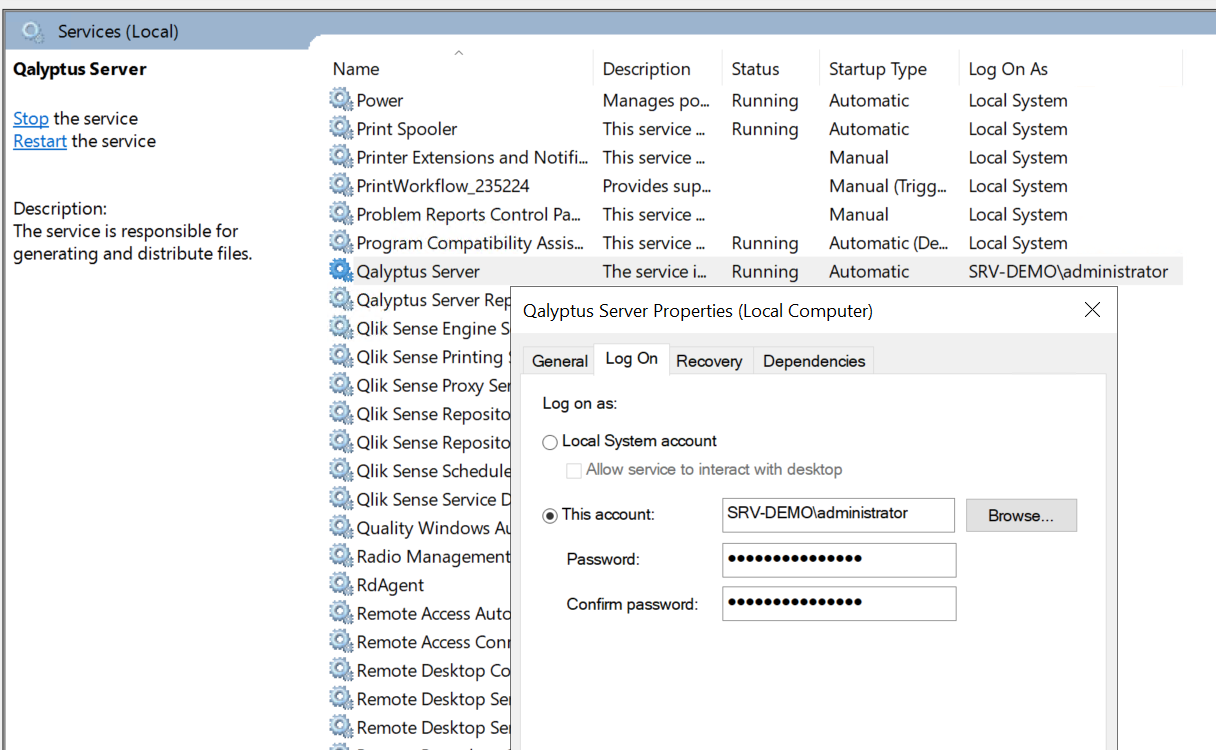
Step 1: Modify Windows Service
- Press
Win + R, typeservices.msc, press Enter - Or navigate via Administrative Tools > Services
- Find "Qalyptus Server" and "Qalyptus Engine" in the service list
- Right-click and select Properties
- Navigate to the Log On tab
- Select This account radio button
- Enter the new user account credentials:
- Account:
DOMAIN\UsernameorCOMPUTERNAME\Username - Password: Enter the user password
- Confirm Password: Re-enter password
- Account:
- Click Apply then OK
- The service will restart with the new user account
Step 2: Verify Service Status
- Confirm the service starts successfully
- Check Windows Event Log for any error messages
- Verify Qalyptus Server web interface accessibility
Step 3: Configure Qlik Sense Certificates
When the service user changes, certificate verification is essential for Qlik Sense integration.
- Launch Qalyptus Server Configuration with the new user account
- Method 1: Log out and log in with the new user
- Method 2: Use "Run as different user" (Shift + Right-click)
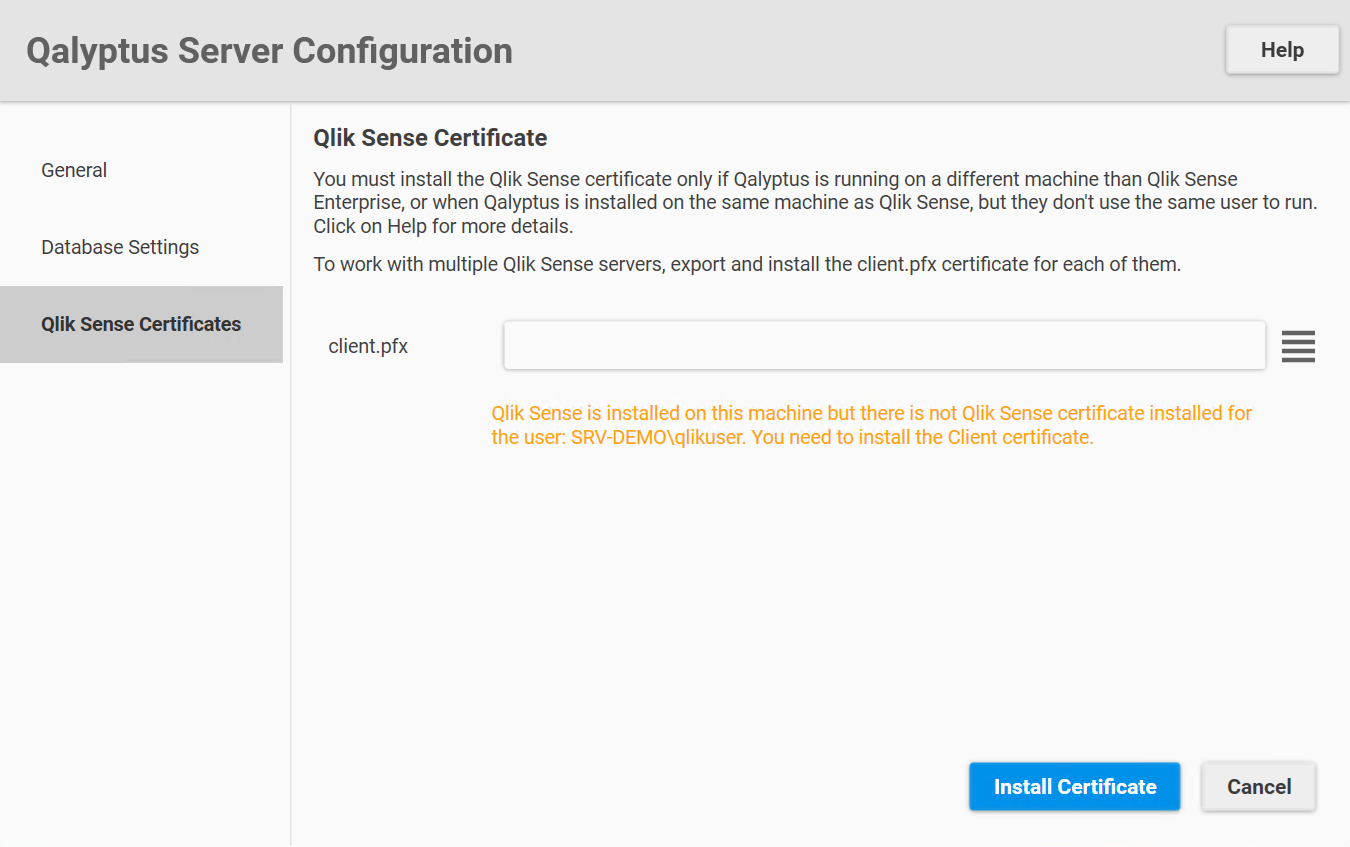
- Go to the Qlik Sense Certificates tab
- Review the information message about certificate requirements
- No certificate needed: Close configuration if message indicates certificates exist
- Certificate required: Follow certificate installation process:
- Export certificates from Qlik Sense QMC
- Install the
client.pfxcertificate - Click Install Certificate
- Verify successful installation
Post-Change Verification
System Testing
- Service Status: Verify Qalyptus Server service runs correctly
- Web Interface: Test access to Qalyptus web interface
- Qlik Sense Connectivity: Validate connections to Qlik Sense
- Report Generation: Test basic report functionality
- User Access: Confirm user authentication works properly
- Data Directory: Ensure new user can access Qalyptus data folders
Important Considerations
Qlik Sense Integration Impact
Connection Behavior
Qalyptus Desktop connections without explicit Qlik Sense user specifications will use the Qalyptus Server service user as the Qlik Sense identity. Ensure the new service user has:
- Valid Qlik Sense license
- Appropriate app access permissions
- Required security role assignments
Best Practices:
- Explicit User Assignment: Configure specific Qlik Sense users in connection settings
- License Management: Verify service user license allocation
- Permission Auditing: Review and update security rules as needed
Troubleshooting
Service Start Issues
- Event Log Errors: Check Windows Event Log for detailed error messages
- Qalyptus Logs: Check the Qalyptus Server and Qalyptus Engine logs located in the Data folder.
- Permission Problems: Verify user has "Log on as a service" rights
- File Access: Ensure user can access Qalyptus installation directory
Certificate Problems
- Missing Certificates: Re-export and install Qlik Sense certificates
- Certificate Errors: Verify certificate validity and installation
- Connection Failures: Test network connectivity to Qlik Sense