Advanced Features
Add a filter to an object
In addition to applying filters at the report and task levels, you can apply a filter for each Qlik object you use in your template.
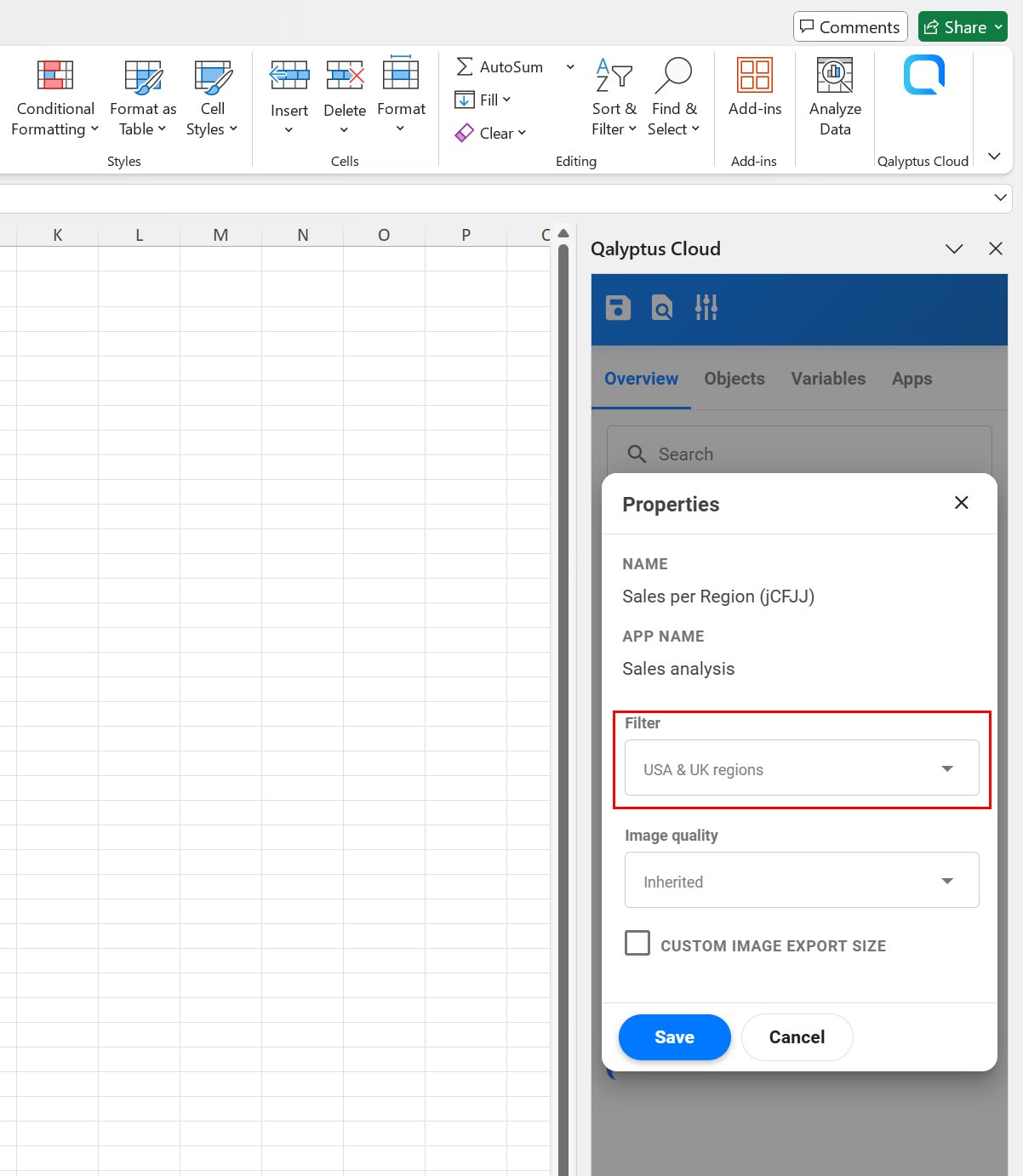
Right-click on the object to which you want to add a filter, then select Properties. In the Properties screen, select the filter to apply from the available filters. Note that only one filter can be applied to an object.
Export an object with a different size
When you want to use a Qlik Sense object (chart or table) as an image in your report template, drag and drop the object to the template file. Qalyptus will create a placeholder image that you can resize. When you generate the report, Qalyptus will export the Qlik Sense object with the dimension of the placeholder image and put it in the placeholder image.
It is possible to export the image with a large or small size as the placeholder image size. For example, export the image 1200 x 800 px and use it in size 1000 x 600 px file.
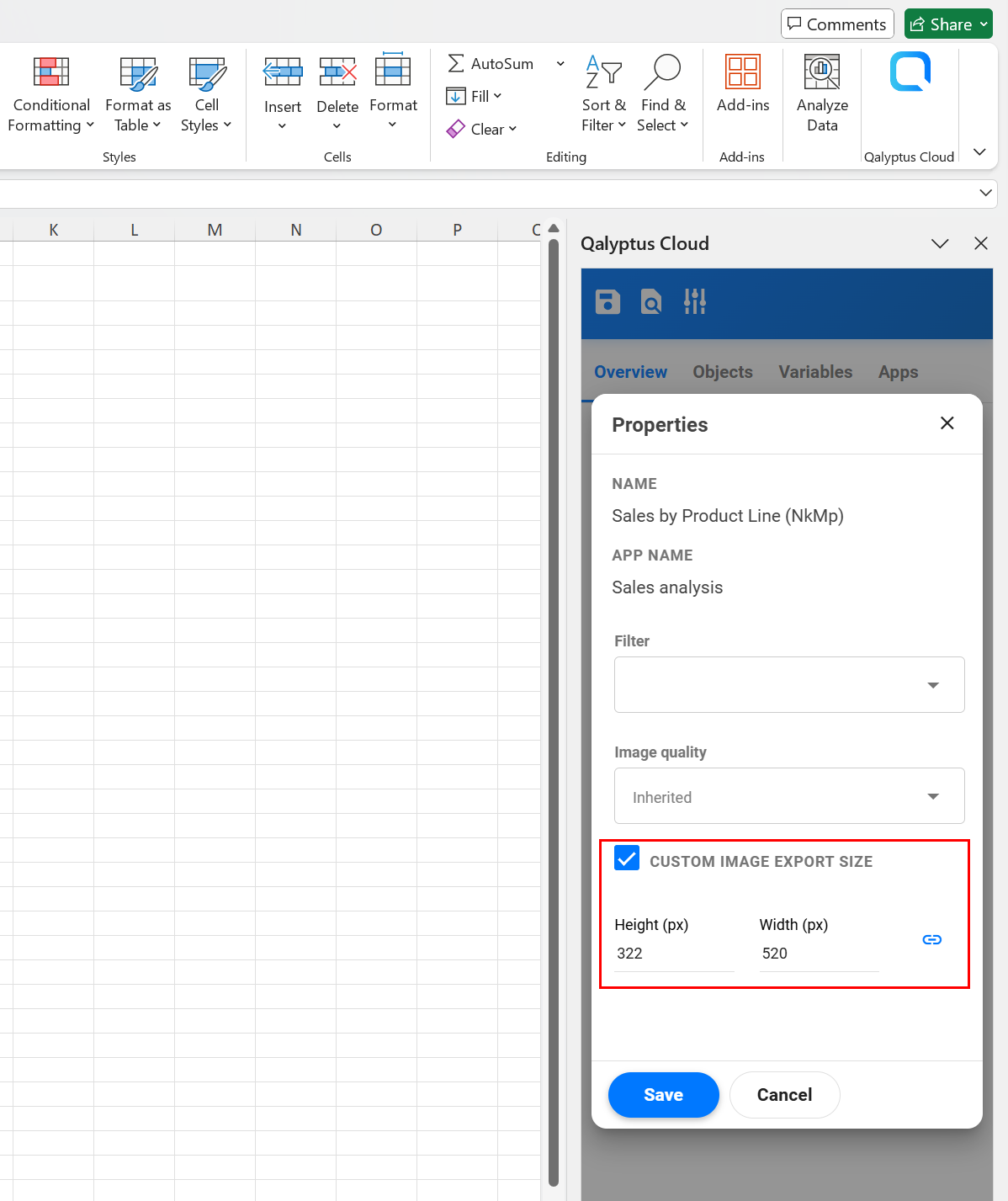
Select the option Custom export dimensions in the object Properties, then enter the Height and Width value.
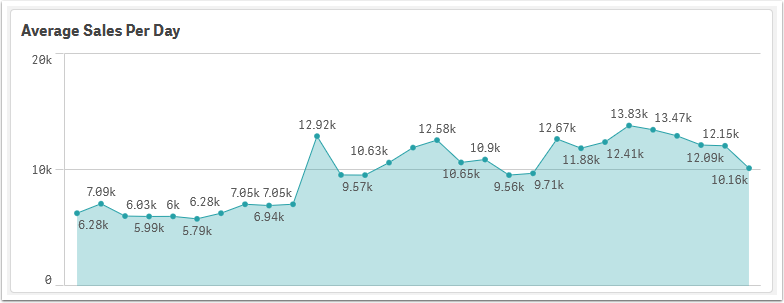
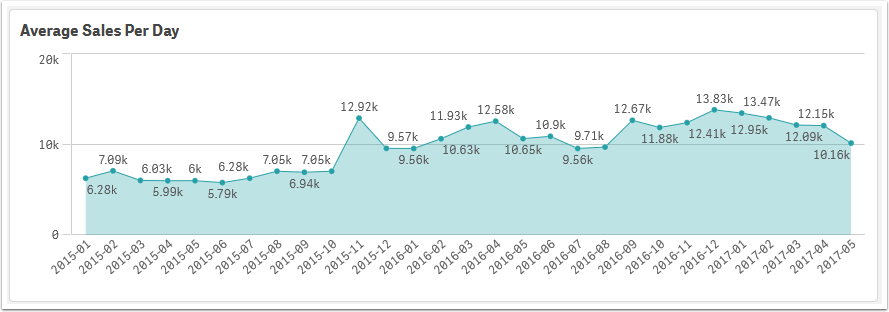
Exporting an object with a large size allows you to get more information; Qlik Sense can hide some information when you reduce the size.
Chart with a small size (export size = size of use )
The same chart with a large export size (export size > size of use )
Create a PowerPoint native chart
You can create a PowerPoint chart with data from a Qlik Sense object (chart or table).
The video uses Qalyptus Desktop; it works the same way with Qalyptus Cloud. We will produce a video with Qalyptus Cloud as soon as possible.