Managing Connections
The Connections page lists all the connections configured in your project. Connections define how the Migration Tool authenticates with your source and target environments.
Each migration requires one source connection and one target connection:
- Source: Qlik NPrinting or Qalyptus Server
- Target: Qalyptus Server or Qalyptus Cloud
Use the search field at the top of the list to find a connection by name.
Create a connection
Click Create and choose the connection type:
All connection names must be unique (case-insensitive). If a connection with the same name already exists, you will be prompted to choose a different name.
Qlik NPrinting
| Field | Required | Description |
|---|---|---|
| Name | Yes | A unique display name for this connection. |
| Description | No | Optional notes about this connection. |
| Server URL | Yes | The hostname or URL of your Qlik NPrinting server. |
| Yes | The email address of the NPrinting user used for authentication. | |
| JWT Private key | Yes | The private key of the SSL certificate configured for JWT authentication in NPrinting. |
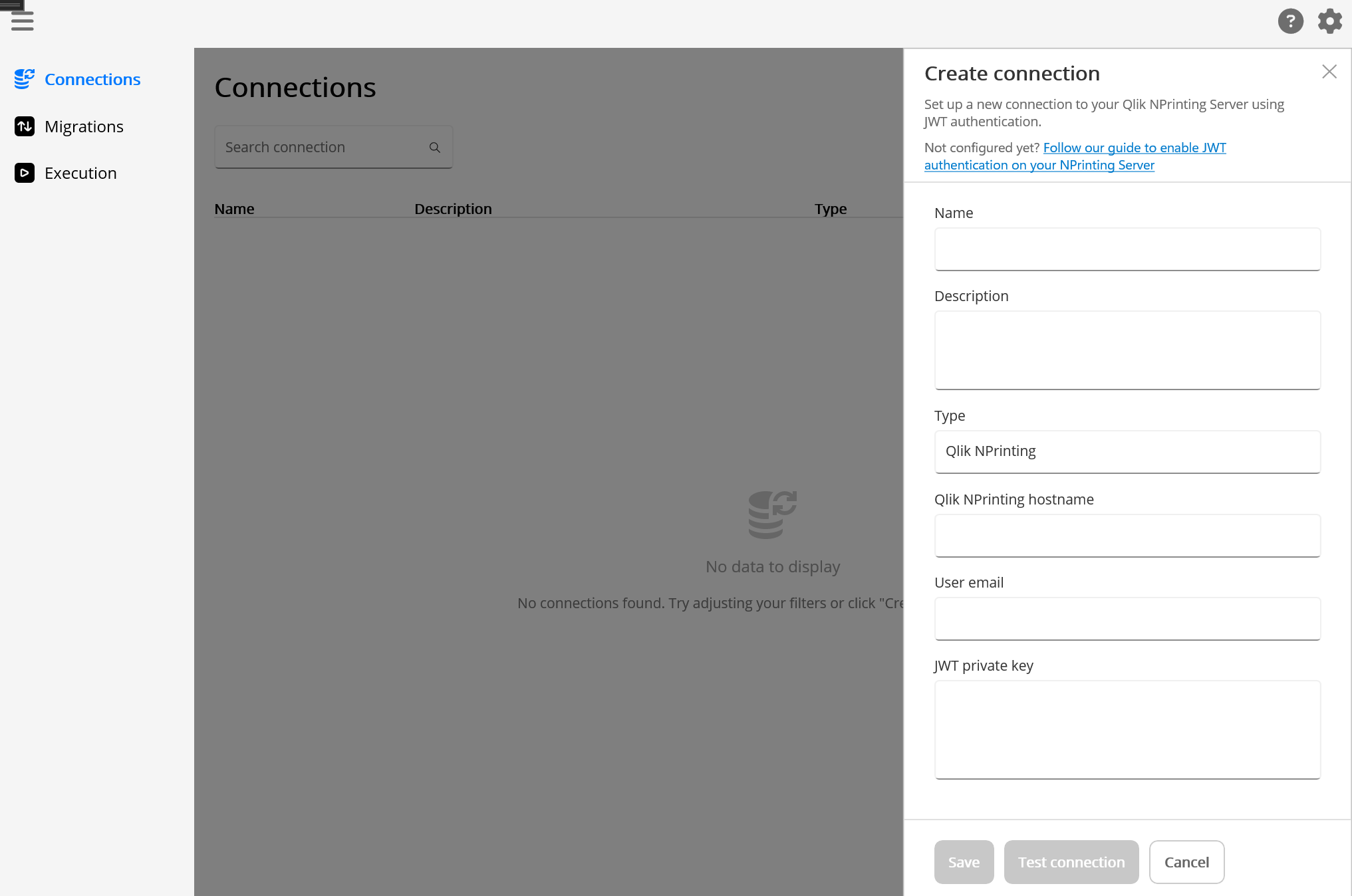
JWT authentication must be enabled in Qlik NPrinting before you can connect. This requires generating an SSL certificate and registering its public key in the NPrinting server settings. The Migration Tool uses the corresponding private key to authenticate.
Lean more about Configuring Qlik NPrinting JWT authentication.
Click Test Connection to verify that authentication succeeds before saving. The Save button becomes active only after a successful connection test and all required fields are filled in.
When editing an existing connection, the private key field is not displayed. Leave the field empty to keep the existing key, or enter a new key to replace it.
Qalyptus Server
| Field | Required | Description |
|---|---|---|
| Name | Yes | A unique display name for this connection. |
| Description | No | Optional notes about this connection. |
| Server URL | Yes | The hostname or URL of your Qalyptus Server instance. |
| API Key | Yes | An API key generated from Qalyptus Server. See API Keys. |
Click Test Connection to verify authentication before saving. The Save button is active only after a successful test.
When editing an existing connection, the API key is not displayed. Leave the field empty to keep the existing key, or enter a new one to replace it.
Qalyptus Cloud
| Field | Required | Description |
|---|---|---|
| Name | Yes | A unique display name for this connection. |
| Description | No | Optional notes about this connection. |
| Server URL | Yes | The URL of your Qalyptus Cloud tenant. |
| API Key | Yes | An API key generated from Qalyptus Cloud. |
Test Connection verifies both the API key authentication and that the Qalyptus Cloud tenant is connected to a Qlik Sense tenant. The Save button is active only after a successful test.
When editing an existing connection, the API key is not displayed. Leave the field empty to keep the existing key, or enter a new one to replace it.
After creating a connection
When a connection is created for the first time, the Migration Tool automatically fetches metadata from the connected environment (apps, reports, tasks, roles, etc.). A loading indicator is shown during this process.
- If the refresh succeeds, the loading indicator stops and the connection is ready to use.
- If the refresh fails, an error is displayed. Review the log file for details and try refreshing again.
Metadata is only fetched automatically on creation. Editing an existing connection saves your changes without re-fetching metadata.
Connection actions
Each connection in the list has an Actions menu with the following options:
Edit
Open the connection settings to update the name, description, URL, or credentials.
Refresh metadata
Fetch the latest data from the connected environment. This updates the list of apps, reports, tasks, and roles available for migration configuration.
Each refresh generates a log file in the data folder configured in the application settings. Log file names follow the pattern:
QalyptusMigrationTool_YYYYMMDD_HHMMSS.txt
The log records the tool version, connection name, all operations performed, and any errors encountered. After a successful refresh, the Last successful refresh date is updated on the connection.
Open log file
Open the log file from the most recent metadata refresh. If no refresh has been performed yet, a message is shown prompting you to refresh metadata first.
Delete
Delete the connection. A confirmation prompt is displayed before the deletion is performed.
A connection cannot be deleted if it is currently used by a migration. You must remove the connection from all migrations before deleting it. The prompt will list all migrations that reference the connection.
Configuring Qlik NPrinting JWT authentication
Configure JWT authentication before creating a Qlik NPrinting connection in Qalyptus Migration Tool.
Generate a JWT X.509 key pair
JWT authentication requires a cryptographic key pair (public and private). Qalyptus Migration Tool includes a built-in key generator to simplify this step.
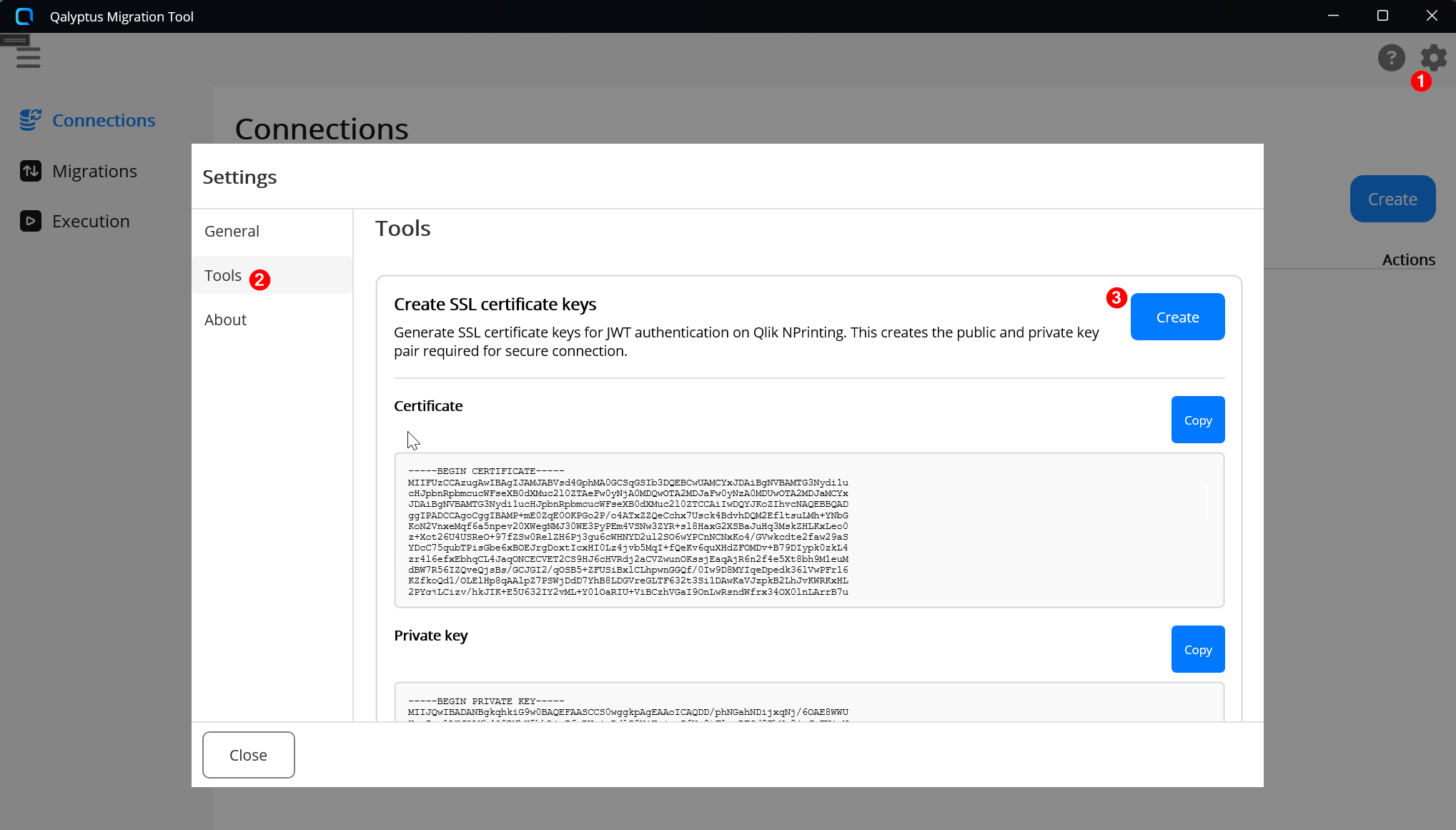
- Open Qalyptus Migration Tool.
- Click the Settings icon in the top-right corner.
- Select the Tools tab.
- Click Create.
- The generated public and private keys are displayed. Keep them in a safe place.
- Use the public key when configuring JWT authentication in Qlik NPrinting (see the section below).
- Use the private key when creating the connection in Qalyptus Migration Tool.
Configure JWT authentication in Qlik NPrinting
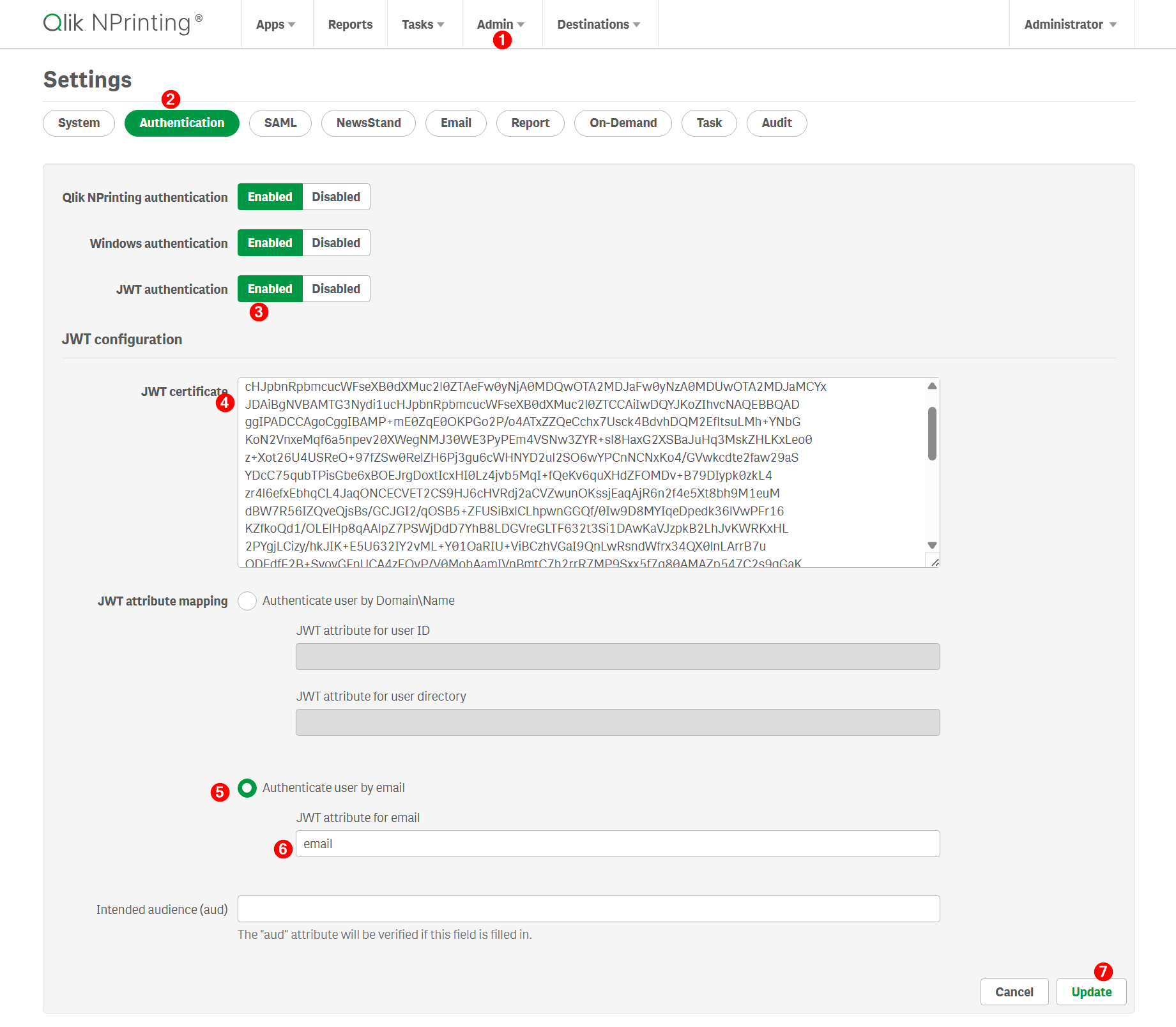
- Log on to Qlik NPrinting as an administrator.
- Click Admin and select Authentication settings.
- Enable JWT authentication using the associated toggle.
- In the JWT certificate field, paste the public key generated above.
- Select Match user by email and enter the JWT attribute for email:
email. - Click Update authentication settings to save your changes.