Create task
Create tasks and schedule report delivery
Availability: All Qalyptus Cloud subscriptions
Minimum license required: Create: Creator, Edit: Explorer, View: Viewer
In this section, we will see how to create a task and schedule the execution. A task can be executed on-demand or can be run recurrently using Schedules.
To create a task, go to the Tasks page and click the Create task button.
- Give a name to your task
- Add a description if you wish (optional)
- Select a project
- Click Save
You will be redirected to the task Overview tab.
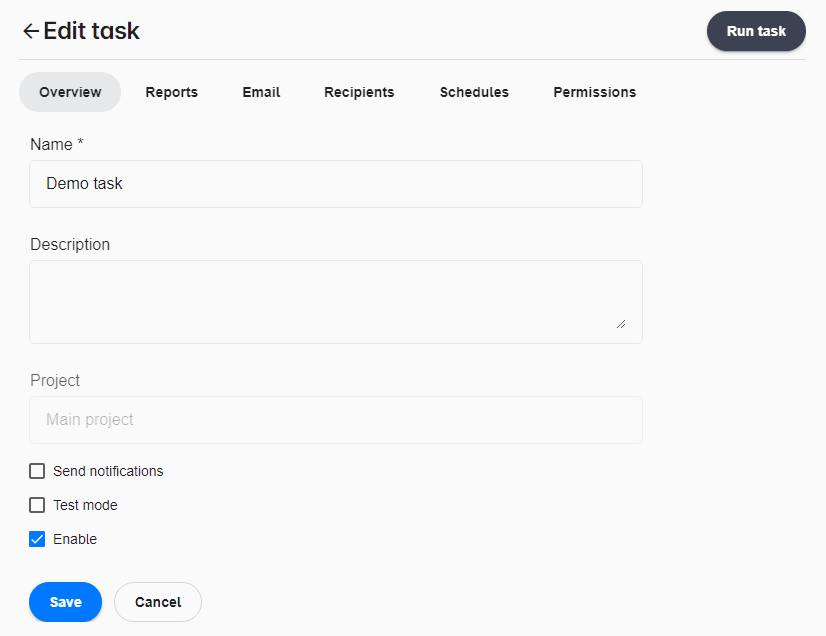
Send a notification after task execution
You can send an email notification at the end of a task to inform people of the task's status; the task ended with errors, warnings, or success. The log file of the task is attached to this email. For each task, you can choose which status you want to send a notification for and the recipients.
Send reports to test recipients
When you schedule a task to send reports to recipients, you may want to receive the emails at a specific email address to ensure that every recipient receives the email with the expected message and attachments.
After activating the Test mode, the emails will be sent to specified email addresses at the end of the task execution. The email subject will be prefixed with the original recipient's email address.
Example: If you have 20 recipients in your task and enter your email address when you activate the Test mode, you will receive 20 emails, and the recipients will receive nothing. If everything is OK, disable the Test mode, and the recipients will receive the emails at the next task execution.
Stop report generation if the Qlik app is reloaded
If the source Qlik Sense app is reloaded while a report is being generated, the objects exported at the beginning and at the end of the generation may reflect different data, leading to inconsistent report files.
To avoid this, each task includes the option Abort task execution on Qlik app reloaded during processing, available in the task Overview tab. When the option is enabled and Qalyptus Cloud detects that the app was reloaded during the generation, the report is interrupted and the task status clearly indicates the reason.
The option is enabled by default for on-demand report generation.
Publish reports
To publish reports with this task, continue with the following:
- Add reports to task
- Add email message to task
- Add recipients to task
- Add triggers to task
- Add conditions to task
Run a task
A task can be run manually (on demand) or automatically using a schedule.
To run a task manually, go to the task list, click the action button, then click Run now. The task will be queued for execution, and you can monitor its status on the Status > On-demand requests page.
To run a task automatically, edit the task, go to the Schedules tab and add triggers. The task will be queued for execution, and you can monitor its status on the Status > Scheduled tasks page.
Either way, you can download the execution log file from the Status page.