Add conditions
Control which task reports get generated
Conditions let you control whether a report is generated during a task run. If the assigned conditions are not met, Qalyptus skips generation for that report.
Conditions must be created before they can be assigned to a task report. See Conditions for details.
Add a Condition to a Report
- Go to Tasks and open the desired task.
- Go to the Reports tab.
- Edit the target report.
- Navigate to the Conditions tab.
- Select and add one or more conditions.
- Click Save.
If the conditions are not satisfied when the task runs, report generation is skipped. If no report is generated at all, the task completes with a Warning status.
Choose when the report is generated
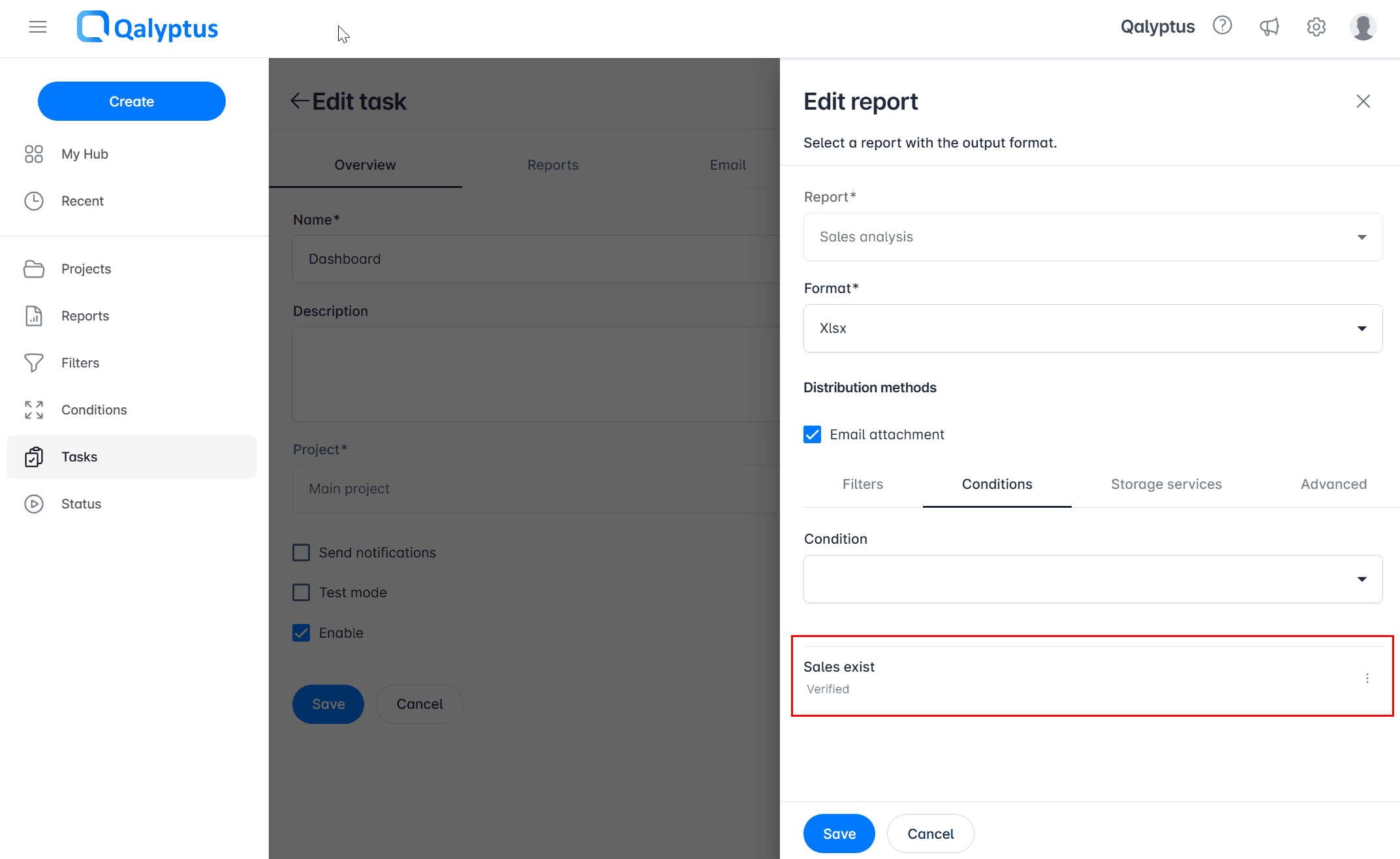
By default, a report assigned a condition is generated when the condition is verified. For each condition of a report, you can reverse this behavior and generate the report when the condition is not verified.
To change this setting:
- Go to the report's Conditions tab
- Open the action menu of the condition
- Select Not verified (or Verified to switch back)
From the same menu, you can also remove the condition.
This is useful when you want to generate a report only when the expected data is missing — for example, to send an exception report when no sales are recorded for the day.
Conditions for Iteration Reports
For iteration reports that produce multiple files, you can choose when Qalyptus evaluates the condition:
- Once before generation starts (default): The condition is evaluated once. If it fails, the entire iteration is skipped.
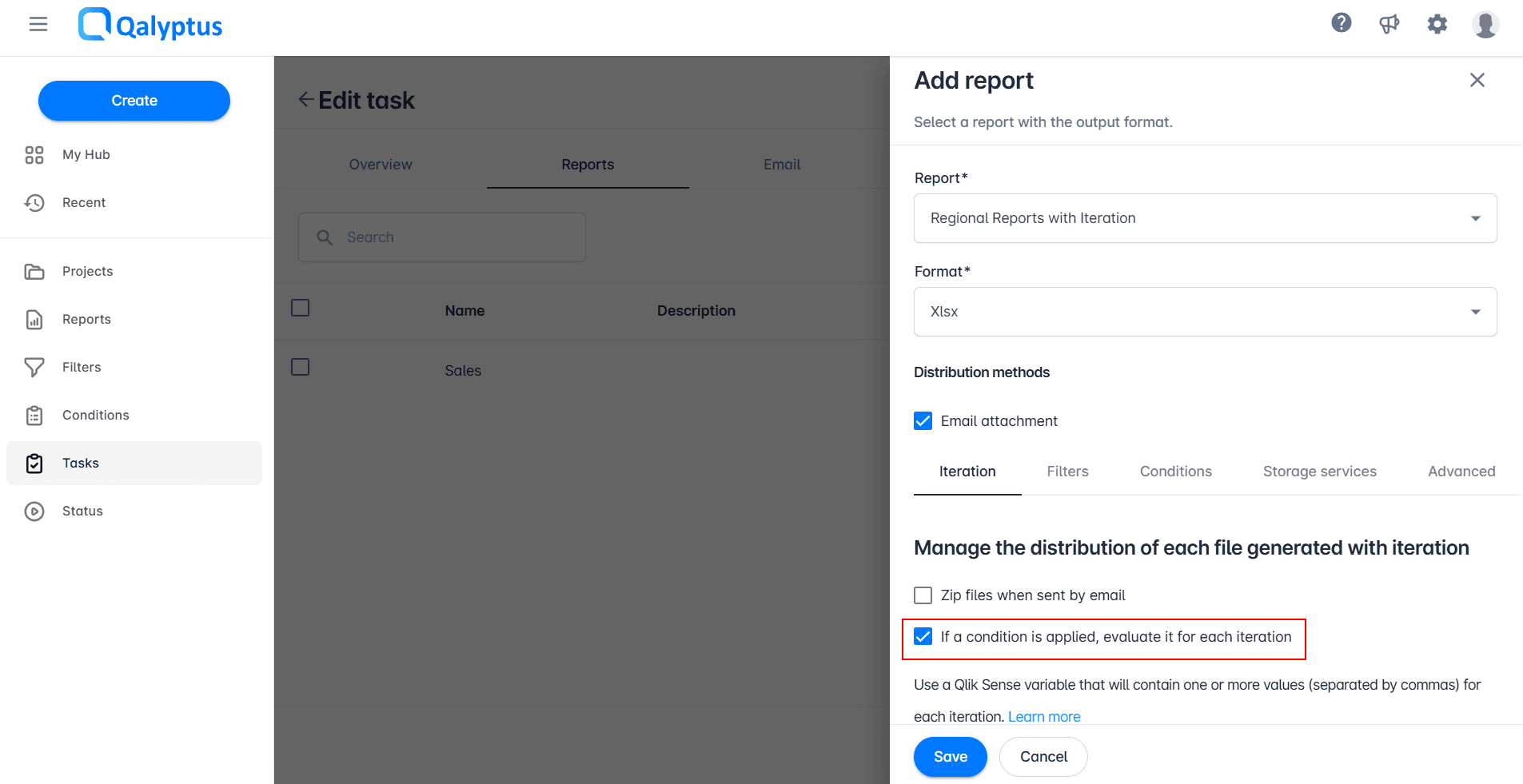
- Before each iteration: The condition is evaluated individually for each iteration. Files whose condition fails are skipped; others are still generated.
To enable per-iteration evaluation, in the report's Iteration tab, enable If a condition is applied, evaluate it for each iteration.