Generate reports
Create tasks, add reports and run the generation
To generate your Qalyptus reports, you need to create tasks that will contain the reports to generate.
A task can contain one or more reports with one or more formats.
You can add filters to a task. Qalyptus applies task and report filters before generating reports. See more about filters.
To create a task, go to the Tasks tab and click the Create button. Your screen will look something like this:
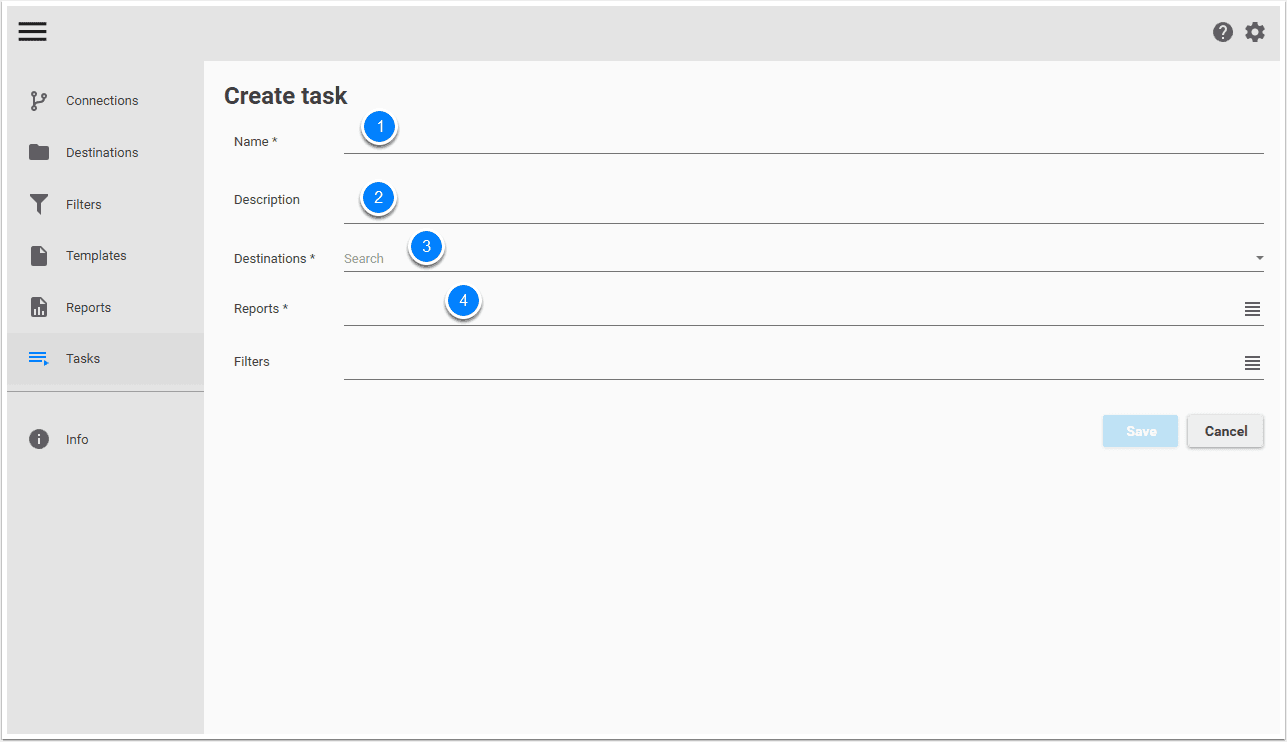
- Give a name to your report. Example: Performance task
- It is recommended to add a description
- In the Destination drop-down menu select Performance files. This destination was created in the Destinations tab.
- Click the Reports button to add reports to your task. A new window will open
We will add two reports to the task.
- The first one is an iteration report: Reports for sales performance by Region Market
- The second one is a single report: A report for sales performance for all the company
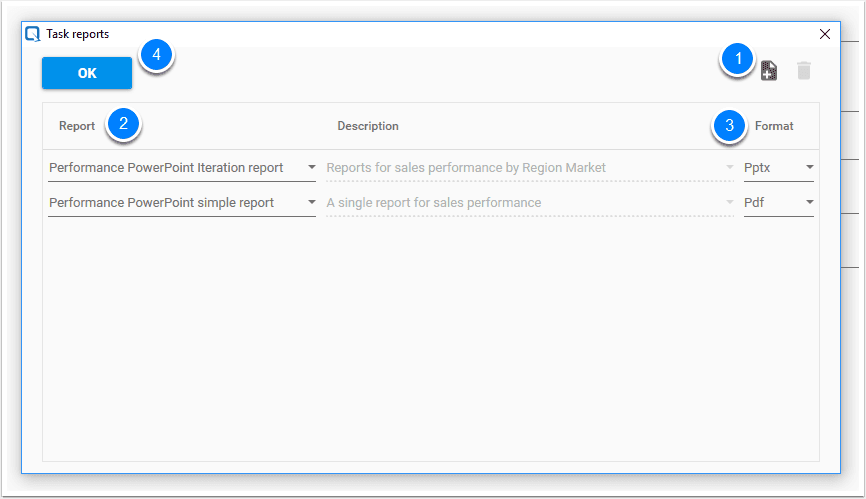
- Click
 to add a report
 - In the Report drop-down menu, select a report
- In the Format drop-down menu, select a format with which the report will be generated.
- Click the OK button to validate your work.
Finally, click Save to create and save the task. Your task is now created and can be started.
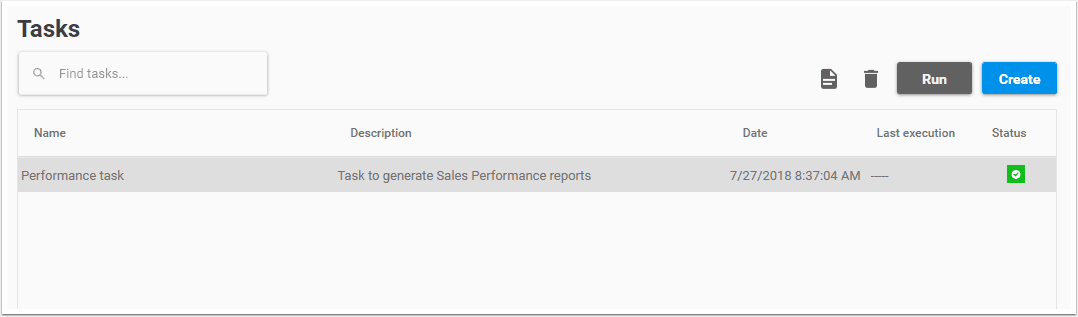
Select the task and click Run to generate your reports. At the end of the generation, Qalyptus will create six files with the PPTX extension and one file with the PDF extension.
Status
A task can have five different statuses:
- Valid task
- No destination or report assigned to task
- Task destination is not valid
- Task reports are not valid
- Task filters are not valid
A task cannot be started if there are one or more errors.