SMTP configuration
Set up the mail server to send report emails
SMTP configuration enables Qalyptus Cloud to send automated email notifications and report deliveries by email. Before sending reports by email, you must configure a mail server that Qalyptus Cloud can use to send messages.
SMTP Server Requirements
Cloud Access
- Network Connectivity: Qalyptus Cloud must be able to connect to the SMTP server
- Port Access: The SMTP server must be accessible over the Internet. Port 25 is not supported by Qalyptus Cloud. Port 587 is recommended for authenticated SMTP connections. Port 465 can also be used if supported by the SMTP server.
- Authentication: Valid SMTP credentials (if required by server)
- Encryption: SSL/TLS support for secure email transmission
Supported Configurations
- Internal SMTP Servers: Corporate Exchange or Postfix servers that are reachable by Qalyptus Cloud
- Cloud Email Services: Office 365, Gmail, AWS SES, SendGrid
- Authenticated Relay: Servers requiring username/password authentication
- Anonymous Relay: Internal servers allowing unauthenticated sending
SMTP Configuration Types
Qalyptus Cloud provides two types of SMTP configuration:
- Outlook 365: Select Outlook 365 when you want Qalyptus Cloud to send emails using your Microsoft 365 mail service. The Outlook 365 configuration is intended for organizations that use Microsoft 365 for their email infrastructure.
- Other SMTP: Select Other SMTP when you want to use another SMTP server or email service. This configuration can be used with services such as Gmail or a corporate SMTP server.
Configuration Process
To configure the SMTP server that Qalyptus Cloud will use to send emails, follow these steps:
Configure an Outlook 365 SMTP server
- Log in to Qalyptus as an administrator
- Go to Administration > System > SMTP Configuration
- Click Configure a new SMTP mail server
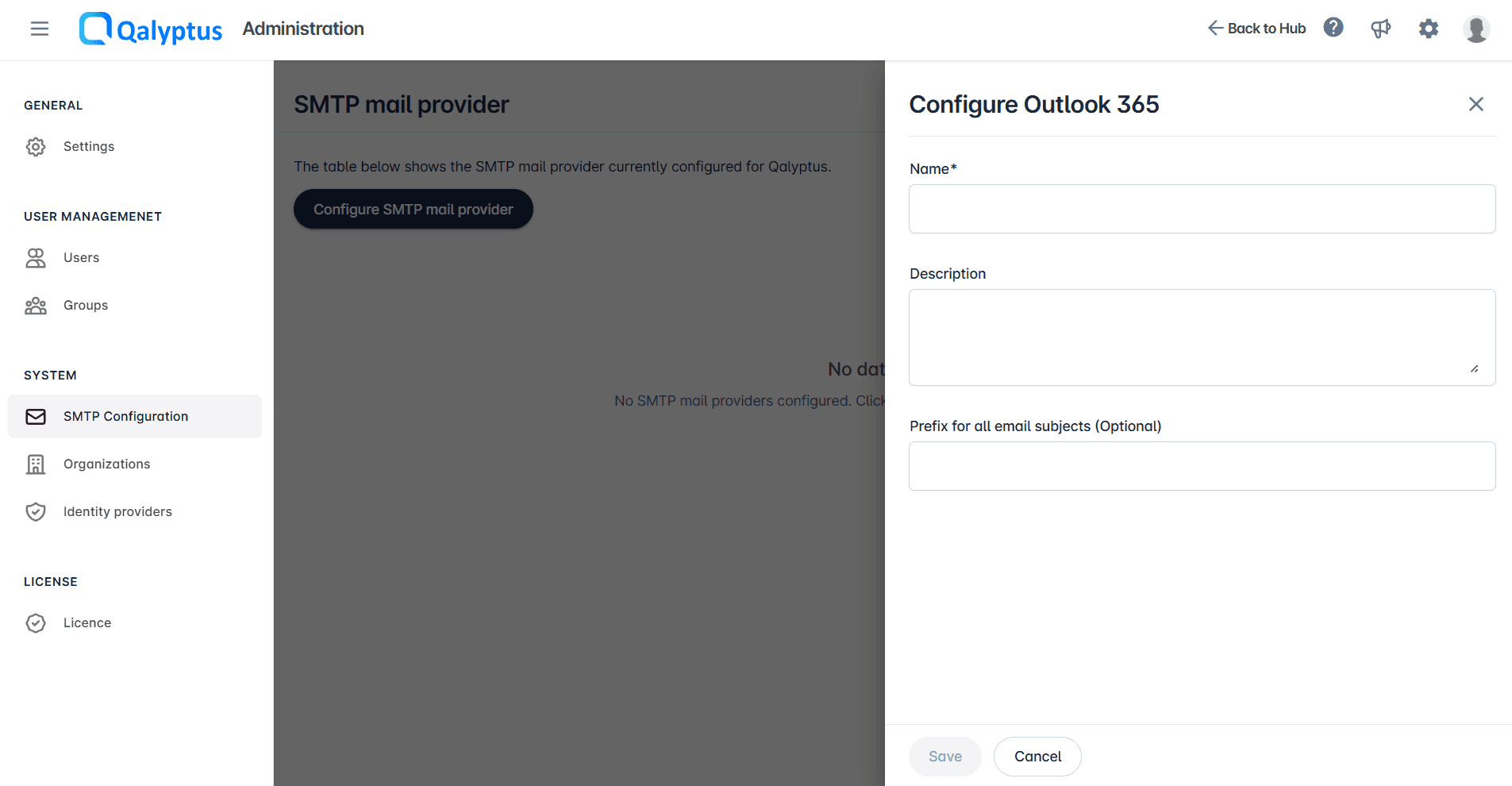
- Select Outlook 365
- Fill in the following information:
- Name: Enter a name for your SMTP mail server
- Description: Enter a description for the SMTP configuration, if needed
- Prefix for all email subjects (Optional): Enter a prefix to add to all email subjects sent by Qalyptus Cloud
- Delay between emails (seconds): Enter the waiting time between two emails. Value = 0: parallel sending; > 0: sequential sending with delay
- Qalyptus Cloud redirects you to the Microsoft authentication page
- Sign in with the Microsoft 365 account that will be used to send emails
- Review the requested permissions and click Accept to authorize Qalyptus Cloud to use the account for sending emails
- Once authentication is completed, return to Qalyptus Cloud
- Click Test connection to confirm that the SMTP configuration is working correctly
- Click Save
Important
An active Microsoft 365 account is required to configure an Outlook 365 SMTP server. The email account authenticated during the Microsoft authentication process is used to send emails. Unlike Other SMTP, you cannot freely use another email address as the sender unless the Microsoft 365 account has the required permissions to send emails on behalf of that address.
Configure an Other SMTP server
- Log in to Qalyptus as an administrator
- Go to Administration > System > SMTP Configuration
- Click Configure a new SMTP mail server
- Select Other SMTP.
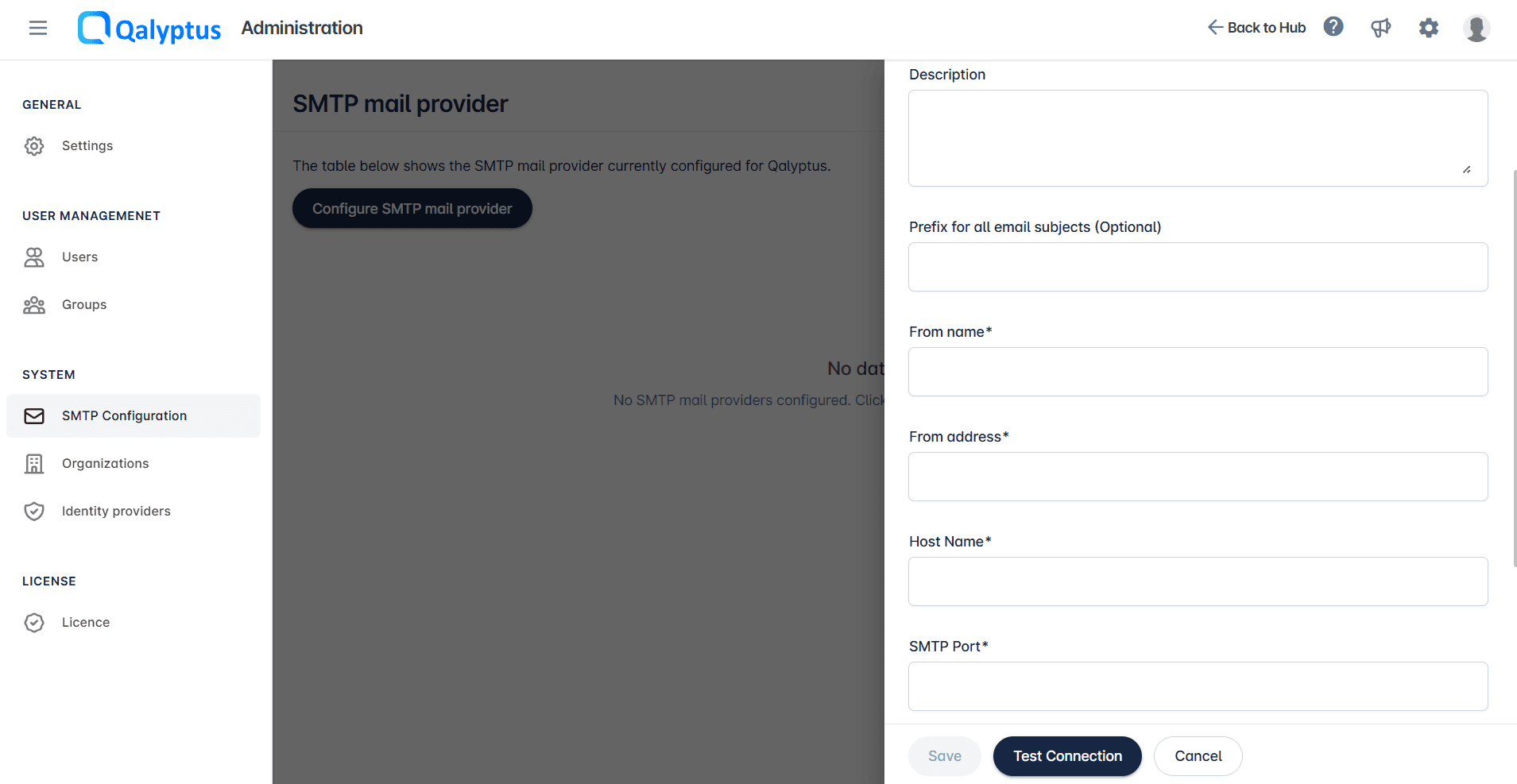
- Fill in the following information:
- Name: Enter a name for your SMTP Mail Server
- Description (Optional): Add a description if you wish (optional)
- From name: Type the sender name that the SMTP server will use to send the messages
- From address: Type the address that the SMTP server will use to send the messages
- Prefix for all e-mail subjects (optional): If you fill in this field, all the subjects of the emails that Qalyptus Cloud will send will be prefixed with the value of this field
- Host Name: Enter the SMTP server address
- SMTP Port: Enter the SMTP server port number
- 587: SMTP with STARTTLS (recommended)
- 465: SMTP with SSL/TLS
- 25: Not supported by Qalyptus Cloud
- SSL: Check this box if your server uses SSL encryption
- Username (Optional): Enter the username of the server
- Password (Optional): Enter the password of the server
- Delay between emails (seconds): Enter the waiting time between two emails. Value = 0: parallel sending; > 0: sequential sending with delay
- Test Mail: Enter an email address to receive the test email
- Click Test connection to confirm SMTP is configured correctly
- Click Save
With Other SMTP
You can configure Tasks to send reports using different email addresses within the same domain, provided that the SMTP server allows the authenticated account to send emails on behalf of those addresses.
SMTP Connection Test Diagnostics
If the connection test fails, Qalyptus Cloud provides a link to view the detailed log file generated during the SMTP connection attempt. Use this log information to diagnose connectivity issues, authentication problems, or server-side errors.
Once the SMTP server is configured, you can use it with Tasks to send reports by email. For more information, see the Tasks documentation.
Delay between emails
The Delay between emails (seconds) setting is available for both SMTP configuration types, Outlook 365 and Other SMTP. It controls how Qalyptus Cloud sends emails when a task delivers reports:
- 0 (default): Emails are sent in parallel.
- Greater than 0: Emails are sent one by one, with a pause of the specified number of seconds between two successive emails.
Use a delay greater than zero if your mail server applies sending limits or throttling. The value must be between 0 and 60 seconds. The configured delay is recorded in the task execution log so you can track the actual sending pace.
Common SMTP server examples
Office 365/Microsoft Exchange Online
Host: smtp.office365.com
Port: 587
SSL: Enabled
Authentication: Required
Gmail SMTP
Host: smtp.gmail.com
Port: 587 or 465
SSL: Enabled
Authentication: App Password required
Internal Exchange Server
Host: mail.company.com
Port: 587
SSL: Depends on configuration
Authentication: May be required
Troubleshooting
Connection test failures
If the SMTP connection test fails, verify the following:
- SMTP Server Address: Make sure the SMTP host name is correct.
- SMTP Port: Verify that the configured port is correct and supported by your SMTP service.
- Network Connectivity: Make sure the SMTP server is reachable from Qalyptus Cloud.
- Authentication: Verify that the username and password are correct if authentication is required.
- SSL/TLS Configuration: Make sure the SSL setting matches the SMTP server requirements.
Authentication issues
- Verify Credentials: Ensure that the username and password are correct.
- Check Account Status: Confirm that the SMTP account is active and not locked.
- Review Permissions: Verify that the account has permission to send emails through the SMTP server.
SSL/TLS problems
- Certificate Validation: Ensure that the SMTP server certificate is trusted and valid.
- Protocol Mismatch: Verify that the SSL/TLS configuration matches the SMTP server requirements.
- Encryption Compatibility: Check that Qalyptus Cloud and the SMTP server support compatible encryption methods.
Email delivery issues
If the SMTP connection test succeeds but emails are not delivered, verify the following:
- From Address: Make sure the sender address is valid and accepted by the SMTP server.
- Recipient Addresses: Verify that the recipient email addresses are valid.
- Content Filtering: Check whether emails are being blocked or redirected to spam.
- Rate Limiting: Check whether the SMTP provider has imposed a sending limit.
- Attachment Size: Verify that the email and its attachments do not exceed the SMTP provider's size limits.
If the issue persists, contact your SMTP service administrator or Qalyptus Support for further assistance.