Add reports
Formats, distribution and protection per report
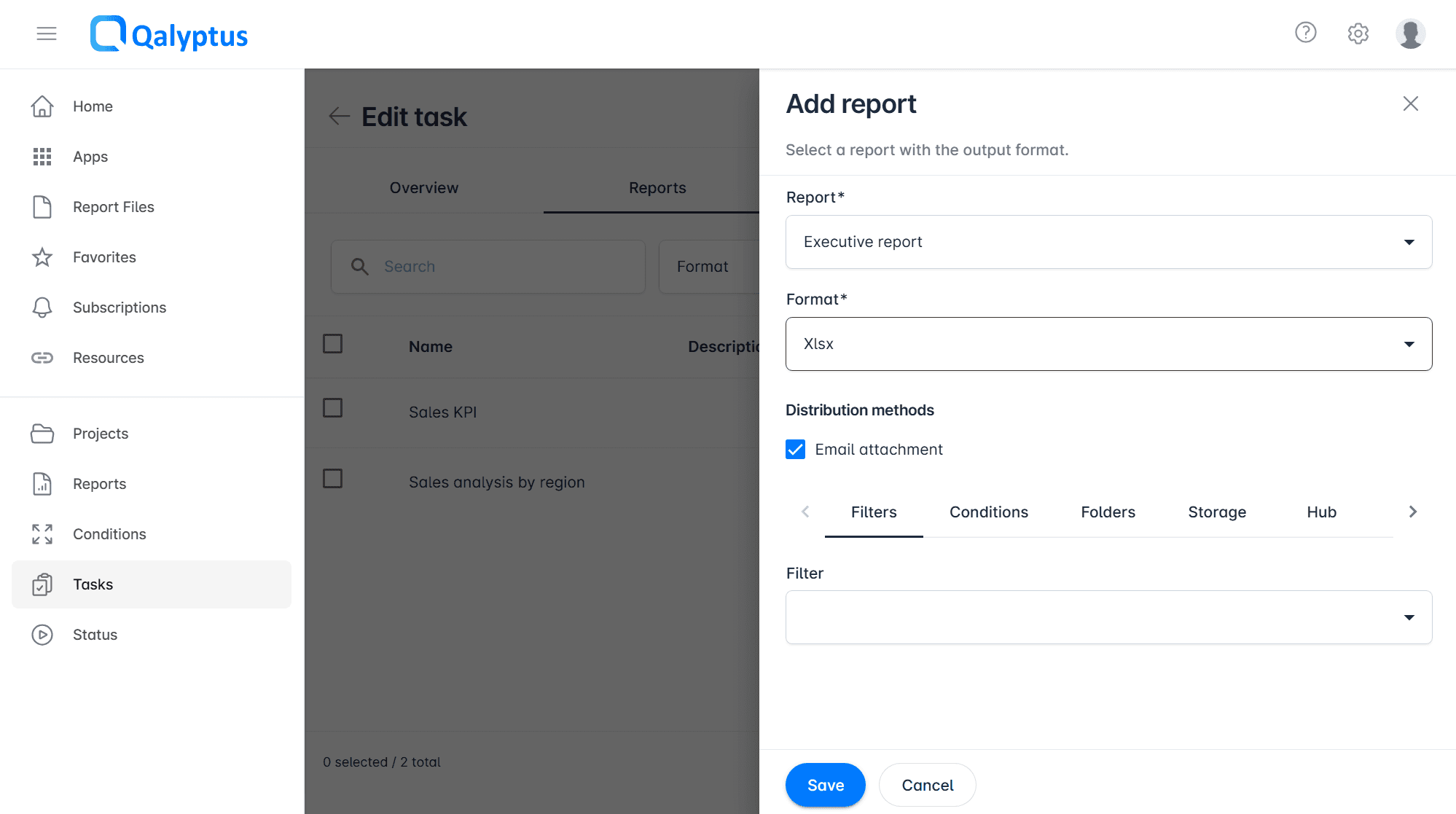
The Reports tab of a task defines which reports to generate, in what format, and how to distribute each one. You can add multiple reports to a single task, each with its own format and distribution settings.
Adding a report
- Open a task and go to the Reports tab
- Click Add report
- Select a Report from the drop-down list
- Select the output Format
- Choose one or more distribution methods for this report:
- Email attachment: Send the file as an email attachment
- Email embed: Embed the report content in the email body (HTML reports only)
- Click Save
Iteration report options
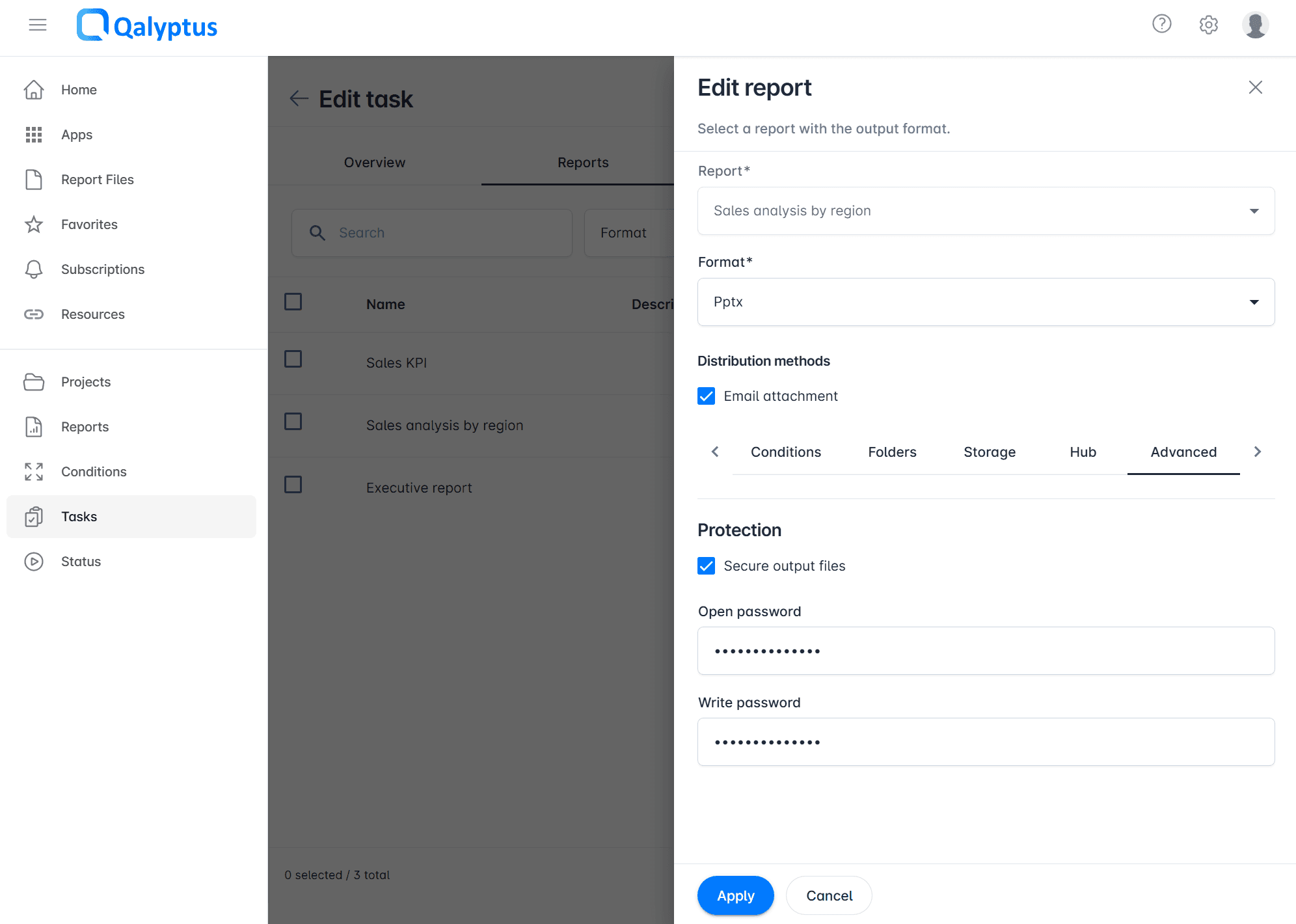
If the selected report uses iteration, additional options are available:
| Option | Description |
|---|---|
| Zip files in the destination folder | Compress all files generated by the iteration into a single ZIP archive when saving to a folder |
| Zip files when sent by email | Group all iteration output files into a ZIP archive when sending as an email attachment |
| Evaluate condition for each iteration | If a condition is applied to this report, evaluate it before generating each individual iteration file rather than once before the whole report |
| Email distribution | Select a Qlik Sense variable whose value resolves to the email address of the recipient for each iteration value. To send to multiple recipients, separate values with a comma. |
| Folder distribution | Select a Qlik Sense variable whose value resolves to the destination folder path for each iteration value. To save to multiple folders, separate paths with a comma. |
| Visibility in the Hub | Select a Qlik Sense variable whose value resolves to the email address or domain account of the users who should see the report in Qalyptus Hub for each iteration value. To grant access to multiple users, separate values with a comma. |
Protecting output files
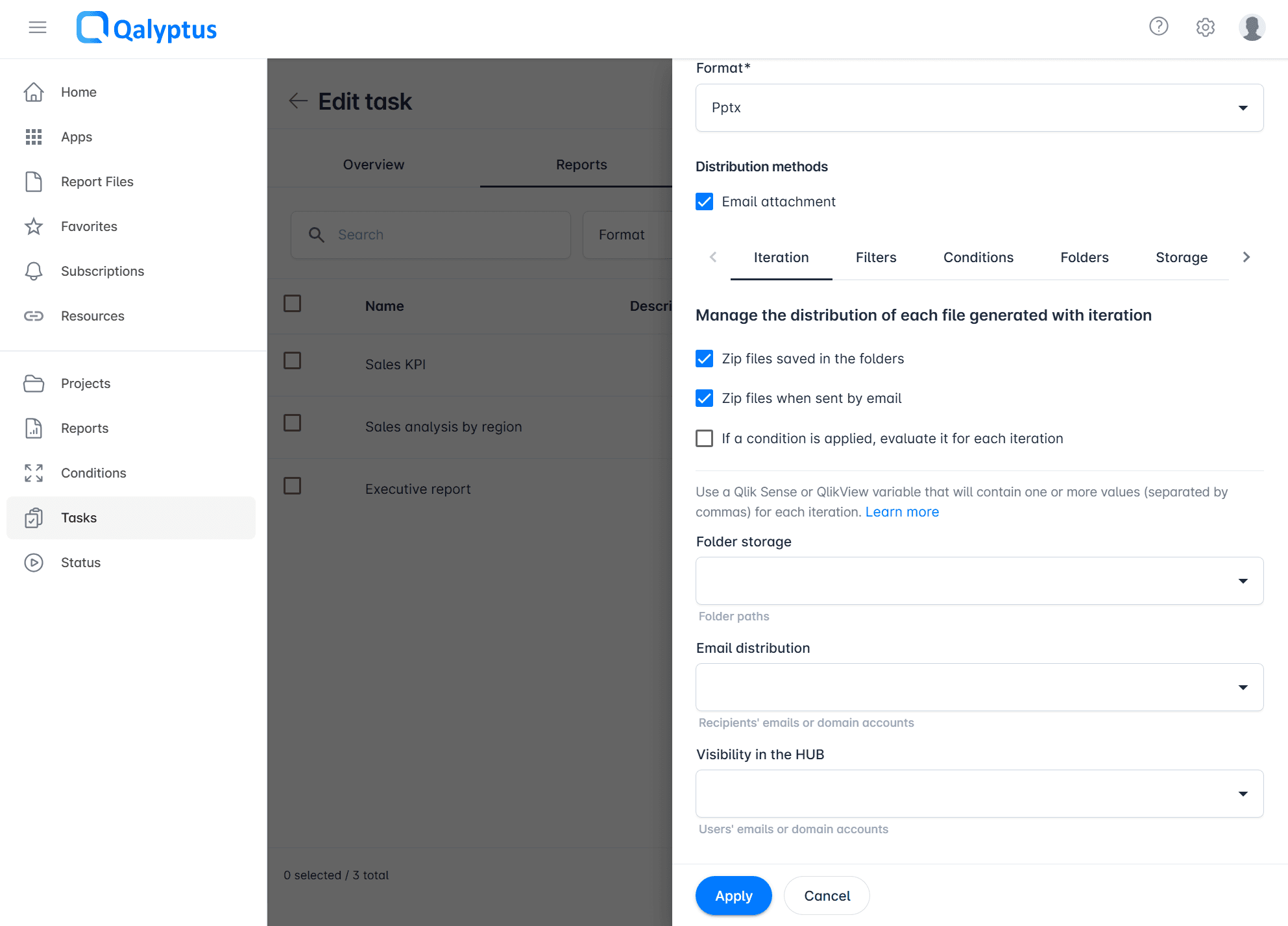
You can password-protect generated output files to restrict opening or editing. Password protection is supported for all file types that natively support it: XLSX, DOCX, PPTX, PDF, and others.
To enable protection, edit the task report and navigate to the Advanced tab, then check Secure output files and enter an open password, a write password, or both.
To remove protection, uncheck Secure output files and save the task.
When you edit a task report, existing passwords are hidden for security reasons. Leave the password fields empty to keep the current passwords unchanged.
Password Recommendation
Use different passwords for opening and modifying files.
Qalyptus applies the native protection mechanism of each file type. Users unlock protected files using the method supported by the corresponding application (e.g., Microsoft Office, Adobe Acrobat).
Distributing iteration reports to different recipients or folders
When a report uses iteration, you can use a Qlik Sense variable to dynamically route each generated file to a different email recipient, folder, or Hub visibility scope. This allows you to generate one report per value (e.g., per seller, per city) and deliver each file to the right person or location automatically.
Email distribution
Use a variable to send each iteration file to one or more recipients by email. The variable value for each iteration should contain the recipient's email address or domain account. To send to multiple recipients, separate values with a comma.
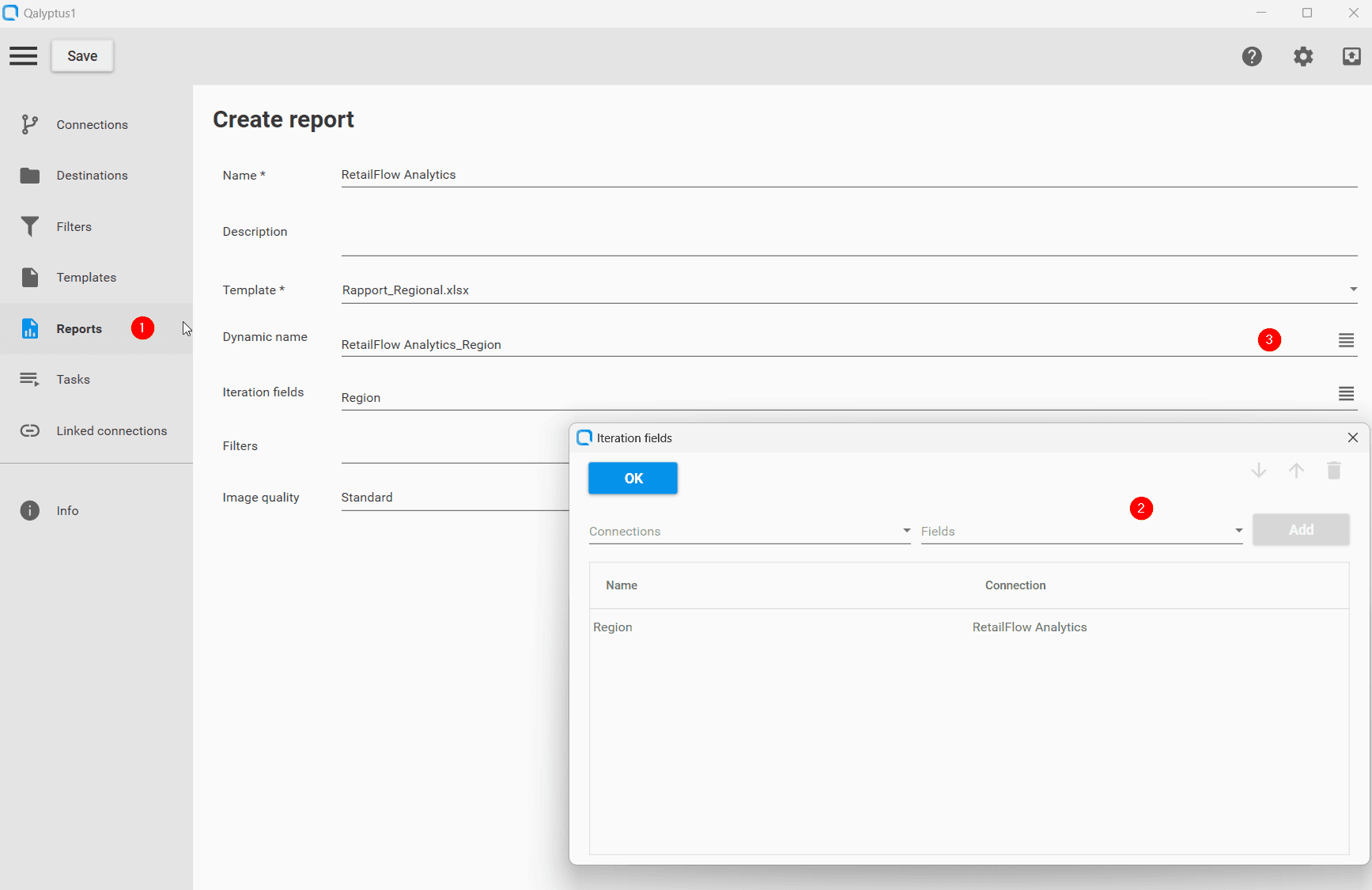
1- Create an iteration report
Start by creating a report in Qalyptus Desktop and select the Iteration fields option. This option lets you iterate over a field to generate multiple reports. Don't forget to add a Dynamic name to the report; using a unique name for each generated file is important.
2- Add the recipients' email addresses in your Qlik Sense app
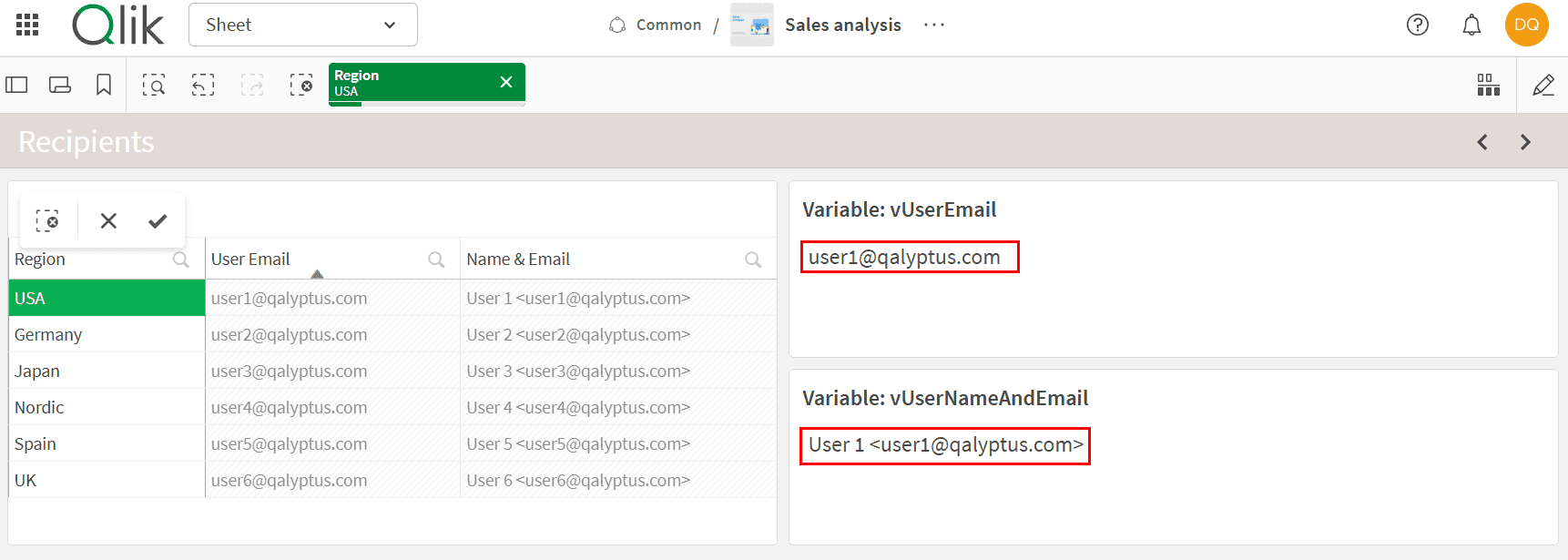
In the Qlik Sense app used to create the report, load the recipients' email addresses and link the email address field to the Iteration field chosen in your Qalyptus report. You can add email addresses in different ways: load them from your database, from an Excel file, from an Inline[] table, etc.
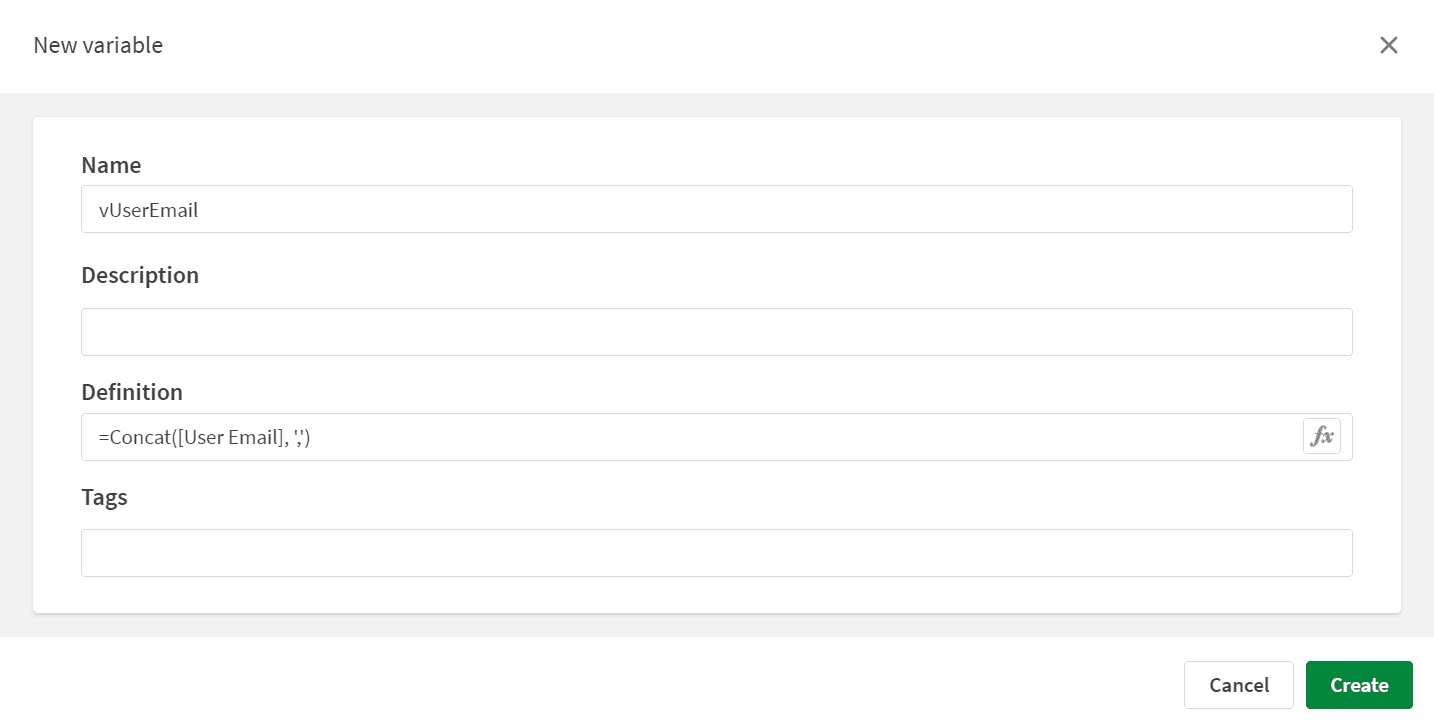
3- Create a variable for the emails
Once the recipients' email addresses are available in the Qlik Sense app, create a variable that returns the email address linked to each value of the Iteration field. The variable can return one or more email addresses separated by a comma. The variable expression may look like this: =Concat([E-mail address], ',')
4- Refresh the app metadata and publish the project
Before the new variable is available in Qalyptus Server, you must refresh the app metadata and publish the project. Without this step, the data in Qalyptus Server, including the variable you just created, is not updated, and the variable will not appear in the task's Email distribution drop-down list.
4.1- Refresh the app metadata
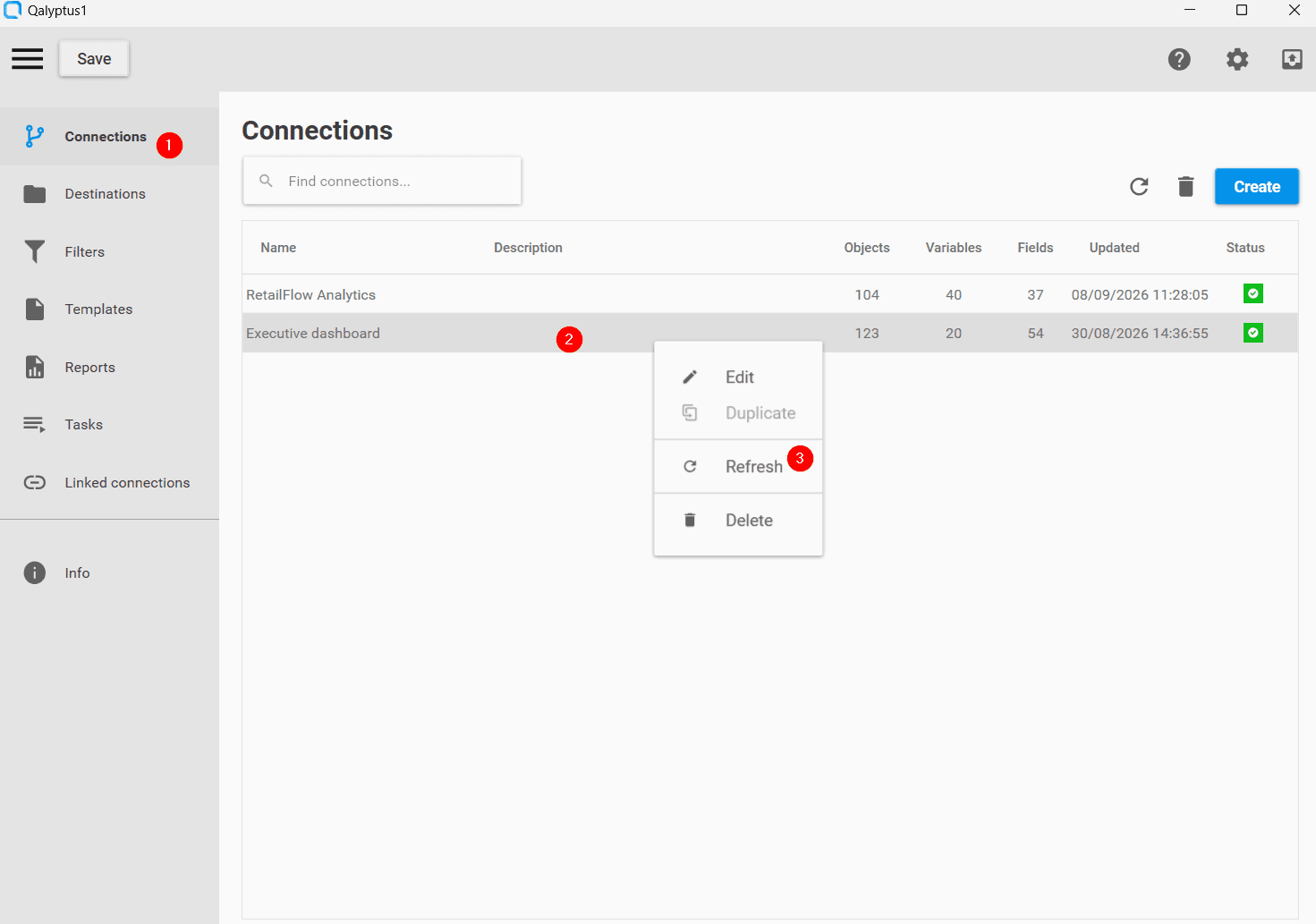
You need to refresh the app metadata to see the new variable.
- In Qalyptus Desktop, click Connections
- Stay on the Connections tab
- Right-click the app you want to refresh
- Click Refresh to refresh the app metadata
4.2- Publish the project to Qalyptus Server
Publish the project to Qalyptus Server so the refreshed metadata including the new variable is updated on the server.
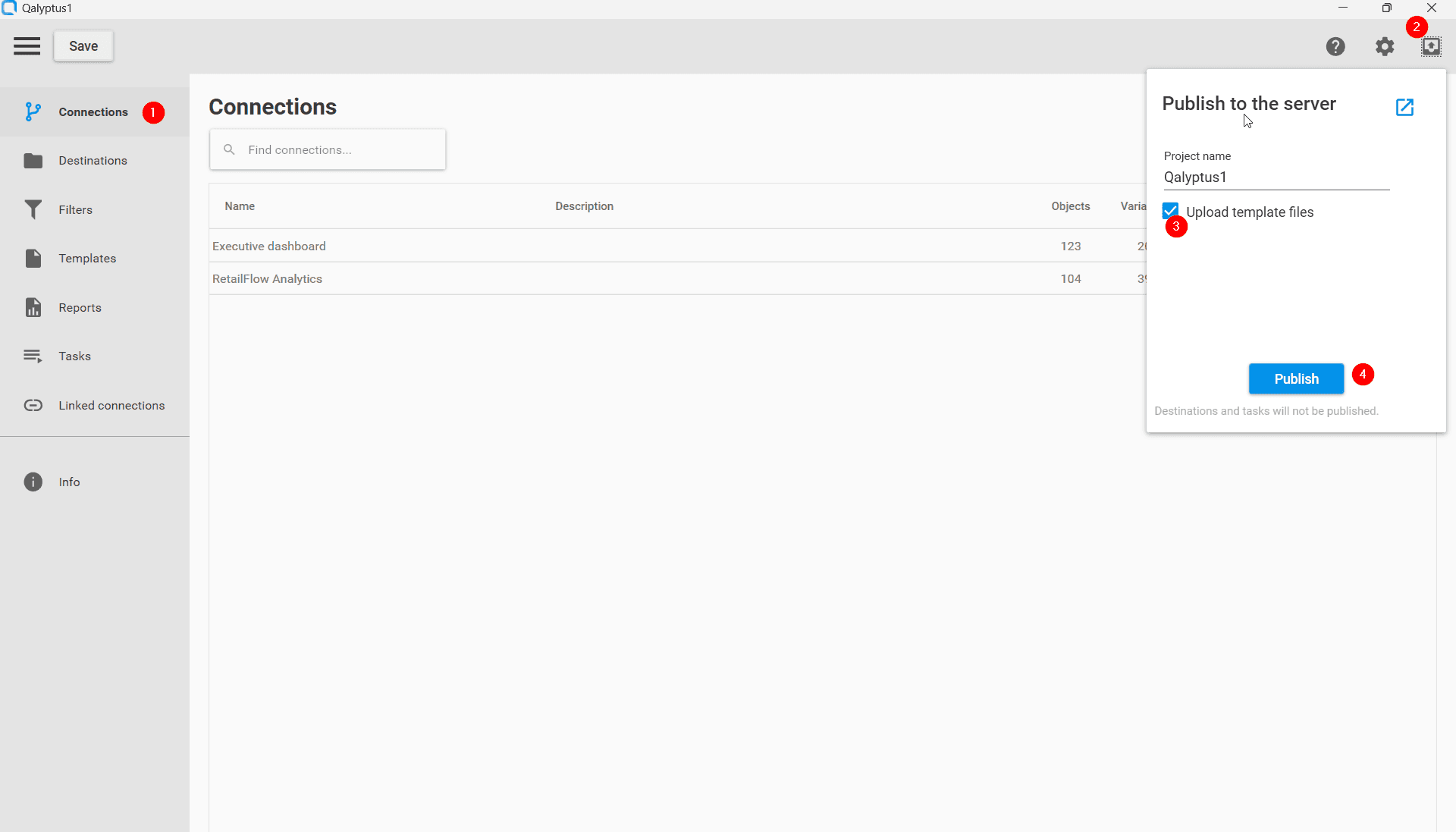
- In Qalyptus Desktop, click Connections
- Stay on the Connections tab
- Click the Publish to the server button
- A window opens. If you want to publish the template files as well, check the Publish template files check box
- If you are a member of more than one organization, choose the organization to which you want to publish the project
- Click the Publish button
- A confirmation message appears if your project is successfully published
5- Add the report to a task
Now that the project is published, you can set up report distribution to multiple recipients by filtering the data per recipient.
- In Qalyptus Server, go to Tasks
- Create a new task or edit an existing one
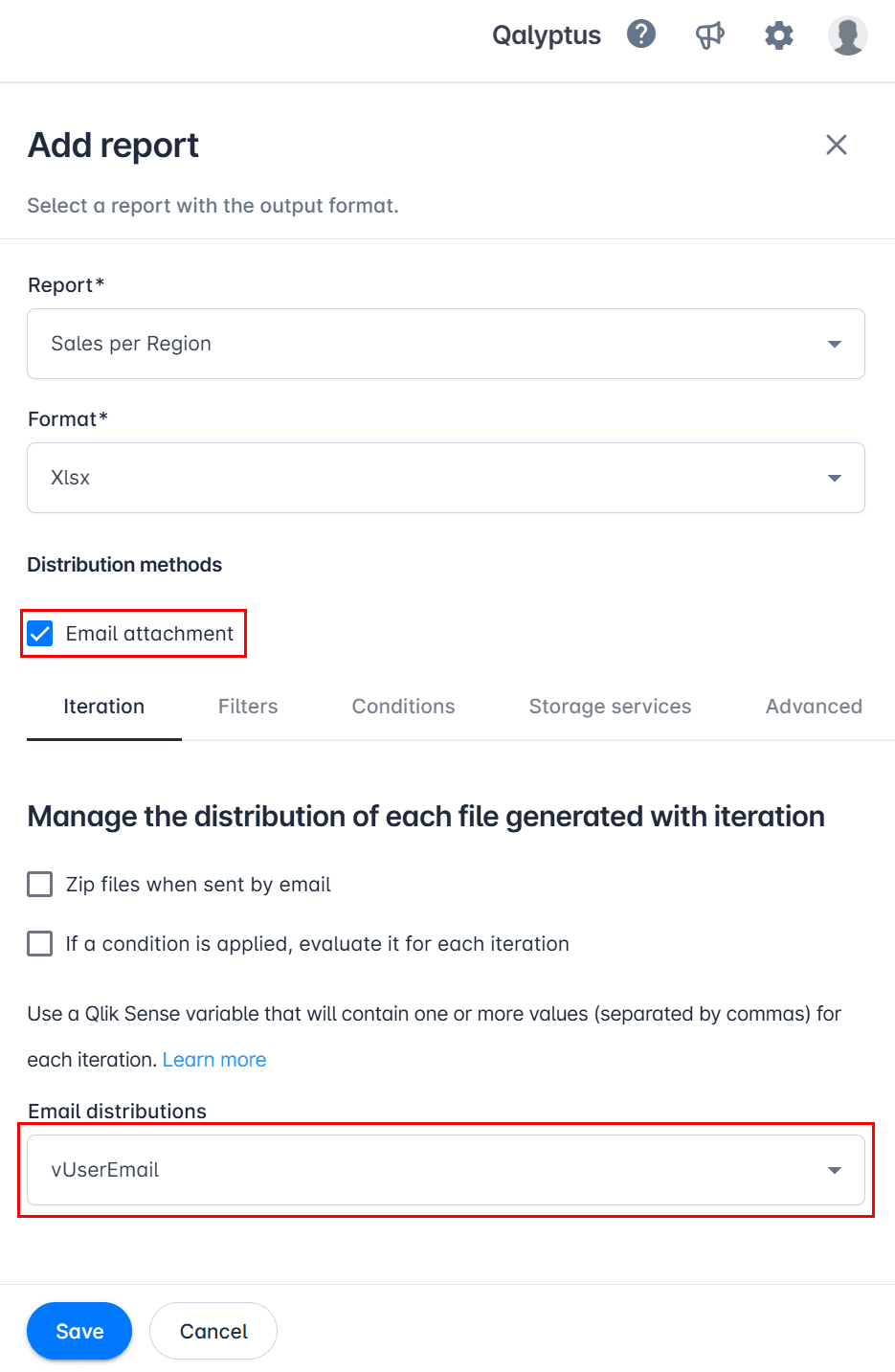
- In the Reports tab, click Add report
- Select the report and the output format
- Check the Attachment option to attach the file
- In the Iteration options section, select the variable you created earlier in the Email distribution drop-down list
- Click Save
After the task runs, each recipient will receive one or more reports.
We recommend enabling Test mode in your task to validate the result before sending the reports to the recipients.
Two scenarios are possible:
Suppose you have sales reps linked to one or more offices.
- To send one or more report files to a sales rep, choose the Sales rep field as the Iteration field.
- To send a single report file with the data of one or more offices, choose the E-mail address field as the Iteration field.
Qalyptus will send one email per user even if the user has more than one report. All of the user's reports will be attached to the same email.
If you want to send separate emails to a user who should receive multiple reports, use a tag (+xxx).
Example:
Before
| Office | |
|---|---|
| USA | [email protected] |
| USA | [email protected] |
| UK | [email protected] |
Qalyptus will send two emails. User 1 will receive one email with two reports.
After
| Office | |
|---|---|
| USA | [email protected] |
| USA | [email protected] |
| UK | [email protected] |
Qalyptus will send three emails. User 1 will receive two separate emails.
The following video demonstrates how to send the same report to different users with different data:
The video uses email addresses, but you can also use domain accounts.
Folder distribution
Use a variable to save each iteration file to a dynamic folder path. The variable value for each iteration should resolve to the target folder path.
Example 1 - Folder named after the iteration value:
You want to generate one report per city and save each file in a folder named after that city:
vStoragePathCityReport = 'D:\Marketing Files\' & City_nameThe report for City_name = Paris is saved to D:\Marketing Files\Paris.
Example 2 - Folder named after a related field:
You want to save city reports in folders named after the city's country:
vStoragePathCityReport = 'D:\Marketing Files\' & Country_nameThe report for City_name = Paris is saved to D:\Marketing Files\France.
Example 3 - Save to multiple folders:
To save each iteration file in multiple folders, use the Concat() function to produce a comma-separated path list:
vStoragePathCityReport = Concat('D:\Marketing Files\' & Manager_name, ',')Each city report is saved in one folder per manager responsible for that city.
Hub visibility
Use a variable to control which users can see each iteration file in Qalyptus Hub. The variable value should contain the email address or domain account of the users who should have access. To grant access to multiple users, separate values with a comma.
Example 1 - Each seller sees only their own report:
Create a variable that resolves to the seller's email or domain account during each iteration. Each seller will then only see the file generated for their data.
Example 2 - A seller's report is visible to both the seller and their manager:
Set the variable to a comma-separated list of the seller's and manager's identifiers:
vHubVisibility = Seller_email & ',' & Manager_email