Qlik Sense integration
Connect your tenant to Qlik Sense SaaS
Availability: All Qalyptus Cloud subscriptions
Overview
Qalyptus Cloud allows you to connect to Qlik Sense SaaS using Qlik credentials or a Qlik Sense API key.
Authenticate with Qlik Sense API key (recommended)
This option allows Qalyptus to connect to Qlik Sense using a JWT token created with the user's email address and a Qlik Sense API key. Users don't need to register their Qlik credentials in Qalyptus.
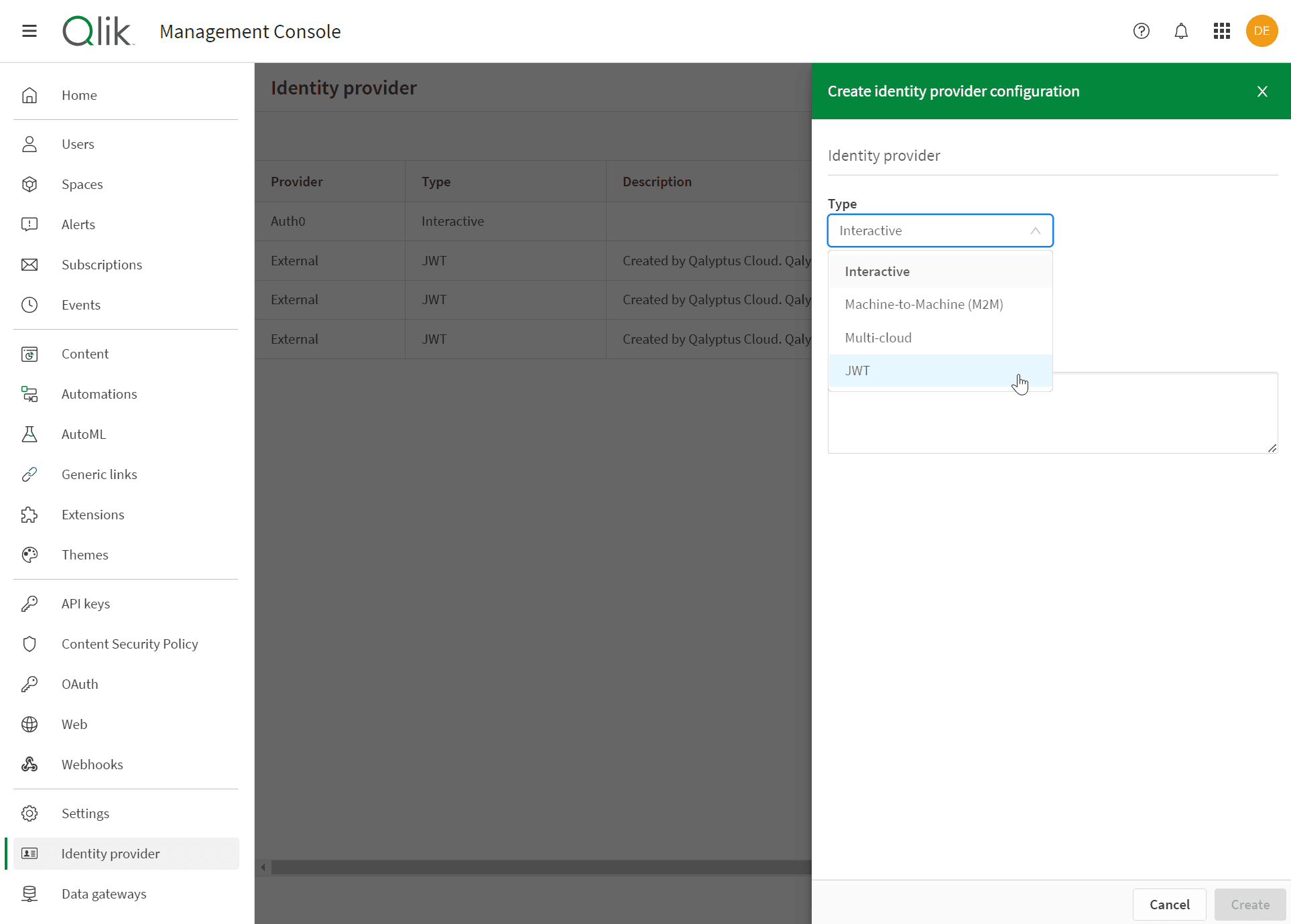
Authentication with the Qlik Sense API key is only available for Qlik Sense SaaS Enterprise. The JWT authorization capabilities must be activated in your Qlik Sense tenant.
By default, the JWT authorization capabilities are disabled in Qlik Sense Cloud. If they are not yet activated, contact your Qlik account manager explaining that you need to activate the JWT capability to allow embedded analytics and reporting.
See below how to check if JWT authorization capabilities are active in your Qlik Sense tenant.
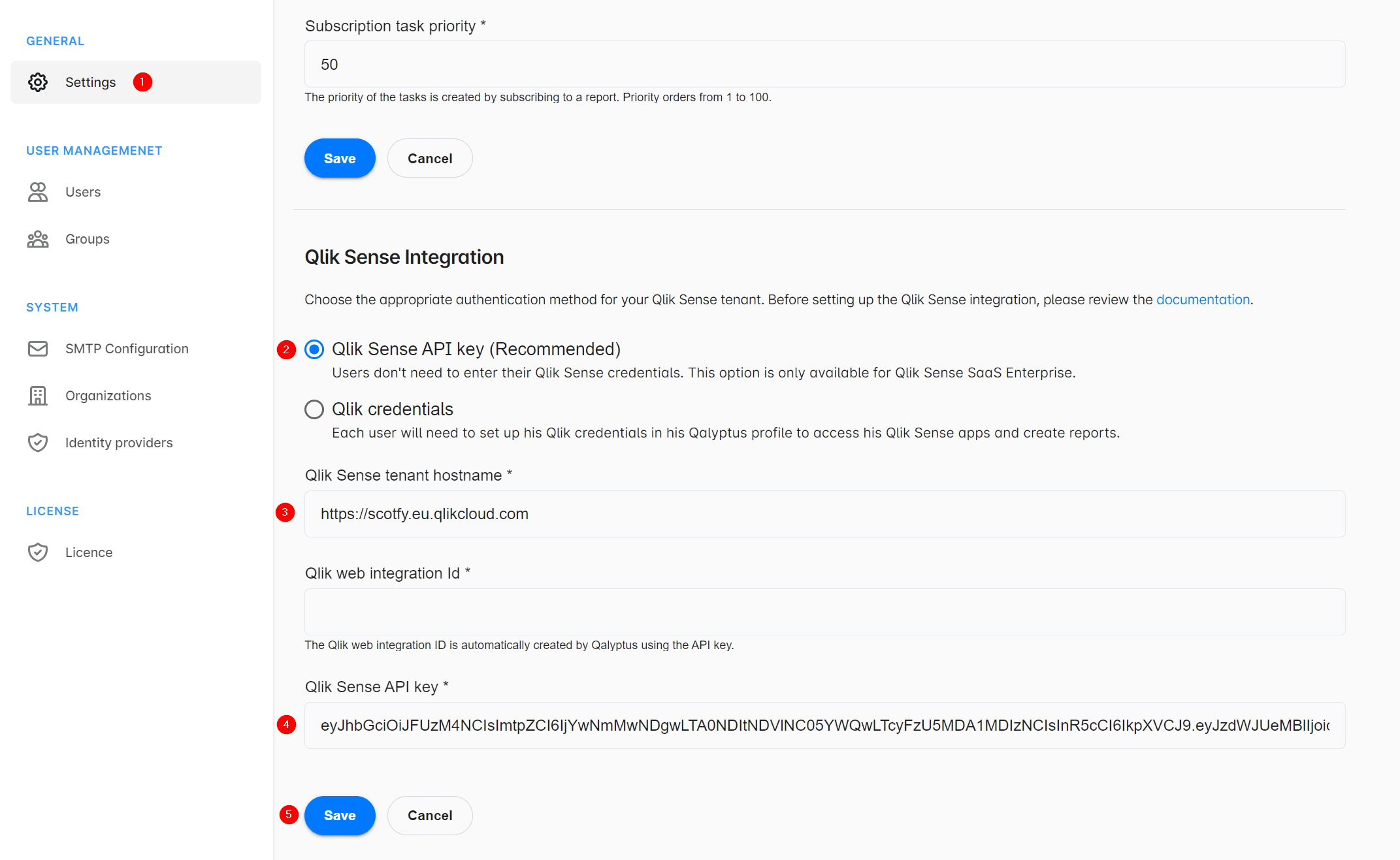
To configure authentication with the Qlik Sense API key, follow the steps below:
- Go to Administration > Settings.
- Go to the Qlik Sense Integration section.
- Enter your Qlik Sense tenant hostname.
- The Web Integration ID will be created by Qalyptus.
- Select the option Qlik Sense API key.
- Enter a Qlik Sense API key. See below how to create a Qlik Sense API key.
- Click Save.
After saving the information, Qalyptus now automatically renews the configured Qlik Sense API token two hours before it expires to avoid any interruption of use.
For security reasons, we recommend you choose a short duration for the Qlik Sense API key.
Qalyptus will identify the user using their email address. The user email address must be identical in Qalyptus Cloud and Qlik Sense SaaS.
Authenticate with Qlik credentials
This option allows Qalyptus Cloud to connect to Qlik Sense using the user's Qlik credentials (email and password). Each user in your Qalyptus tenant must register their Qlik Sense credentials in their Profile.
You can only use this option if the Identity Provider is not configured in your Qlik Sense tenant. In other words, you connect to the Qlik Sense tenant using the Qlik authentication system.
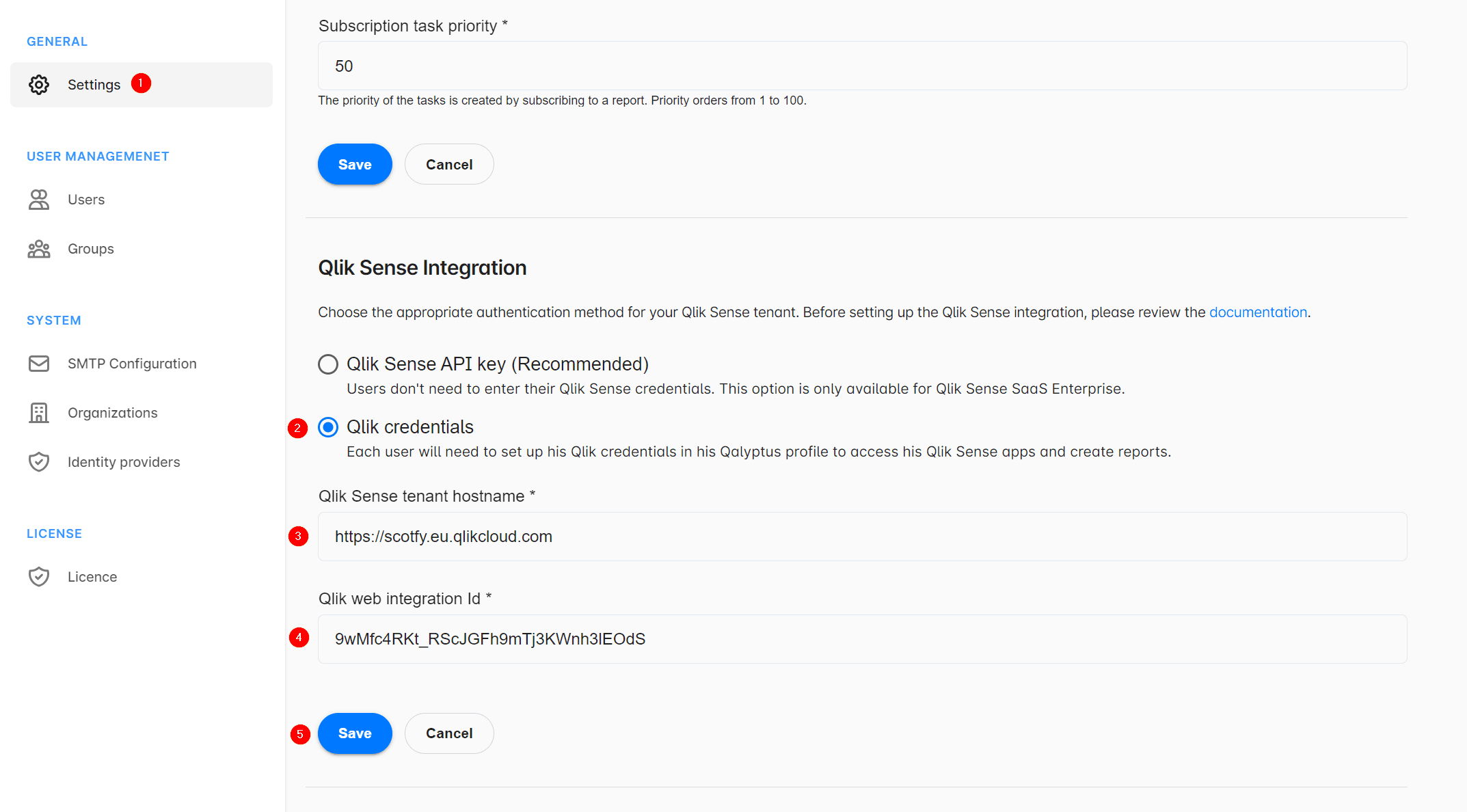
To configure the Qlik credentials authentication, follow the steps below:
- Go to Administration > Settings.
- Go to the Qlik Sense Integration section.
- Select the option Qlik credentials.
- Enter your Qlik Sense tenant hostname.
- Enter a Web Integration ID. See below how to create a Web Integration ID in Qlik Sense.
- Click Save.
Qalyptus will use the user's Qlik credentials (email and password) to authenticate to Qlik Sense. The user email address must be the same in Qalyptus Cloud and Qlik Sense SaaS.
Create a Web Integration ID
A Qlik Sense Web Integration ID will authorize your Qalyptus Cloud tenant to connect to your Qlik Sense SaaS tenant.
Follow the steps described below to configure a Qlik Sense Web Integration ID.
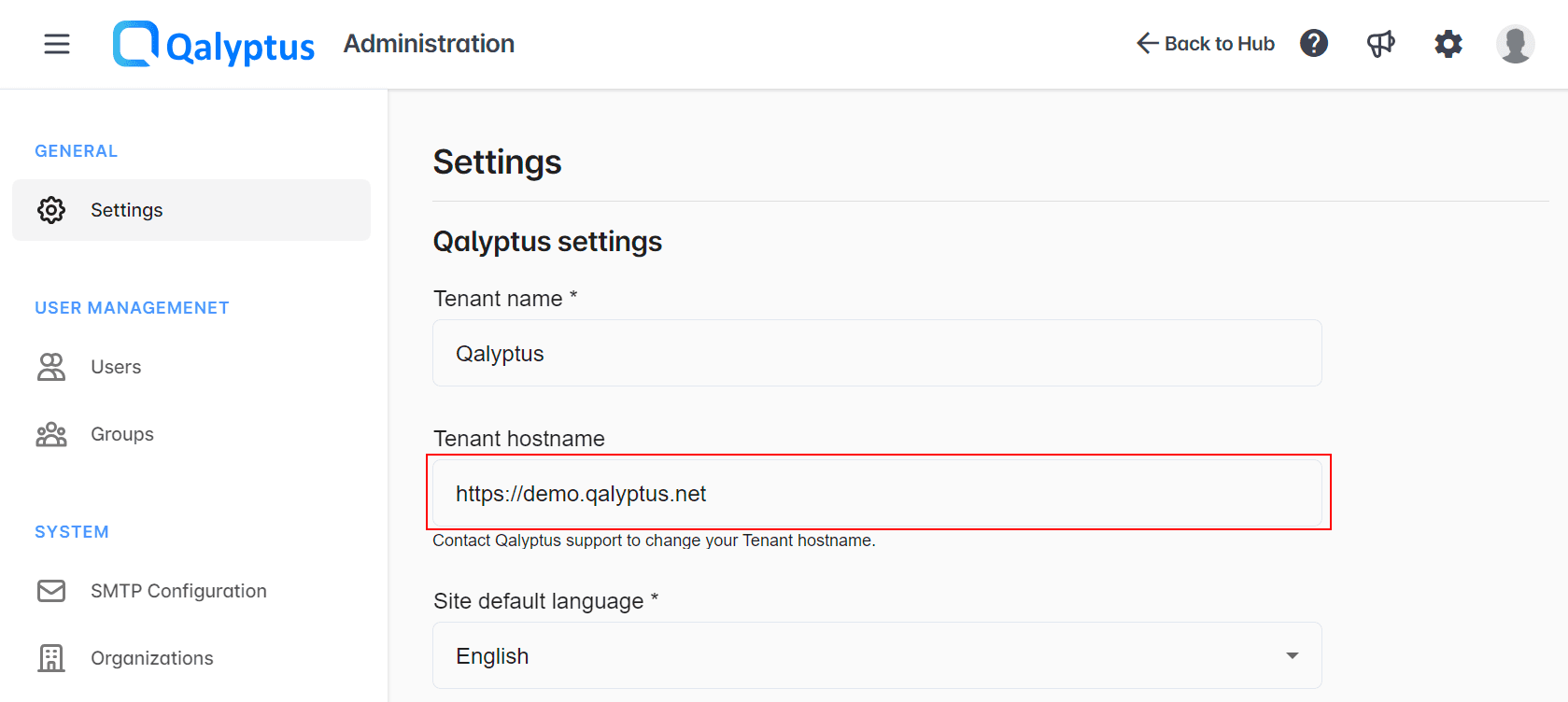
- In Qalyptus Cloud, go to Administration > Settings
- Copy the Tenant hostname
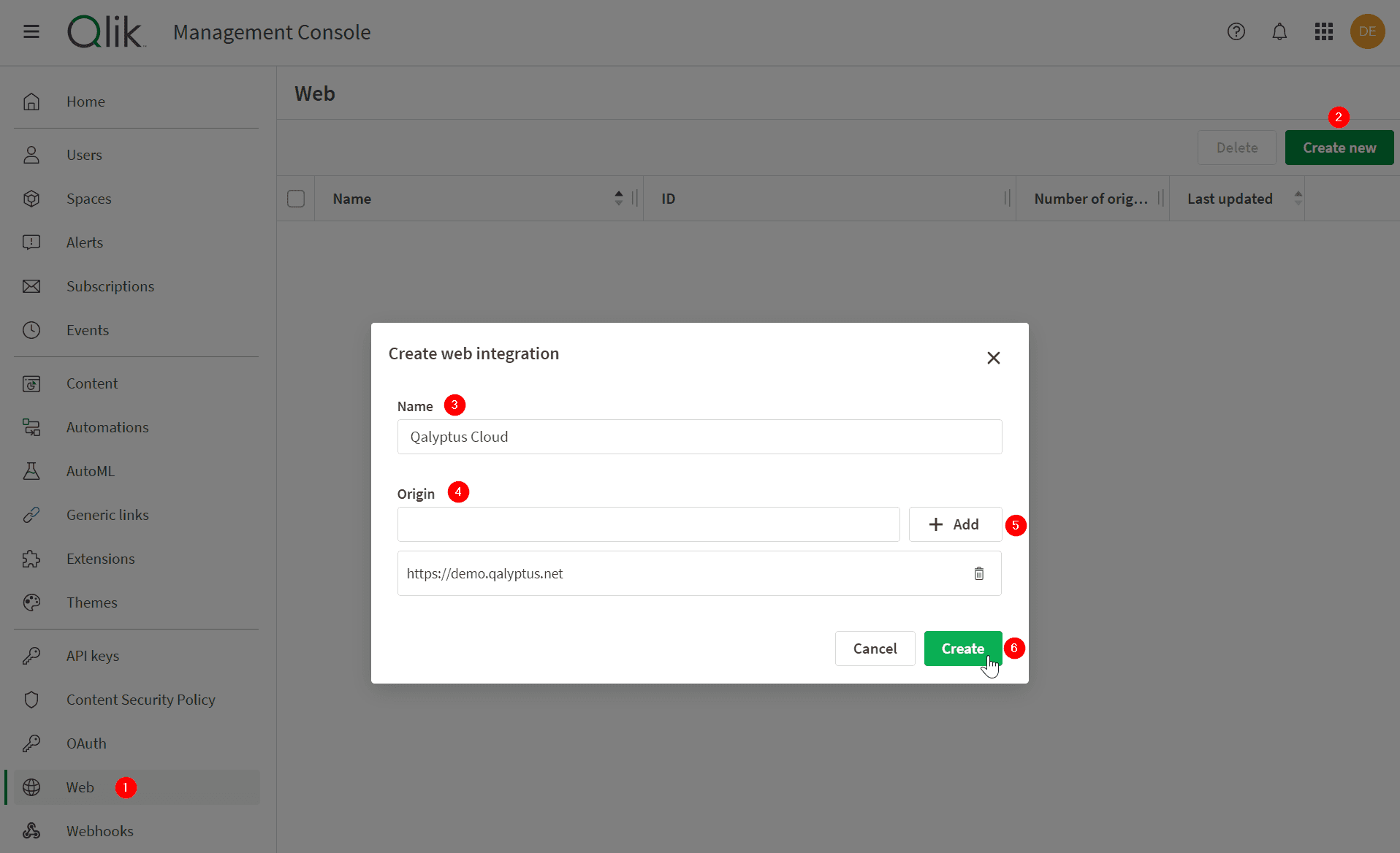
- Open Qlik Sense SaaS
- Go to Console Management > Web
- Click Create new
- Enter a name of your choice
- Paste the Qalyptus Cloud Tenant hostname copied previously and click Add
- Click Create
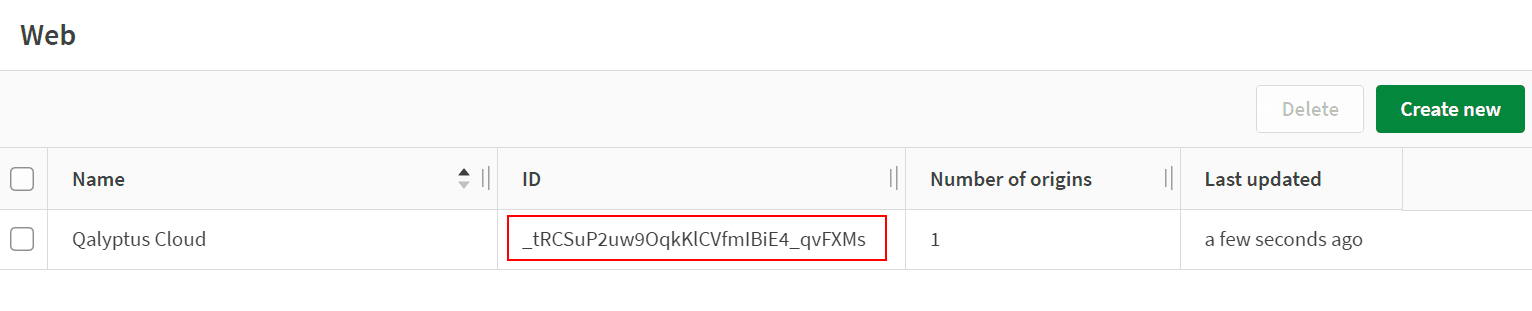
- A Web Integration ID will be generated
- Copy the Web Integration ID
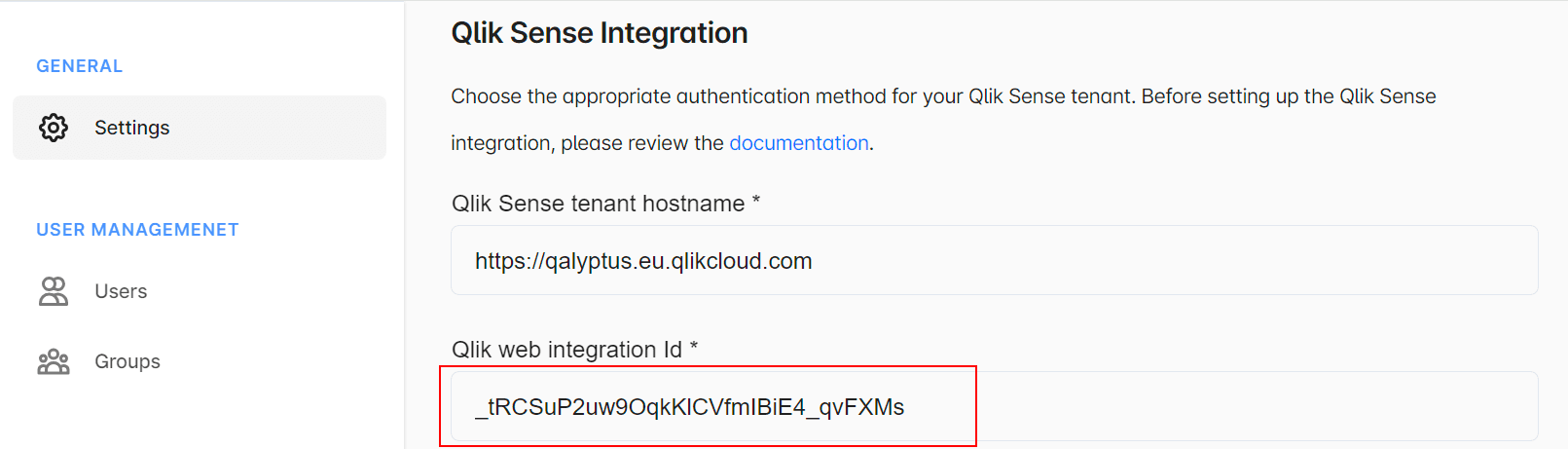
- Paste the Web Integration ID in Qalyptus > Settings > Qlik web integration ID
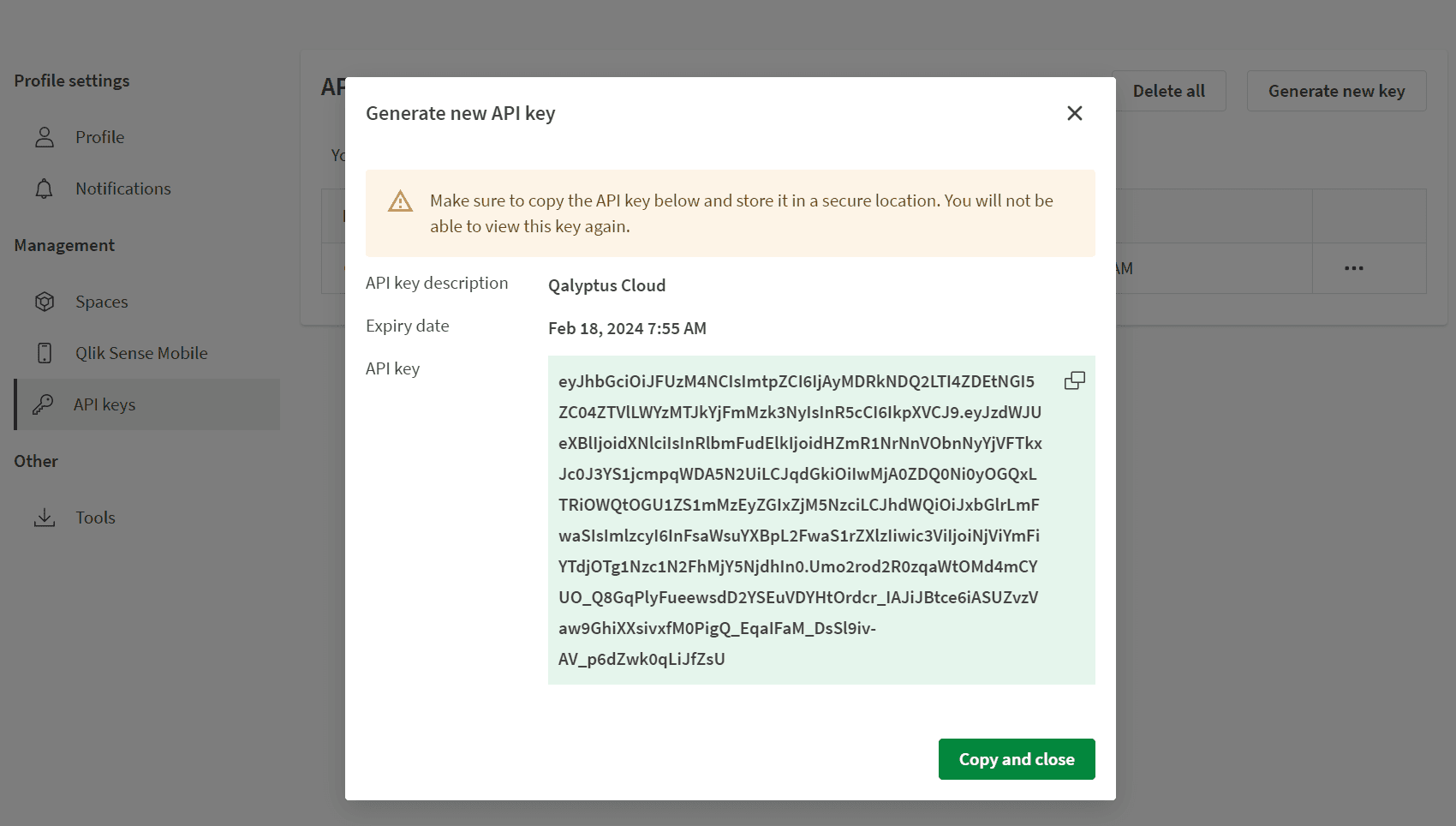
Generate a Qlik Sense API key
A Qlik Sense API key can be generated from the user profile in Qlik Sense SaaS. Before generating a Qlik Sense API key, make sure that API key generation is enabled in Qlik Sense Settings and that the user who will generate the API key has a Developer role.
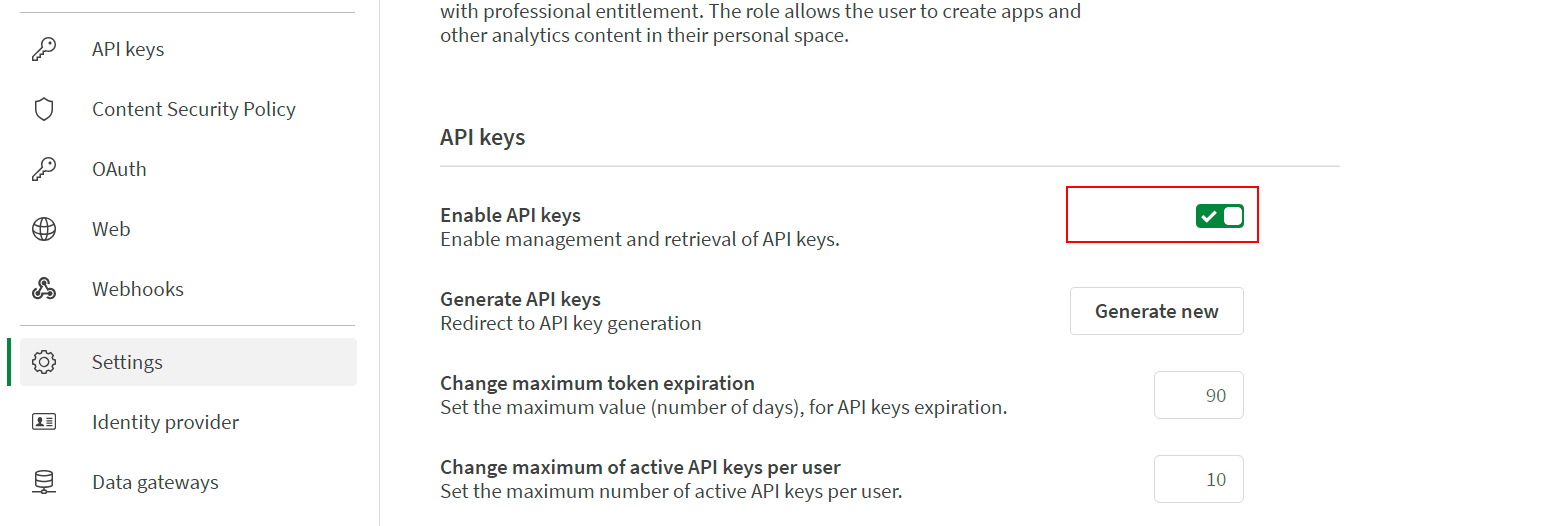
1. Enable API keys
Navigate to Qlik Sense Console Management > Settings and ensure the Enable API keys option is active.
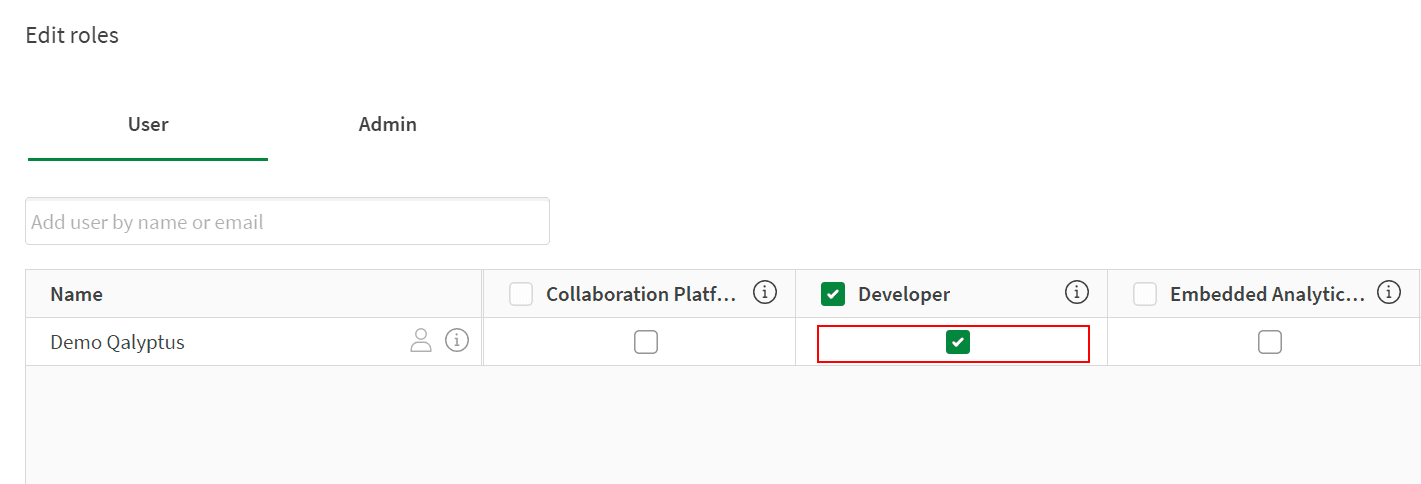
2. User has the Developer role
Navigate to Qlik Sense Console Management > Users, click to edit the user roles, and ensure they have the Developer role.
3. Generate the API key
Follow the steps below to generate a Qlik Sense API key.
- In Qlik Sense SaaS, click the avatar in the upper-right corner of the screen
- Click Profile settings
- In the Management section, click API keys
- You will see all your existing API keys
- Click Generate new key
- Enter a description
- Set the expiration time from the drop-down list. Set at least 3 days
- Click the Generate button to generate the API key
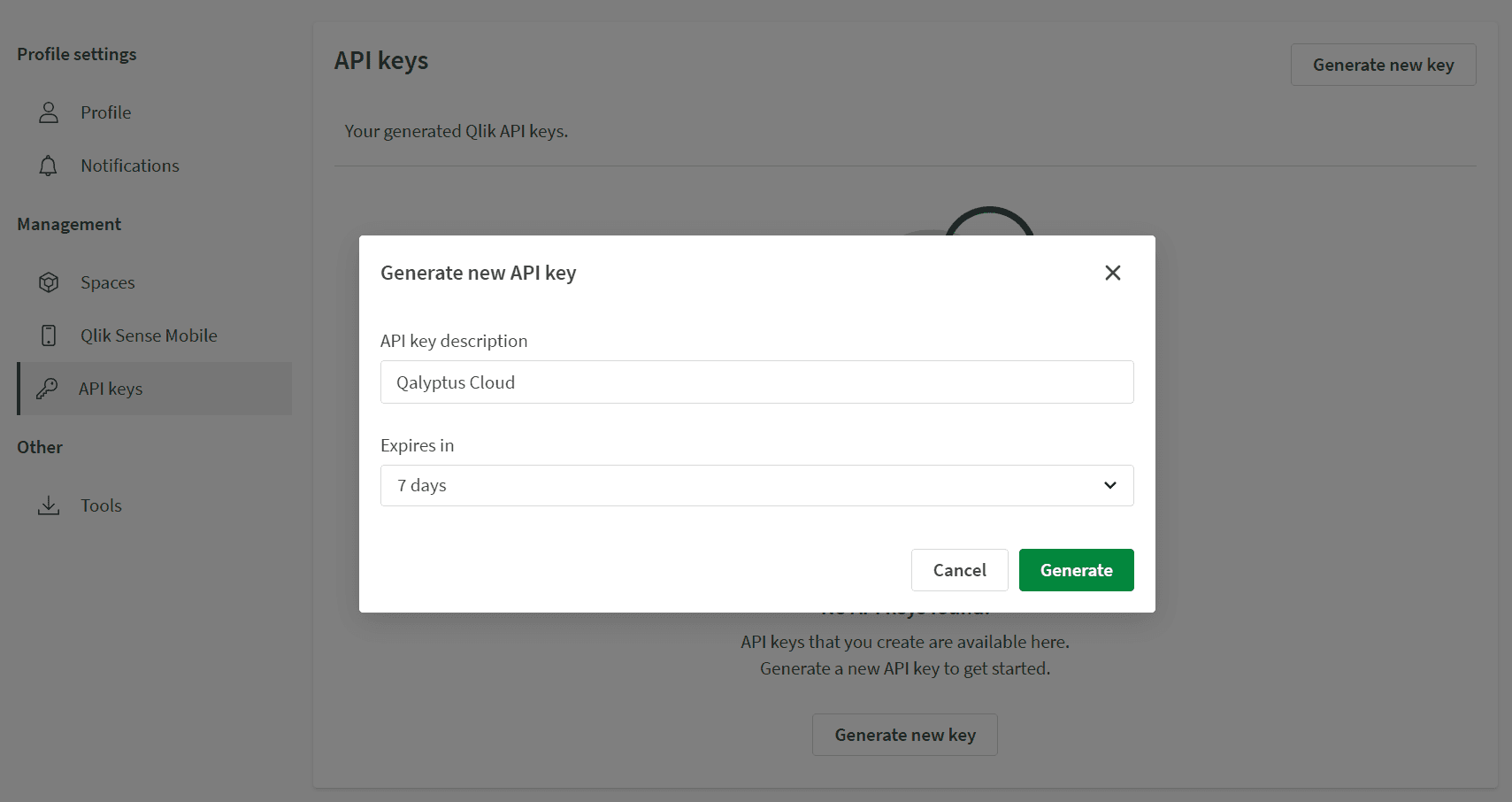
- The generated API key appears. Copy it and paste it in Qalyptus Cloud settings
After using the API key in Qalyptus Cloud, it will be renewed automatically one day before it expires.